PowerEdge: BIOS and iDRAC Settings That Disable iDRAC Direct Functionality
Summary: This article explains iDRAC and BIOS settings that disable or limit iDRAC Direct functionality
Instructions
The iDRAC Direct USB port allows direct connection to iDRAC using a USB cable, even if iDRAC has never been configured. However, certain iDRAC and BIOS settings can disable the port entirely or limit functionality to when the system is powered off (S5 state). This article explains which settings affect iDRAC Direct and how to verify and correct them.
These settings will need to be confirmed either by accessing iDRAC through its network interface or by utilizing a monitor and keyboard.
iDRAC Direct on PowerEdge 17G
PowerEdge 17G servers, with iDRAC10, use a USB‑C iDRAC Direct port, replacing the older micro‑USB design. For more information on how to enable and use this feature, please see: How to Use the iDRAC Direct Feature
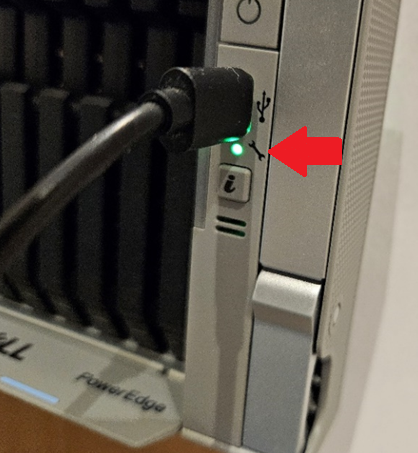
Checking Settings from iDRAC
Note: If you are unsure of your iDRAC IP or otherwise cannot access iDRAC over the network, skip to the Keyboard and Monitor section below.
iDRAC9 and iDRAC10 (prior to version 1.20.60.50)
- Navigate to iDRAC Settings -> Management USB
- Ensure USB Management Port is set to Enabled (default)
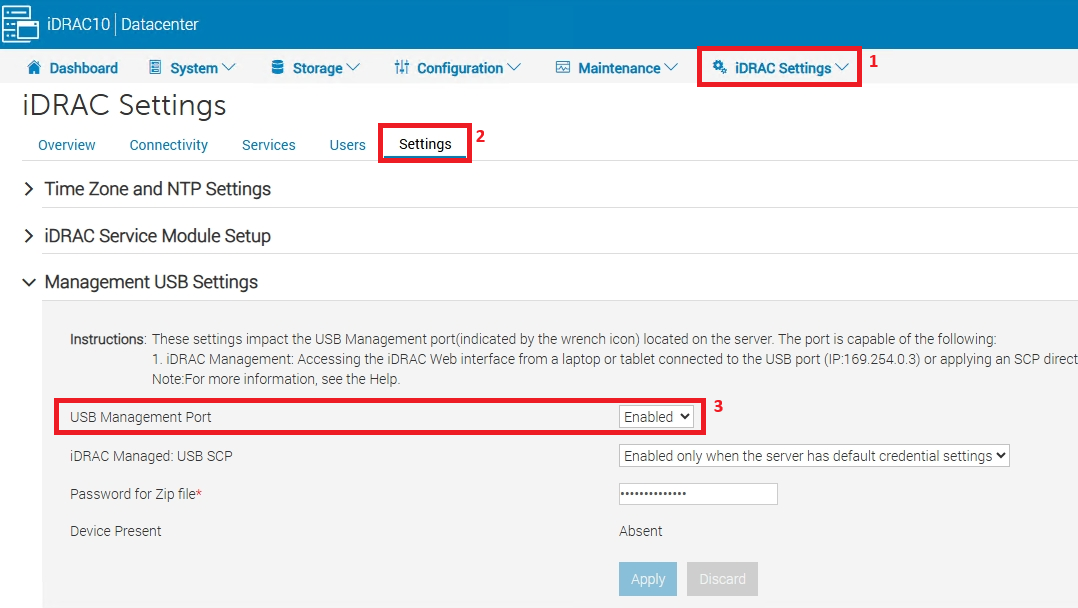
-
Note: Applying this change (if required) does not require a system reboot
- Navigate to Configuration -> BIOS Settings -> Integrated Devices
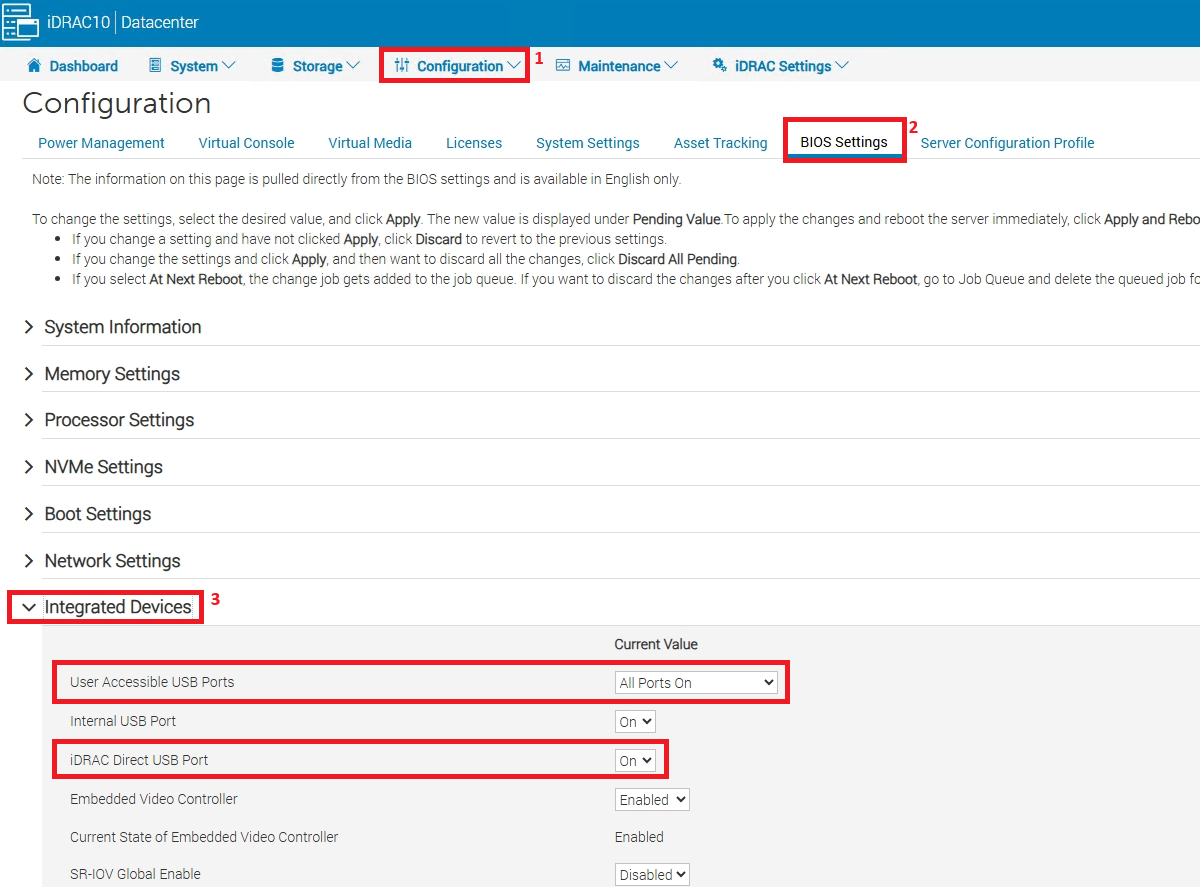
- User Accessible USB Ports by default is set to All Ports On
-
User Accessible USB Ports Setting Front USB/iDRAC Direct Behavior All Ports On (Default) Fully functional in all states Only Back Ports On Works only in S5 All Ports Off (Dynamic) + Enable Front Ports Only = Enabled iDRAC Direct works normally All Ports Off Works only in S5
-
- iDRAC Direct USB Port is the same setting as the first step in this section - USB Management Port.
- If changes are desired, make the changes and then hit Apply. You must then either select Apply and Reboot (now) or At Next Reboot (later)
-
Note:A reboot is required to apply these new BIOS changes.
-
iDRAC10
- Navigate to iDRAC Settings -> Management USB
- Ensure USB Management Port is set to Enabled (default)
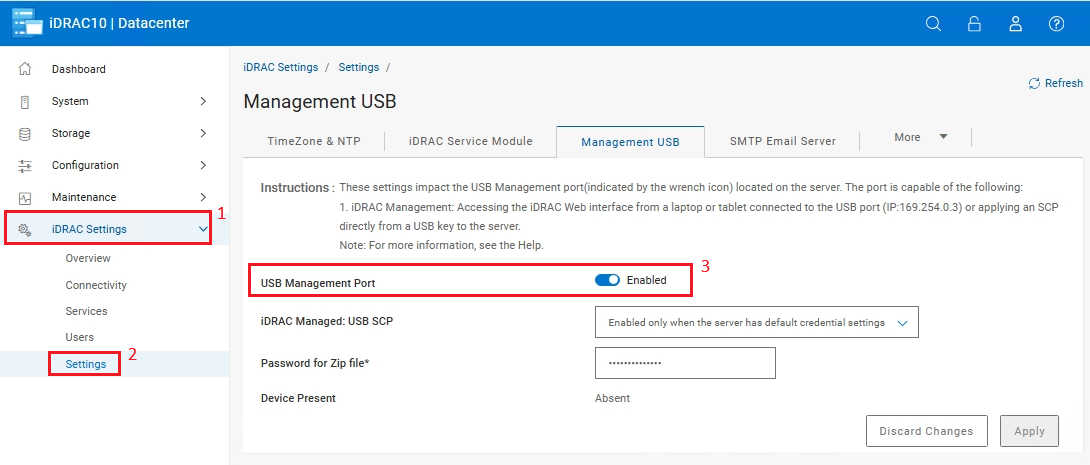
- Note: Applying this change (if required) does not require a system reboot
- Navigate to Configuration -> BIOS Settings -> Integrated Devices
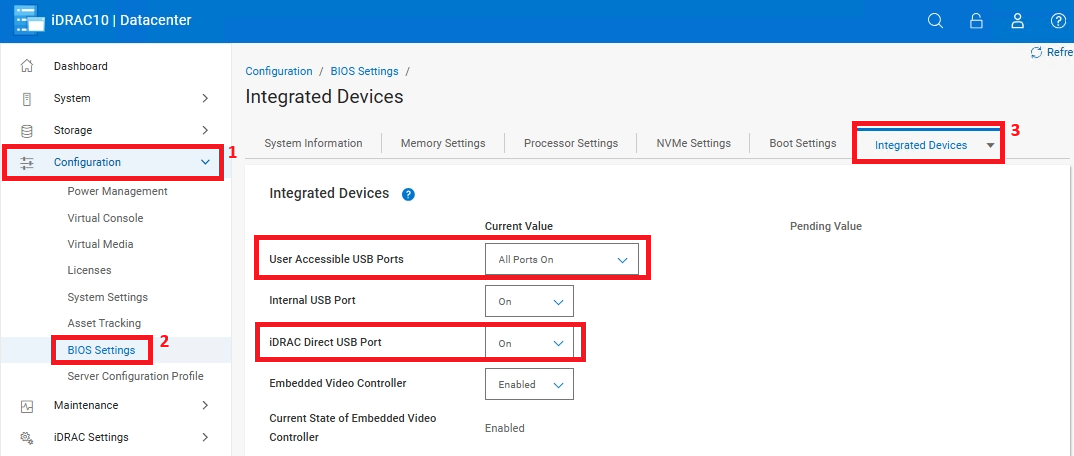
- User Accessible USB Ports by default is set to All Ports On
-
User Accessible USB Ports Setting iDRAC Direct Behavior All Ports On (Default) Fully functional in all states Only Back Ports On Works when system is off (S5 State), stops working when system is on (S0 State) All Ports Off (Dynamic) + Enable Front Ports Only = Enabled Fully functional in all states All Ports Off Works only in S5
-
- iDRAC Direct USB Port is the same setting as the first step in this section - USB Management Port.
- If changes are desired, make the changes and then hit Apply. You must then either select Apply and Reboot (now) or At Next Reboot (later)
-
Note: A reboot is required to apply these new BIOS changes.
-
Checking Settings with Monitor and Keyboard:
- Plug in a keyboard and monitor and confirm they are functioning
- Reboot the server
- During POST, hit F2 to enter setup
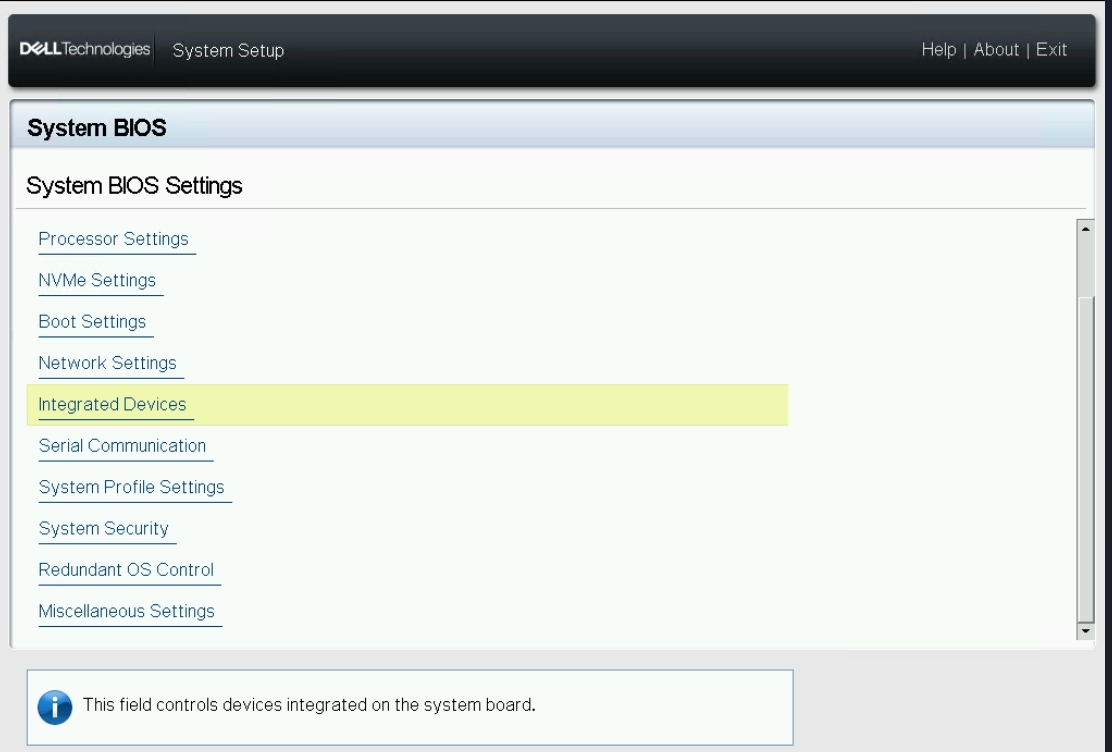
- Select System BIOS
- Select Integrated Devices
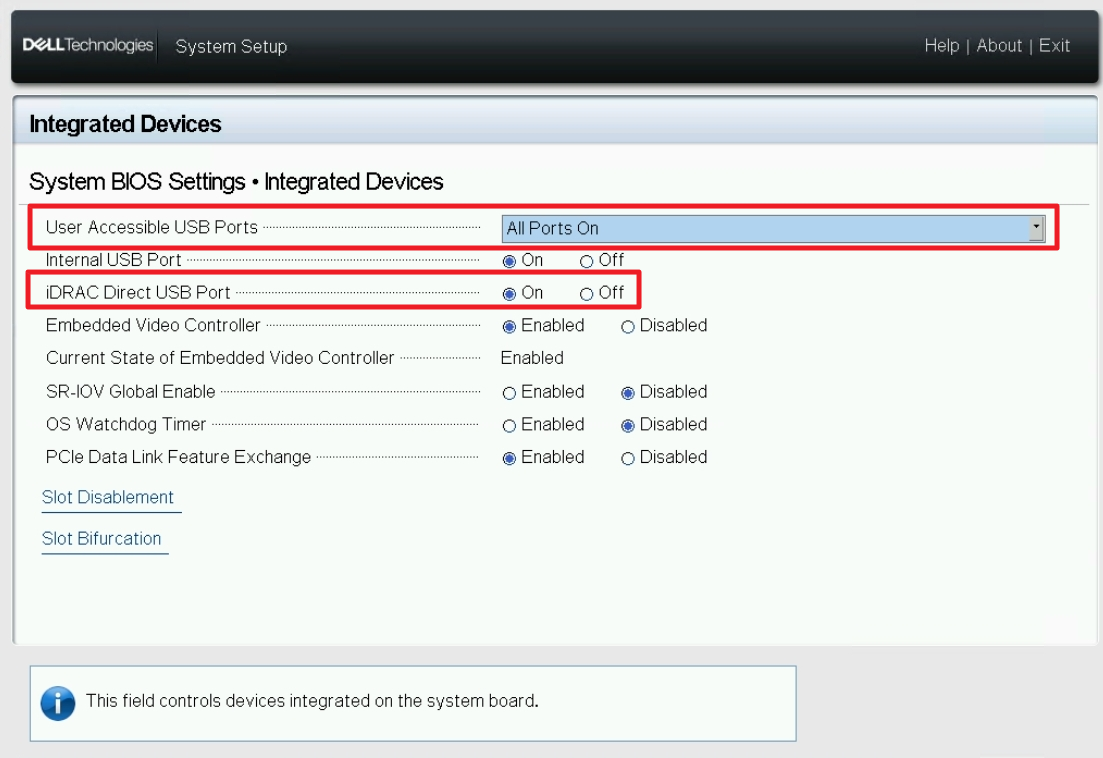
- User Accessible USB Ports by default is set to All Ports On
- If this is set to Only Back Ports On iDRAC Direct will only function when the server is off (S5 power state), it will stop working once the server turns on (S0 power state)
- If this is set to All Ports Off (Dynamic) a new option directly under this will be added called Enable Front Ports Only. If this new option is set to Enabled the iDRAC Direct port will function as expected
- If this is set to All Ports Off iDRAC Direct will only function when the server is off (S5 power state), it will stop working once the server turns on (S0 power state)
- iDRAC Direct USB Port should be set to Enabled (default)
- User Accessible USB Ports by default is set to All Ports On
- If changes are made, confirm applying them as exiting and rebooting the server.
For more information, see the:
Dell Info hub article: iDRAC10: Direct USB Access for Full PowerEdge Server Control
Support Article: How to Use the iDRAC Direct Feature