Data Domain: How to collect and upload a core dump file
Summary: This article describes how to verify if an unexpected event has generated a process or kernel core file on a Data Domain. It also provides instructions for locating the corresponding file and uploading it for analysis by Data Domain support and engineering. ...
This article applies to
This article does not apply to
This article is not tied to any specific product.
Not all product versions are identified in this article.
Instructions
Table of Contents
Introduction
Data Domain appliances run a Linux-based operating system known as the Data Domain Operating System (DDOS). DDOS is configured such that if a process within it (or the DDOS kernel itself) crashes, a corresponding core dump file is created. Data Domain support can also force the creation of core files when investigating certain issues.
A core file contains an image of the working memory that the process or kernel was using at the point of termination. This can be invaluable for root cause analysis of a crash.
A core file contains an image of the working memory that the process or kernel was using at the point of termination. This can be invaluable for root cause analysis of a crash.
When a process running on a Data Domain terminates unexpectedly:
- The process halts.
- An image of the working memory of the process is dumped to a dedicated area of disk (the dump device).
- The process exits and can then be restarted (this usually takes place automatically).
- Dumped information is read from the dump device and written to a compressed core dump file while the process is restarting.
- While it is being initially written, the core file is named '
core-incomplete.gz' and is staged to a temporary directory named/ddr/var/core/app-[YYYYMMDD]-[HH.MM]. For example:/ddr/var/core/app-20160902-04.05: -rw-r--r-- 1 root root 32538624 Sep 2 04:05 core-incomplete.gz - Once the dump has finished, the core file is moved to the /ddr/var/core directory. For example:
-rw-r--r-- 1 root root 87980106 Sep 2 04:06 /ddr/var/core/ddfs.core.25935.1472814293.gz
Additional notes:
- The uncompressed size of the core dump file is directly proportional to the amount of memory the process was using at the time of termination. As a result, core dump files from some processes such as the Data Domain File System (DDFS) may be close in size to the amount of RAM installed in the Data Domain. Even once they are compressed, these core dump files may still be dozens of gigabytes in size.
- It takes time for the contents of a terminating process's memory to be written to the dump device. For large processes this can take many minutes. There may be a short delay before the terminating process exits and can be resumed.
- A core dump file may not be generated after every unexpected termination of a process. This depends on there being sufficient space to write the compressed core dump file in the
/ddr/var/coredirectory and the type of issue encountered. - Compressed core dump files may be written to a location other than
/ddr/var/core. On larger systems, for example, core dump files may be under/ddr/var/ext. If this happens, however, the system creates a symbolic link in the/ddr/var/coredirectory pointing to the physical core dump file. All steps in this article can still be followed.- NOTE: The
/ddr/var/extdirectory may not be accessible if it is on a separate partition and the access is through CIFS for a share mapped to/ddvar/. Errors like "the request is not supported" may appear in Windows Explorer. If this occurs, contact your contracted support provider for a workaround.
- NOTE: The
- The name of the core dump file contains information that can be used to identify the process that created the dump and the time and date of creation. For example:
${PROCESS_NAME}.core.${PID}.${UNIX_EPOCH}.gzPROCESS_NAME: The name of the process that terminated and generated this core dump filePID: The ID that the process was using at the point of terminationUNIX_EPOCH: Time in seconds since January 01, 1970, when the process core dump was created
When the DDOS kernel crashes:
- The operating system halts
- An image of the working memory of the DDOS kernel is dumped to a dedicated area of disk (the dump device)
- The system automatically reboots
- DDOS checks the dump device during boot to locate a valid 'kernel dump'
- In parallel to the system booting, the kernel dump is read from the dump device and written to a compressed core dump file
- The core dump file is located in its own directory under
/ddr/var/coreand is always namedvmcore.gz. For example:/ddr/var/core/kernel-20141125-16.50: -rw-r--r-- 1 root admin 102603347 Nov 25 2014 vmcore.gz
Additional notes:
- It takes time for the working memory of the DDOS kernel to be dumped to disk. There may be a short delay before the system reboots.
- A core dump file may not be created after every unexpected termination of the DDOS kernel. This depends on there being sufficient space to write the compressed core dump file to the
/ddr/var/coredirectory and the type of issue encountered. - The name of the directory containing the core dump file indicates the date and time at which the core dump was created. This is always named
kernel-[YYYYMMDD-HH.MM].
Identifying core dumps on the Data Domain
It is first necessary to identify which core dump files exist on a Data Domain. This can be done by listing the contents of the
/ddr/var/core directory.
Identifying core files using the Data Domain command line:
- Log in to the Data Domain command line.
- Run the '
support coredump list' command. This lists the contents of the/ddr/var/coredirectory.# support coredump list File Size Time Created ------------------------------------- --------- ------------------------ ddfs.core.11539.1460540776.gz 470.1 MiB Wed Apr 13 02:49:33 2016 ddfs.core.16431.1456839840.gz 117.7 MiB Tue Mar 1 05:45:21 2016 ddfs.core.2088.1460394487.gz 39.2 MiB Mon Apr 11 10:09:00 2016 sms.core.5335.1458725501.gz 4.8 MiB Wed Mar 23 02:31:42 2016 ------------------------------------- --------- ------------------------
Note: This command only lists process core files and does not provide details of kernel core files.
Identifying core files using an external FTP/FTPS client:
- Confirm that the FTP or FTPS service is enabled on the Data Domain and that the client system is an allowed host (refer to the Additional Information section of this article for details).
- Connect to the Data Domain using the FTP/FTPS client. The username used to establish the connection must have admin permissions on the Data Domain:
$ ftp 10.10.10.10 ... Name (10.10.10.10:admin): sysadmin 331 Please specify the password. Password: 230 Login successful. Remote system type is UNIX. Using binary mode to transfer files. ftp> - Move to the '
core' directory and list its contents:ftp> cd core 250 Directory successfully changed. ftp> ls core 200 PORT command successful. Consider using PASV. 150 Here comes the directory listing. -rw-r--r-- 1 0 0 492903386 Apr 13 09:49 ddfs.core.11539.1460540776.gz -rw-r--r-- 1 0 0 123426535 Mar 01 2016 ddfs.core.16431.1456839840.gz -rw-r--r-- 1 0 0 41100854 Apr 11 17:09 ddfs.core.2088.1460394487.gz drwxr-xr-x 2 0 0 4096 Sep 08 08:48 kernel-20160906-01.14 drwx------ 2 0 0 16384 Feb 23 2016 lost+found -rw-r--r-- 1 0 0 488 Sep 06 08:15 savecore_log.20160906-01.14 -rwxrwxrwx 1 0 0 5021185 Mar 23 09:31 sms.core.5335.1458725501.gz 226 Directory send OK. - List the contents of directories containing kernel core files by appending the directory name:
ftp> ls core/kernel-20160906-01.14
200 PORT command successful. Consider using PASV.
150 Here comes the directory listing.
-rw-r--r--    1 0        0        206141752 Sep 06 08:15 vmcore.gz
226 Directory send OK.
Note: Graphical tools like WinSCP and FileZilla are not supported for connecting to Data Domain. A command line tool must be used instead.
Identifying core files using an external NFS client:
- Confirm that:
- The NFS protocol is enabled on the Data Domain
- An export for
/ddvar/coreexists - The NFS client system has access (refer to the Additional Information section of this article for details)
- On the NFS client, mount the
/ddvar/coredirectory from the Data Domain.root@ubuntu-box:~# mkdir /root/mnt root@ubuntu-box:~# mount 10.10.10.10:/ddvar/core /root/mnt root@ubuntu-box:~# - List the contents of the mounted
/ddvar/coredirectory and any subdirectories containing kernel core files.root@ubuntu-box:/# ls -l /root/mnt total 5180896 -rw-r--r-- 1 root root 492903386 Apr 13 10:49 ddfs.core.11539.1460540776.gz -rw-r--r-- 1 root root 123426535 Mar 1 2016 ddfs.core.16431.1456839840.gz -rw-r--r-- 1 root root 41100854 Apr 11 18:09 ddfs.core.2088.1460394487.gz drwxr-xr-x 2 root root 4096 Sep 8 09:48 kernel-20160906-01.14 drwx------ 2 root root 16384 Feb 23 2016 lost+found -rw-r--r-- 1 root root 488 Sep 6 09:15 savecore_log.20160906-01.14 -rwxrwxrwx 1 root root 5021185 Mar 23 09:31 sms.core.5335.1458725501.gz root@ubuntu-box:/# ls -l /root/mnt/kernel-20160906-01.14/ total 1612128 -rw-r--r-- 1 root root 206141752 Sep 6 09:15 vmcore.gz
Identifying core files using an external CIFS client:
Note: Kernel cores cannot be viewed or collected using CIFS due to the permissions set on their directories.
- Confirm that:
- The CIFS protocol is enabled on the Data Domain
- A share for
/ddvarexists - The CIFS client system has access (refer to the Additional Information section of this article for details).
- Use a CIFS client to browse the contents of the '
core' directory within the CIFS share.
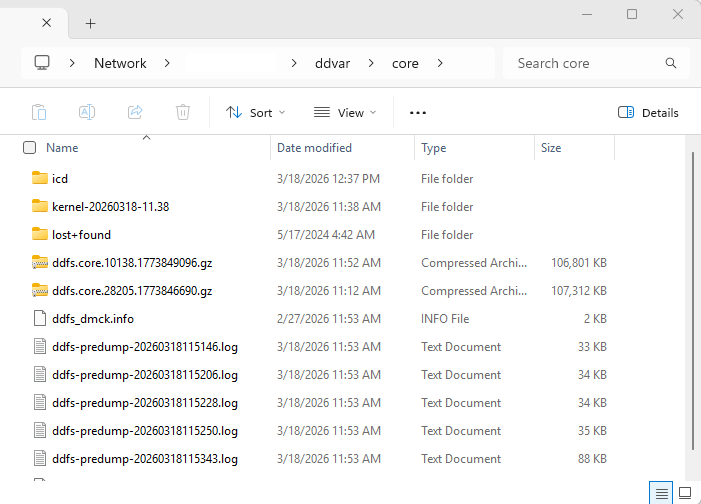
Using an autosupport from the system:
- Autosupports contain a listing of the contents of the
/ddr/var/coredirectory. Any autosupport created after a core dump file is created contains details of that file. For example:
/ddr/var/core:
total 5180896
-rw-r--r--  1 root root 492903386 Apr 13 02:49 ddfs.core.11539.1460540776.gz
-rw-r--r--  1 root root 123426535 Mar  1  2016 ddfs.core.16431.1456839840.gz
-rw-r--r--  1 root root  41100854 Apr 11 10:09 ddfs.core.2088.1460394487.gz
drwx------  2 root root      4096 Sep  6 12:20 kernel-20160906-01.14
drwx------  2 root root     16384 Feb 23  2016 lost+found
-rw-r--r--  1 root root       488 Sep  6 01:15 savecore_log.20160906-01.14
-rwxrwxrwx  1 root root   5021185 Mar 23 02:31 sms.core.5335.1458725501.gz
/ddr/var/core/kernel-20160906-01.14:
total 201524
-rw-r--r-- 1 root root 206141752 Sep 6 01:15 vmcore.gzStep 2 - Determine which core files are required for further analysis:
Core files are associated with a single event that took place on the Data Domain. That is:
- A single unexpected restart of a process - in this case there should be a single core file relating to the restart
- A single unexpected reboot of the system - in this case there should be a single '
kernel-[YYYYMMDD-HH.MM]' directory containing a singlevmcore.gzfile relating to the reboot
Verify that the date and time of the corresponding file matches the approximate date and time of the issue and that it is of the expected type. For example, a restart of the DDFS process produces a core file with '
ddfs' in its name.
In this scenario, this single file should be uploaded for further analysis.
In some scenarios, however, the issue may have caused multiple core files to be created. For example, the DDFS process may have unexpectedly terminated multiple times in a short duration creating multiple core files. In this case, look for the oldest core file created during the issue (that is, the first in the series of corresponding core files). Initially this single file should be uploaded for further analysis. Data Domain support can then advise if further core dump files are required.
Step 3 - Collect the core file from the Data Domain:
Before the core file can be uploaded to Data Domain support for analysis, it must be copied off of the Data Domain onto a client system with Internet access. This can be achieved in several ways:
Using FTP/FTPS:
- Confirm that the FTP or FTPS service is enabled on the Data Domain and that the client system is an allowed host (refer to the Additional Information section of this article for details).
- Depending on the network configuration and the application being used, the default "passive FTP mode" may not work at the protocol level. Try "active FTP mode" if this occurs (connection to port 21 works, but FTP commands such as listing files do not work).
- Connect to the Data Domain using the FTP/FTPS client. The username used to establish the connection must have admin permissions on the Data Domain:
$ ftp 10.10.10.10 ... Name (10.10.10.10:admin): sysadmin 331 Please specify the password. Password: 230 Login successful. Remote system type is UNIX. Using binary mode to transfer files. ftp> - Change to the directory containing the required core file:
ftp> cd core/kernel-20160906-01.14 250 Directory successfully changed. - Set transfer mode to binary:
ftp> bin 200 Switching to Binary mode. - Download the file to the client system:
ftp> get vmcore.gz
local: vmcore.gz remote: vmcore.gz
200 PORT command successful. Consider using PASV.
150 Opening BINARY mode data connection for vmcore.gz (206141752 bytes).
226 Transfer complete.
206141752 bytes received in 0.87 secs (230237.1 kB/s)
Using NFS:
- Confirm that:
- The NFS protocol is enabled on the Data Domain
- An export for
/ddvar/coreexists - The NFS client system has access (refer to the Additional Information section of this article for details)
- Mount the /ddvar/core directory on the NFS client:
root@ubuntu-box:~# mkdir /root/mnt root@ubuntu-box:~# mount 10.10.10.10:/ddvar/core /root/mnt - Copy the core dump file from the mounted
/ddvar/coredirectory to a local directory:root@ubuntu-box:/# cp /root/mnt/kernel-20160906-01.14/vmcore.gz /tmp
Using CIFS:
Note: Kernel cores cannot be viewed or collected using CIFS due to the permissions set on their directories.
- Confirm that:
- The CIFS protocol is enabled on the Data Domain
- A share for
/ddvarexists - The CIFS client system has access (refer to the Additional Information section of this article for details).
- Browse to the CIFS share and copy the core dump file to a local directory.
Using SCP:
Note: Graphical tools like WinSCP and FileZilla are not supported for connecting to Data Domain. A command line tool must be used instead.
- Confirm that the SCP service is enabled on the Data Domain:
# adminaccess show Service Enabled Allowed Hosts ----------- ------- ------------- ssh yes - scp no (same as ssh) ... - Enable the SCP service if necessary:
# adminaccess enable scp SCP Access: enabled - Use an SCP client to copy the core dump file to the local system.
- For example, if the client is running a Linux or UNIX-based operating system:
root@ubuntu-box:/# scp sysadmin@10.10.10.10:/ddr/var/core/kernel-20160906-01.14/vmcore.gz /tmp EMC Data Domain Virtual Edition Password: vmcore.gz 100% 197MB 98.3MB/s 00:02 - If the client is running a Windows-based operating system, a proprietary application such as
pscp.exe(part of the PuTTY suite) can be used:# pscp.exe -scp sysadmin@10.10.10.10:/ddr/var/core/kernel-20160906-01.14/vmcore.gz C:\
- For example, if the client is running a Linux or UNIX-based operating system:
Step 4 - Upload the core file:
When uploading a core file for further review, it is expected that:
- A support bundle has been collected on the Data Domain after the core file was created and has either already been uploaded to Data Domain support or is being uploaded along side the core file. For details of creating a support bundle, see this article.
- The core file (and possibly support bundle) is available on a client system with access to the Internet
- A corresponding service request is already open with Data Domain support, and the service request number is known
For large core files, it is beneficial to split them prior to upload. Uploading individual chunks of the file prevents having to start the entire upload over if there is an interruption. See this article for details on splitting core files.
Temporary Managed File Transfer account:
A support technician can provide details of a temporary Managed File Transfer (MFT) account that remains available for use for 7 days from creation. This temporary account can be accessed using:
- A web browser (using the HTTPS protocol)
- FTP or SFTP
See this article for details on transferring files with MFT.
Upload to an existing service request:
Follow the instructions in this article to upload the core file to an existing service request relating to the issue. Certain portals may have limits on the size of files which can be attached. If the core file is over the limit, it should be uploaded to an MFT site instead.
Step 5 - Notify Data Domain support that the files have been uploaded:
Regardless of the method used, the Data Domain support engineer handling the related service request should be notified once the upload is complete. Specify:
- Upload method used
- Names and sizes of files uploaded
- If the core dump file was split, including the method used to achieve this
Failure to notify the support engineer may cause delays in further analysis.
Additional Information
How to enable FTP/FTPS access on a Data Domain:
- Use the '
adminaccess show' command to determine whether the FTP/FTPS services are enabled and which client systems are specified as allowed hosts:# adminaccess show Service Enabled Allowed Hosts ----------- ------- ------------- ... ftp no - ftps no - ... ----------- ------- ------------- - To enable a specific service, use the '
adminaccess enable' command:# adminaccess enable ftps FTPS Access: enabled- FTP and FTPS are mutually exclusive. It may be necessary to disable an existing enabled service before the required service can be enabled:
# adminaccess enable ftp
Enabling FTP Failed: Disable FTPS before enabling FTP
# adminaccess disable ftps
FTPS Access:    disabled
# adminaccess enable ftp
FTP Access:    enabled
- FTP and FTPS are mutually exclusive. It may be necessary to disable an existing enabled service before the required service can be enabled:
- To allow FTP or FTPS access to the Data Domain by a specific client system, use the following command should be used (specify the required service as necessary):
# adminaccess ftp add 10.9.8.7 Security access lists updated The ftp access list is: 10.9.8.7 - Alternatively to allow FTP/FTPS access to the Data Domain by all clients the following command should be used (again the required service should be specified as necessary):
# adminaccess ftp add * Security access lists updated The ftp access list is: * - Specific client systems can be identified using hostname or IP address. However, if the hostname is used, it must be resolvable by the Data Domain.
How to enable NFS access to /ddr/var/core:
- Confirm that the NFS protocol is enabled on the Data Domain:
# nfs enable NFS server is already enabled. - Verify that the
/ddvar/coredirectory already has an NFS export. If it does, verify that the required NFS client has access. In the example below, the directory does not have an NFS export:# nfs show clients Path Client Options ----------------- ------ ------------------------------------------------------ /data/col1/backup * (sec=sys,rw,no_root_squash,no_all_squash,secure,nolog) ----------------- ------ ------------------------------------------------------ - If no NFS export for
/ddvar/coreexists or the NFS client does not have access to an existing export, create a new export. - Use the following command to allow access to the
/ddvar/coreexport for a specific client system:# nfs add /ddvar/core 10.9.8.7 NFS export for "/ddvar/core" added. - Alternatively, use the following command to allow access to the
/ddvar/coreexport from all client systems:# nfs add /ddvar/core * NFS export for "/ddvar/core" added. - Specific client systems can be identified using hostname or IP address. However, if the hostname is used, it must be resolvable by the Data Domain.
How to enable CIFS access to /ddr/var/core:
- Confirm that the CIFS protocol is enabled on the Data Domain:
# cifs enable The filesystem is enabled and running. Starting CIFS access... - Verify that the
/ddvardirectory already has a CIFS share configured. If it does, verify that the required CIFS client has access. In the example below, the directory does not have a CIFS share:# cifs share show Shares information for: all shares --------------- share backup --------------- path: /data/col1/backup clients: * enabled: yes Shares displayed: 1 - If no CIFS share exists for the
/ddvardirectory, create a new share. This can be done by specifying the explicit hostname or IP address of the CIFS clients:# cifs share create ddvar path /ddvar clients 10.9.8.7 Share "ddvar" has been created. - Alternatively, use the following command to allow access to the
/ddvarshare from all client systems:# cifs share create ddvar path /ddvar clients * Share "ddvar" has been created. - If there is already a CIFS share for the
/ddvardirectory but the required CIFS client does not have access, add the client:# cifs share modify ddvar clients 10.9.8.7 clients 10.9.8.6 Share "ddvar" is modified for new connections.
Final notes:
- All the above examples assume that required network ports are open between the client system and the Data Domain. See this article for details of ports used.
- Any changes made to the Data Domain while configuring access should be reversed once core files have been identified and copied off of the Data Domain
- For more details about using CIFS when a Data Domain is configured in workgroup mode, see this article.
- Automatic permissions set against core files generated on a Data Domain can sometimes prevent the files from being listed or copied off of the system. If this occurs, engage your contracted support provider for assistance.
Affected Products
Data DomainArticle Properties
Article Number: 000043398
Article Type: How To
Last Modified: 19 شوال 1447
Version: 5
Find answers to your questions from other Dell users
Support Services
Check if your device is covered by Support Services.