Dell Chromebook Keyboard Guide
Summary: This is a guide for using the keyboard. Details on what the Chromebooks special functions are and how to use them.
Instructions
Table of Contents:
Keyboard Layout
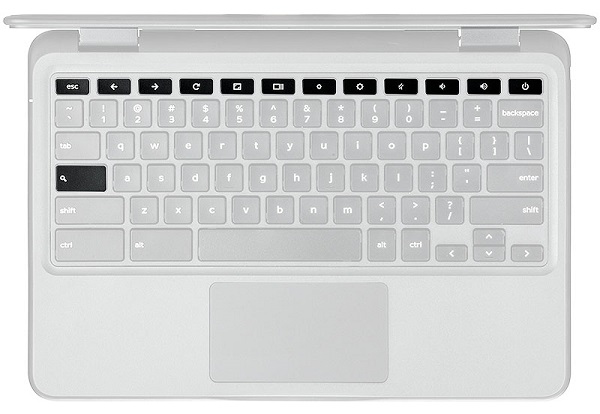
Your Chromebook keyboard has a few extra features to help make it easier to browse the web. The keyboard contains a dedicated search key and a new row of web shortcut keys. A standard USB keyboard can also be used with the Chromebook, using the same keyboard shortcuts.
- Experiencing problems with your Keyboard? See the Dell Knowledge Base article: Keyboard usage and troubleshooting guide
- Is the Chromebook missing any keyboard keys? See the Dell Knowledge Base article: Chromebook Missing Keys on the Keyboard
Keyboard Keys Function
The keyboard on the Chromebook is designed to help with using the correct keys to accomplish those tasks that are needed the most. The table below is an overview of the special keys on the top row of the keyboard.
| Key | Function |
|---|---|
 |
Go to the previous page in your browsing history (F1) |
 |
Go to the next page in your browsing history (F2) |
 |
Reload your current page (F3) |
 |
Open your page in fullscreen mode (F4) |
 |
Switch to your next tab or window (F5) |
 |
Decrease screen brightness (F6) |
 |
Increase screen brightness (F7) |
 |
Mute (F8) |
 |
Decrease the volume (F9) |
 |
Increase the volume (F10) |
 |
Search your apps and the web from your apps list. On a Chromebook, this key is on the side of the keyboard. Located where the Caps Lock key would be on a Windows keyboard. Using a regular keyboard? The Windows key in between Ctrl and Alt works as the search key. To turn Caps Lock on temporarily, press Alt + the search key. |
Adjust Special Keys and Caps Lock
Chromebooks come with a special search key to help quickly search the web. To type capital letters, users can make the search key work like the caps lock key. Similarly, they can also adjust the way the Ctrl and Alt keys work on the Setting page.
Change Key Behavior:
-
Sign in to the Chromebook.
-
Click the status area in the lower-right corner, where the account image appears.
-
Click Settings.
-
In the Device section, click Keyboard Settings.
-
Use the menus to adjust the behavior of the search, Ctrl, and Alt keys.
-
Click OK.
More about the Search Key:
Pressing the Search key  brings up the search box and apps list. The search box allows searching both the Internet and the apps list simultaneously.
Using a regular Keyboard?
The Windows key between Ctrl and Alt works as the Search key.
The Caps Lock key is taken away, to make room for the Search Key. However, temporarily turn the Caps Lock on by pressing Alt +  the Search key. Press it again to turn it off.
Chromebook Shortcut Keys
The table below lists the keyboard shortcut keys that prove useful.
| Shortcut | Function |
|---|---|
| Esc | Stop the loading of your current page. |
| Alt + Up arrow | Page up |
| Alt + Down arrow | Page down |
| Alt + Left arrow (backspace) | Go to the previous page in your browsing history. |
| Alt + Right arrow (Shift + backspace) |
Go to the next page in your browsing history. |
| Ctrl + Right arrow | Move to the end of the next word |
| Ctrl + Down arrow | Move to the start of the previous word |
| Ctrl + Alt + Up arrow | Home |
| Ctrl + Alt + Down arrow | End |
| Ctrl + Alt + Right arrow | Select the next word or letter. |
| Ctrl + Alt + Left arrow | Select the previous word or letter. |
| Ctrl + Alt + Z | Enable or disable accessibility features when not signed in with a Google Account. Configure the accessibility feature on the Settings page when signed in. |
| Ctrl + Alt + / | Open the list of available keyboard shortcuts. |
| Ctrl + Shift + D | Save all open pages in the current window as bookmarks in a new folder. |
| Ctrl + Shift + G or Shift + Enter |
Go to the previous match for the input in the find bar. |
| Ctrl + Shift + B | Switch the display of the bookmarks bar. Bookmarks appear on the New Tab page if the bar is hidden. |
| Ctrl + Shift + I | Switch the display of the Developer Tools panel. |
| Ctrl + Shift + J | Switch the display of the DOM Inspector. |
| Ctrl + Shift + L | It locks the screen. |
| Ctrl + Shift + N | Open a new window in incognito mode. |
| Ctrl + Shift + B | Switch the bookmark bar. |
| Ctrl + Shift + Q | Sign out Google Account |
| Ctrl + Shift + Q (twice) | Sign out Google Account on ChromeOS |
| Ctrl + Shift + R | Reload your current page without using the cached content |
| Ctrl + Shift + T | Reopen the last tab being closed. Google Chrome remembers the last 10 tabs being closed. |
| Ctrl + Shift + V | Paste the content from the clipboard as plain text. |
| Ctrl + Shift + W | Close the current window. |
| Ctrl + . | Display hidden files in the Files application. |
| Ctrl + ? | Go to the Help Center. |
| Ctrl + 0 | Reset zoom level |
| Ctrl + 1 through Ctrl + 8 | Go to the tab at the specified position in the window. |
| Ctrl + 9 | Go to the last tab in the window. |
| Ctrl + A | Select everything on the page. |
| Ctrl + C | Copy the selected content to the clipboard. |
| Ctrl + D | Save your current webpage as a bookmark. |
| Ctrl + F | Search your current webpage. |
| Ctrl + G or Enter | Go to the next match for the input in the find bar. |
| Ctrl + H | Open the History page. |
| Ctrl + J | Open the Downloads page. |
| Ctrl + K or Ctrl + E | Perform a search. Type a search term after the question mark in the address bar and press Enter. |
| Ctrl + L or Alt + D | Select the content in the address bar. |
| Ctrl + N | Open a new window. |
| Ctrl + O | Open a file in the browser. |
| Ctrl + P | Print your current page. |
| Ctrl + R | Reload your current page |
| Ctrl + S | Save your current page. |
| Ctrl + T | Open a new tab. |
| Ctrl + U | View page source |
| Ctrl + V | Paste the content from the clipboard. |
| Ctrl + W | Close the current tab. |
| Ctrl + X | Cut |
| Ctrl + Z | Undo the last action. |
| Ctrl + backspace | Delete the previous word. |
| Ctrl + Tab | Switch to the next tab |
| Ctrl + Enter | Add www. and .com to your input in the address bar and open the resulting URL |
| Ctrl + Shift + Tab | Go to the previous tab in the window. |
| Ctrl + Shift + Refresh | Rotate the screen 90 degrees. |
| Ctrl + Shift + ) | Reset screen scale |
| Ctrl + Shift + + | Increase screen scale |
| Ctrl + Shift + - | Decrease the screen scale. |
| Ctrl + Shift + Refresh | Rotate the screen 90 degrees. |
| Ctrl + + | Zoom in on the page |
| Ctrl + - | Zoom out on the page. |
| Alt + click a link | Open the link that was clicked in a new background tab. |
| Alt + 1 through Alt + 8 | Go to the window at the specified position. |
| Alt + 9 | Go to the last window open. |
| Alt + E or Alt + F | Open the Chrome menu on the browser toolbar. |
| Alt + backspace | Delete the next letter (forward delete) |
| Alt + Tab | Go to the next window that has opened. |
| Alt + Shift + Tab | Go to the previous window that has opened. |
| Alt + Shift + M | Open the Files application. |
| Alt + Shift + B | Place focus on the bookmarks bar. Use the actions that are listed for Shift+Alt+T to move the focus. |
| Shift + Alt + S | Open the status area in the bottom-right corner of the screen. |
| Shift + Alt + L |
Place focus on the launcher
|
| Shift + Search + Volume Up | Open right-click menus for focused items. |
| Shift + Esc | Open the Task Manager. |
 to open the context menu for the button (if available).
If this article does not contain the information that is needed, see the resources below:
- Dell Chromebook Computer Guide
- Using and Troubleshooting Screen Issues on Chromebooks
- Accessories Supported by the Dell Chromebook Systems
- Check your user manual on the Support Site.
How to Remove Chromebook 11-3180 Keyboard:
Watch this video to learn about How to Remove Chromebook 11-3180 Keyboard.
Duration: 01:00
When available, closed caption (subtitles) language settings can be chosen using the Settings or CC icon on this video player.
How to Remove Chromebook 11-3189 Keyboard:
Watch this video to learn about How to Remove Chromebook 11-3189 Keyboard.
Duration: 01:00
When available, closed caption (subtitles) language settings can be chosen using the Settings or CC icon on this video player.