NetWorker: NetWorker Server Disaster Recovery (NSRDR)
Summary: This KB provides information about the NetWorker Server Disaster Recovery (NSRDR) procedure.
This article applies to
This article does not apply to
This article is not tied to any specific product.
Not all product versions are identified in this article.
Instructions
NOTE: Dell employees must view this article while signed into the support site. See Internal Notes instructions.
NetWorker provides functionality to recover critical NetWorker server databases using the NetWorker Disaster Recovery (NSRDR) process. This process involves using a bootstrap save set to recover NetWorker databases from a previous Server Protection backup.
The following databases can be recovered:
- NetWorker resource database (NSRDB) - contains all configured NetWorker resources (clients, groups, policies, devices, and so forth).
- Media database (mm) - Records of all backups and clone jobs completed on the NetWorker server.
- Authentication server (AUTHC) database - NetWorker local user accounts and configurations.
- Client file indexes - used for performing restores of most data types.
The NetWorker Server and Availability Guide provides additional information about this procedure. These guides are available through: Support for NetWorker | Documentation
WARNING: It is recommended to engage with Dell NetWorker support for assistance performing
nsrdr. The following prerequisites must be followed to ensure that an NSRDR is possible.
Prerequisites
- The system path where NetWorker is installed must have adequate space to perform the
nsrdr. Space must be reclaimed or disk space extended by the system administrator. Total disk capacity usage should be below 80%. NetWorker starts logging an "Info" alert once the drive capacity goes beyond 80%. An Emergency alert is posted once drive has exceeded more than 95% capacity usage. - Bootstrap save set details must be available. The bootstrap details can be collected through one of the following methods.
mminfo- If NetWorker services are running andmminfocommands return, you can runmminfo -Bfrom an admin/root prompt to collect the latest bootstrap save set ID and device details.- Emails - If the "Server Protection" email notifications are configured, the customer can collect the bootstrap save set ID and device details from the email. This may be required if the server is down.
- Logs - The "Server Protection" backup action logs contain the bootstrap save sets and device.
- Linux:
/nsr/logs/policy/'Server Protection'/'Server backup'/'Server db backup_jobid_logs' - Windows:
..\Program Files\EMC NetWorker\nsr\logs\policy\Server Protection\Server backup\Server db backup_jobid_logs
- Linux:
NOTE: These logs follow the jobsdb retention (default 72 hours). If the jobsdb retention has passed, the logs are no longer available.
WARNING: If no bootstrap save sets are available, it is not possible to recover NetWorker using NetWorker Server Disaster Recovery (NSRDR).
- If the NetWorker server still contains a valid mm, (That is one with valid backups) create a copy of the existing
\nsr\mmdirectory. This can be done using one of the following methods:- Make a copy of the
\nsr\mmdirectory. - User
nsrmmdbasmto make a copy of the mm in .xdr format- How To Export the NetWorker Media Database Using nsrmmdbasm
- When using above method, ensure that the mm.xdr returns a logical size, if it is 0 bytes or unrealistically small, it may not have exported correctly.
- Make a copy of the
CAUTION: Ensure that you are creating a copy of the true mm. Confirm the correct install path of NetWorker databases and files. In some instances, there may be an inactive "EMC NetWorker" or "nsr" location if the install path was moved
nsrdr reverts the mm to the date of the bootstrap save set. This may result in data loss if the server has been completing backups since the bootstrap save set date. Once the nsrdr has completed, the up-to-date mm can be put back in place.
- Rename the
nsrimbinary until thensrdrhas completed.nsrimperforms aging of control data and consistency check of the media database.- Linux:
/usr/sbin/nsrim - Windows:
..\Program Files\EMC NetWorker\nsr\bin\nsrim.exe
- Linux:
Special Considerations for performing nsrdr on a new system
If you are performing
nsrdr on an existing server, you can go to the Process section. If the NetWorker server was lost, a new system with the same hostname as the previous NetWorker server must be performed. The bootstrap device must be reconfigured on the new server.
Re-creating the bootstrap device
- Use the "New Device Wizard" in the NetWorker Management Console.
- Specify the hostname of the bootstrap device and any required credentials (example: ddboost).
- Select the bootstrap folder from the "Select the folders to use as devices" window.
- In the "Configure Pool Information" window, ensure that "Label and Mount device after creation" is cleared.
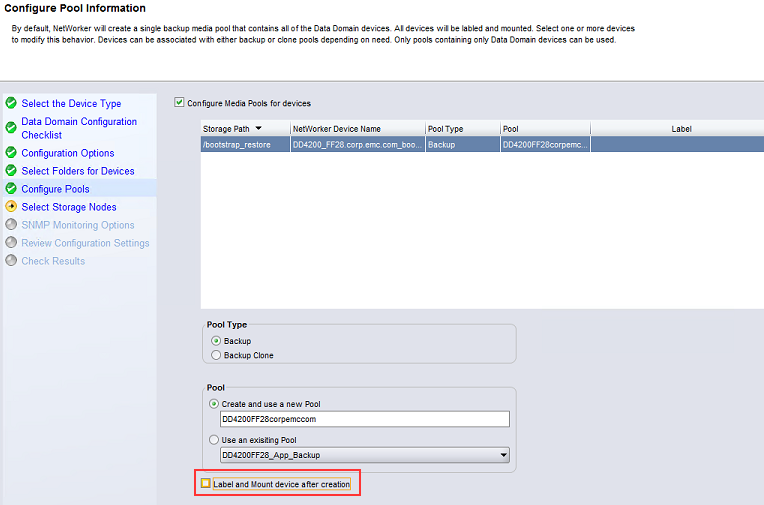
CAUTION: On current NetWorker releases this option is cleared (by default) and disabled to prevent unwanted data loss. If it is not disabled, ensure that this field is cleared. If the device is labeled, all data on the device is deleted, and bootstrap save set is lost.
nsrdr would no longer be possible.
- Once the device is created, you cannot mount it since it does not exist in the index.
Re-creating the Index:
- Open an admin/root command prompt on the NetWorker server.
- Run the following command to re-create the index for the bootstrap save sets using the bootstrap device:
scanner -B bootstrap_device_name
- Return to the NMC and mount the bootstrap device by right-clicking the device and selecting Mount.
- The bootstrap save sets should now return with:
mminfo -B
NOTE: When performing the
nsrdr, you are prompted if you want to recover the Client File Indexes (CFI). You can enter Yes to perform this operation during the nsrdr; otherwise, the indexes must be rebuilt once nsrdr has completed using the scanner command.
Before performing NSRDR, determine if bootstrap save sets are available using mminfo -B
[root@nsr ~]# mminfo -B
      date     time       ssid        volume                     device                         access info
...
  08/25/2025 10:00:12 AM  2813095020  nsr.amer.lan.dddefault.002 ddve01.amer.lan_BackupDevice02 ddve01.amer.lan:/nsr/BackupDevice02
  08/26/2025 10:00:42 AM  2628632074  nsr.amer.lan.dddefault.001 ddve01.amer.lan_BackupDevice01 ddve01.amer.lan:/nsr/BackupDevice01
NOTE: If NetWorker services cannot be started, contact Dell NetWorker support immediately.
WARNING: If no bootstrap save sets are available, it is not possible to recover NetWorker using NetWorker Server Disaster Recovery (NSRDR).
Affected Products
NetWorkerProducts
NetWorkerArticle Properties
Article Number: 000172663
Article Type: How To
Last Modified: 22 شعبان 1447
Version: 13
Find answers to your questions from other Dell users
Support Services
Check if your device is covered by Support Services.