「Data Domain:BoostFS for Windows - 再起動およびユーザー ログオフ時にBoostFSマウントを永続的にするためのWindowsスタートアップ スクリプト
Summary: BoostFSは、システムの再起動またはユーザーのログオフ時にオペレーティング システムが停止する通常のプロセスであり、BoostFS for Windowsマウントはこのプロセスなしでは存続しません。 システム起動時にBoostFSマウントを再マウントするには、boostfs mountコマンドをシステム起動スクリプトの一部として追加します。
Instructions
共有スタートアップを Windows タスク スケジューラ に追加して、システム起動時に自動実行できるようにします
1。管理者権限でWindowsタスク スケジューラーを開き、新しいタスクを作成します。
[全般] タブで、タスクにフレンドリ名と説明を入力し、ユーザー アクセスを提供するユーザーとグループを選択します。
[Run with highest privileges]チェックボックスをオンにし、[Run if user is logged on or not]ラジオ ボタンを選択して、[OK]をクリックします。![[タスクの作成]ページ](https://supportkb.dell.com/img/ka0Do00000132MOIAY/ka0Do00000132MOIAY_ja_1.jpeg)
2.[Triggers]タブで、[New]をクリックして[Begin the task]を[At Startup]に設定し、[Enabled]チェックボックスが選択されていることを確認し、[OK]をクリックします。
![[新しいトリガー] ページ](https://supportkb.dell.com/img/ka0Do00000132MOIAY/ka0Do00000132MOIAY_ja_2.jpeg)
3.[アクション]タブで、[新規]をクリックし、[アクション タイプ]を[プログラムの開始]に変更します。
[Settings]の[Program/script]で、次の手順を実行します。boostfs.exeバイナリファイルの場所(デフォルトの場所)を参照します。"C:\Program Files\BoostFS\boostfs.exe."
[Add arguments (optional)]で、マウントに使用するmountコマンドを選択します。 boostfs をクリックし 、「OK」をクリックします。
mount -d <data-domain-system> -s <storage-unit> -l <lockbox path> <Drive Letter> -o allow-others=true
mount -d 10.1.50.51 -s BRAM_DDBOOST_CVLT -l C:\BoostFS\Lockbox\boostfs.lockbox Q: -o allow-others=true
![[New Action]ページ](https://supportkb.dell.com/img/ka0Do00000132MOIAY/ka0Do00000132MOIAY_ja_3.jpeg)
4. a { text-decoration: none; color: #464feb; } tr th, tr td { border: 1px solid #e6e6e6; } tr th { background-color: #f5f5f5; } ログオフまたは再起動してテストします。起動時に、 Windows タスク スケジューラは スクリプトを自動的に呼び出し、 boostfs マウント。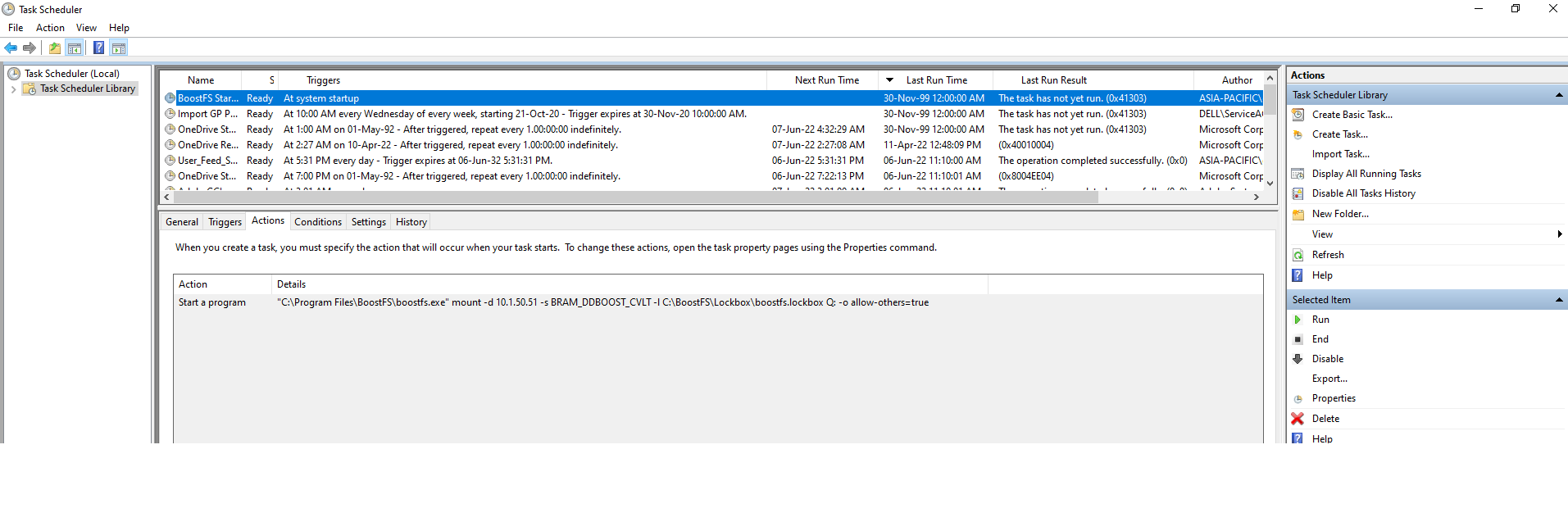
Additional Information
- 詳細については、『Dell Data Domain BoostFS for Windows Configuration Guide 8.6』を参照してください。
- 追加情報と詳細については、Microsoftドキュメント、Microsoftサポート(外部リンク)を参照してください。