Data Domain: How to Check which User Changed FS Cleaning Schedule
Summary: This article provides information about who modified the cleaning schedule along with details about users who previously ran any commands.
Symptoms
- Unexpected changes appear in the cleaning schedule configuration
- Cleaning schedules are missing, modified, or ran at incorrect times
- Difficulty in identifying who last modified a schedule
- Lack of Visibility into which user ran a specific command
- Unusual or unauthorized command execution detected
Cause
Standard outputs on DD-CLI command do not give any information about which user account applied relevant changes. However, log files maintain detailed information about the changes made in the cleaning schedule.
Resolution
Option 1
- Step 1: Log in to DD CLI using an admin user.
- Step 2: List the logs.
sysadmin@localhost# log list
File          Size   Time Created
---------   ------   ------------------------
audit.log   12 KiB   Tue May 24 07:22:46 2025
messages    48 KiB   Tue May 24 07:30:37 2025
---------   ------   ------------------------
- Step 3: Open the audit.log file in admin mode
log view audit.log
When viewing the log, use the up and down arrows to scroll through the file. Use the q key to quit. Enter a forward slash to search forward or a question mark to search backward for clean schedule.
Example: May 11 21:40:47 lochost sshd[16324]: Failed password for invalid user isg-admin from 127.0.0.1 port 51851 ssh2 May 11 21:40:50 lochost sshd[16324]: error: Received disconnect from 127.0.0.1 port 51851:3: com.jcraft.jsch.JSchException: Auth fail for methods 'publickey,password,keyboard-interactive' [preauth] /clean schedule
- Step 4: Examine the output:
May 26 22:50:54 lochost sms: {epoch=1748325054;id='AUDIT-SMS_FILESYS-00035';desc='Set file system clean schedule.';level=1;user='sysadmin';role='admin';app='ddsh';host='127.0.0.1';client_ip='127.0.0.1';detail='{in='{sched='{hrs=6;min=0;days_mask=16;monthly='false';biweekly='true';}';}';result='Success';}';}
May 27 00:49:27 lochost sms: {epoch=1748332167;id='AUDIT-SMS_FILESYS-00035';desc='Set file system clean schedule.';level=1;user='dell';role='admin';app='-ddsh';host='127.0.0.1';client_ip='127.0.0.1';detail='{in='{sched='{hrs=6;min=0;days_mask=8;monthly='false';biweekly='false';}';}';result='Success';}';}
Output Explanation:
The example output about shows two admin accounts (sysadmin and dell) committing different cleaning schedule details (within a few hours of each other).
Option 2
Use a CIFS share or NFS export to /ddvar/log to view the file.
Use a text editor to view and search the file.
- Microsoft Windows clients can use an editor such as NotePad.
- Linux clients can use command-line tools such as less and grep.
Data Domain: Configuring a CIFS Share
Data Domain: Mounting and Verifying Exports on the NFS Client
Linux (in Bash)
Example
# grep -i "clean schedule" /ddr/var/log/audit.log*
Listing all entries that contain a clean schedule.
Additional Information
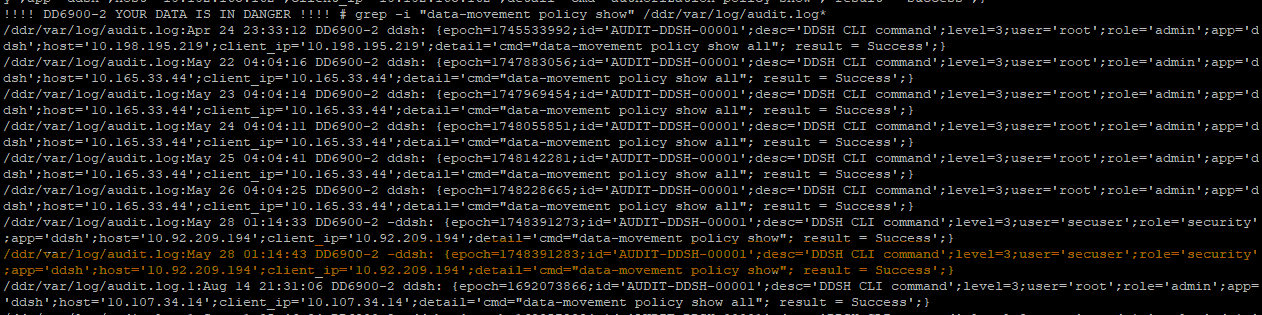
This command is not only limited to viewing the cleaning schedule history; it allows you to identify which user ran the commands in DD:
For example:
Ran the data-movement policy show command at the highlighted time with secuser at timestamp: May 28 01:14:41 IST 2025
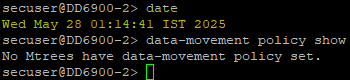
The below command output displays the time and username details when the data-movement policy show command was run.