NetWorker: NMC server install fails on Windows Host "Unable to verify Authentication Server's Hostame and or Port"
Summary: The NetWorker Management Console (NMC) upgrade or install fails on a Windows host. The installation immediately returns "Unable to verify Authentication Server's Hostname and/or port."
Symptoms
- The NetWorker Management Console (NMC) server is installed on a Windows platform.
- Installing or Upgrading the NMC software to 19.13.x (or later) with the following error observed:
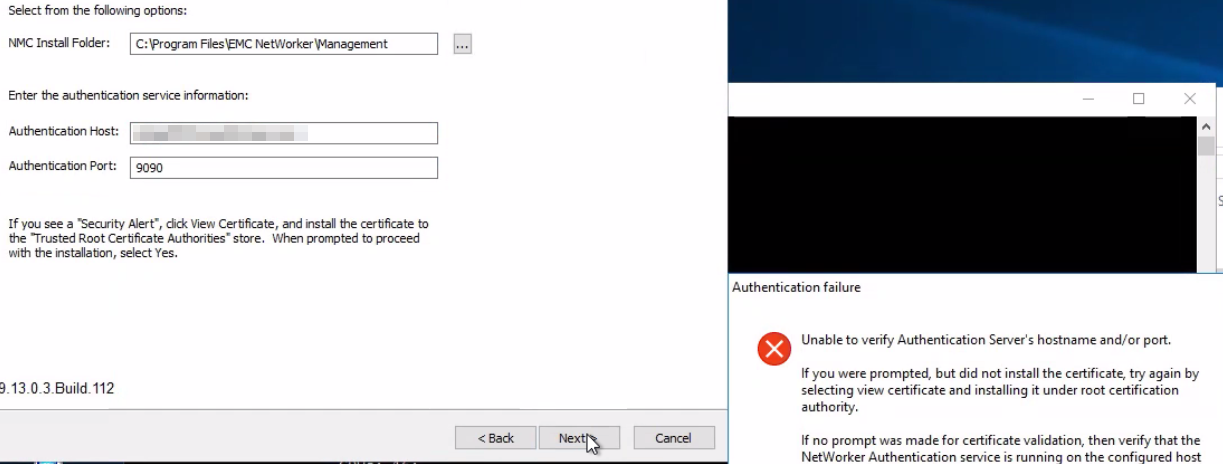
- The NMC server can resolve and TCP connect to the authentication server port (9090). From Windows PowerShell, run:
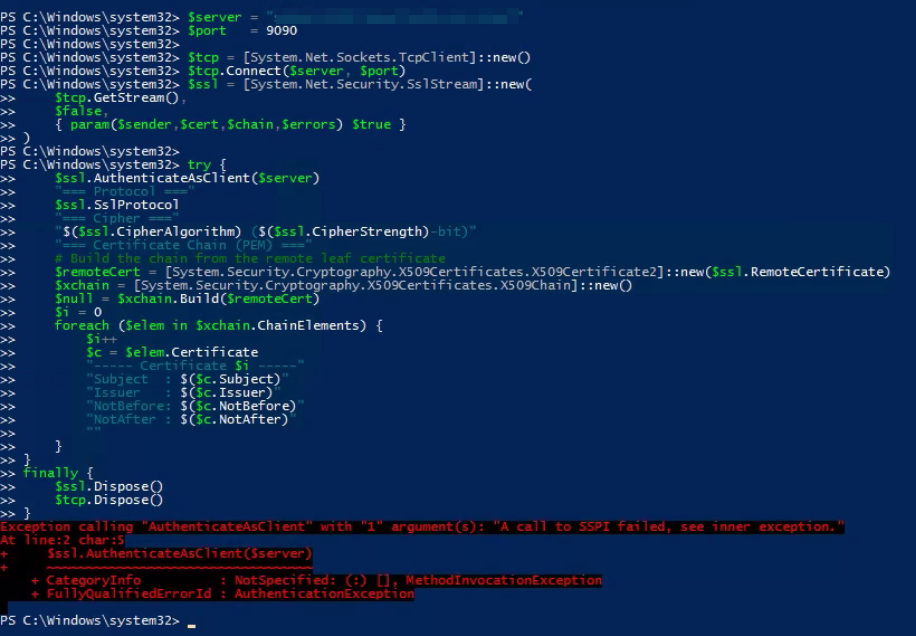
tnc AUTHC_SERVER_HOSTNAME -p 9090 - The following PowerShell command returns a SSPI error:
$server = "AUTHC_SERVER_HOSTNAME"
$port   = 9090

$tcp = [System.Net.Sockets.TcpClient]::new()
$tcp.Connect($server, $port)
$ssl = [System.Net.Security.SslStream]::new(
    $tcp.GetStream(),
    $false,
    { param($sender,$cert,$chain,$errors) $true }
)

try {
    $ssl.AuthenticateAsClient($server)
    "=== Protocol ==="
    $ssl.SslProtocol
    "=== Cipher ==="
    "$($ssl.CipherAlgorithm) ($($ssl.CipherStrength)-bit)"
    "=== Certificate Chain (PEM) ==="
    # Build the chain from the remote leaf certificate
    $remoteCert = [System.Security.Cryptography.X509Certificates.X509Certificate2]::new($ssl.RemoteCertificate)
    $xchain = [System.Security.Cryptography.X509Certificates.X509Chain]::new()
    $null = $xchain.Build($remoteCert)
    $i = 0
    foreach ($elem in $xchain.ChainElements) {
        $i++
        $c = $elem.Certificate
        "----- Certificate $i -----"
        "Subject  : $($c.Subject)"
        "Issuer   : $($c.Issuer)"
        "NotBefore: $($c.NotBefore)"
        "NotAfter : $($c.NotAfter)"
        ""
    }
}
finally {
    $ssl.Dispose()
    $tcp.Dispose()
}
Example:
- Accessing the following URL from the NetWorker server's web browser reports a TLS issue:
https://NETWORKER_SERVER_HOSTNAME:9090/nwrestapi/v3/global
Cause
Summary:
A TLS cipher suite mismatch existed between the NetWorker AuthC service and the Windows Server host. NetWorker 19.13.x AuthC was configured to allow only modern TLS_ECDHE_RSA_WITH_AES_128_GCM_SHA256, TLS_ECDHE_RSA_WITH_AES_256_GCM_SHA384, and TLS_ECDHE_RSA_WITH_CHACHA20_POLY1305_SHA256 cipher suites. The Windows Server host did not advertise support for these cipher suites, resulting in no mutually supported cipher suite being available for TLS negotiation. Consequently, the TLS handshake failed and connections to the AuthC service could not be established.
In upgrade scenarios, previous NetWorker versions may have allowed additional CBC-based or RSA-based cipher suites that aligned with the cipher suites advertised by the operating system. Following upgrade to NetWorker 19.13.x, the more restrictive AuthC cipher configuration exposed the cipher suite incompatibility.
Validation Steps:
To validate Cipher suites advertised by the operating system, run the following command from an elevated PowerShell prompt on the NetWorker AuthC server: Get-TlsCipherSuite
Compare the output of the Get-TlsCipherSuite command with the AUTHC servers C:\Program Files\EMC NetWorker\nsr\authc-server\tomcat\conf\server.xml file. Specifically, the following line:
<SSLHostConfig protocols="TLSv1.2" sslProtocol="TLS" ciphers="TLS_ECDHE_RSA_WITH_AES_128_GCM_SHA256, TLS_ECDHE_RSA_WITH_AES_256_GCM_SHA384, TLS_ECDHE_RSA_WITH_CHACHA20_POLY1305_SHA256" >
If the Ciphers used by NetWorker AuthC are not advertised by the OS, TLS negotiation fails. This impacts any connection to the AuthC sevice; for example: NMC install, NetWorker Web User Interface (NWUI) install, REST API functions, and so forth.
Resolution
Consult with the OS and security administration teams for configuring the system to advertise Ciphers that align with NetWorker. This issue is occurring outside of NetWorker.
Workaround:
Configure NetWorker AuthC to use Ciphers that align with what the OS advertises.
- Create a copy of the
C:\Program Files\EMC NetWorker\nsr\authc-server\tomcat\conf\server.xmlfile. - Open the
C:\Program Files\EMC NetWorker\nsr\authc-server\tomcat\conf\server.xmlfile in a text editor. - Modify:
<SSLHostConfig protocols="TLSv1.2" sslProtocol="TLS" ciphers="TLS_ECDHE_RSA_WITH_AES_128_GCM_SHA256, TLS_ECDHE_RSA_WITH_AES_256_GCM_SHA384, TLS_ECDHE_RSA_WITH_CHACHA20_POLY1305_SHA256" >
To
<SSLHostConfig protocols="TLSv1.2" sslProtocol="TLS" ciphers="TLS_ECDHE_RSA_WITH_3DES_EDE_CBC_SHA, TLS_ECDHE_RSA_WITH_AES_128_CBC_SHA, TLS_ECDHE_RSA_WITH_AES_128_CBC_SHA256, TLS_ECDHE_RSA_WITH_AES_128_GCM_SHA256, TLS_ECDHE_RSA_WITH_AES_256_CBC_SHA, TLS_ECDHE_RSA_WITH_AES_256_CBC_SHA384, TLS_ECDHE_RSA_WITH_AES_256_GCM_SHA384, TLS_RSA_WITH_AES_128_CBC_SHA, TLS_RSA_WITH_AES_128_CBC_SHA256, TLS_RSA_WITH_AES_128_GCM_SHA256, TLS_RSA_WITH_AES_256_CBC_SHA, TLS_RSA_WITH_AES_256_CBC_SHA256, TLS_RSA_WITH_AES_256_GCM_SHA384" >
Get-TlsCipherSuite. These ciphers are considered less secure than the default ones configured with NetWorker 19.13.x. This should only be done as a temporary solution. You must discuss with your OS and security administration teams regarding configuring hardened OS ciphers that align with NetWorker. After the OS is configured to advertise TLS_ECDHE_RSA_WITH_AES_128_GCM_SHA256, TLS_ECDHE_RSA_WITH_AES_256_GCM_SHA384, and TLS_ECDHE_RSA_WITH_CHACHA20_POLY1305_SHA256 you can revert to the original server.xml to use the default (hardened) ciphers. This requires a NetWorker server service restart.
- Restart NetWorker server services (PowerShell syntax):
net stop nsrd ; net start nsrd - Install the NetWorker Management Console (NMC). If prompted, install the AuthC certificate to the Local Machine's Trusted Root Certificates:
- Click View Certificate.
- From the Certificate, click Install Certificate.
- Select Local Machine and click Next.
- Select Place all certificates in the following store, then click Browse.
- Select Trusted Root Certification Authorities, then click OK.
- On the Certificate Install Wizard, click Next.
- Click Finish.
- You may receive a pop-up stating "The import was successful," click OK.
- From the Certificate window, click OK.
- From the Security Alert window, click Yes.
- Complete the NMC install.
Videos
- NetWorker: How To Identify Which Server is the Authentication Server Used By NMC and NWUI
- NMC install fails on Windows Host "Unable to verify Authentication Server's Hostname and/or Port"
- NetWorker: Unable to install NMC server software on Windows NetWorker server or dedicated NMC server
- NetWorker: How to Access NMC After Upgrading to 19.13 or later