How to Update Your Dell Monitor Firmware
Summary: Learn how to update your Dell monitor firmware using the Dell Display and Peripheral Manager app on Windows or Mac, or manually with a downloaded package. Step-by-step instructions included. ...
Instructions
Keeping your monitor's firmware up to date helps it run at its best. Firmware updates can improve performance, fix known issues, and add new features. There are two ways to update your monitor's firmware, you can use the Dell Display and Peripheral Manager (DDPM) app, or you can update manually using a downloaded firmware package. This guide covers both methods for Dell and Alienware monitors.
In This Article
- Before You Begin
- Method 1: Update Using Dell Display and Peripheral Manager (Recommended)
- Method 2: Update Manually (Windows Only)
- Need More Help?
Before You Begin
A few quick things to check before you get started:
- DDC/CI must be turned on. This setting allows your computer to communicate with your monitor. To check, press the menu button on your monitor, go to the settings menu, and confirm that DDC/CI is set to On.
- Connect the USB upstream cable. You must connect the USB upstream cable (USB-B or USB-C cable that came with the monitor) directly between the monitor and your computer
- One monitor at a time. Update one monitor at a time. Do not run firmware updates on multiple monitors at the same time.
- Turn off sleep mode. Disable power saving or sleep mode on both your monitor and your computer so neither goes to sleep during the update.
Method 1: Update Using Dell Display and Peripheral Manager (Recommended)
Dell Display and Peripheral Manager (DDPM) is a free app that lets you manage your Dell monitors and peripherals from one place, including keeping their firmware up to date. It works on both Windows and Mac, and it can automatically notify you when a new firmware update is available for your monitor.
Update on Windows using Dell Display and Peripheral Manager
DDPM on Windows supports automatic firmware update notifications. When a new firmware version is available, DDPM will alert you so you don't have to check manually.
System requirements: Windows 11 or Windows 10 (build 17763 or newer). ARM-based computers with Windows 11 running Qualcomm Snapdragon X-Elite or X-Plus are supported from DDPM version 2.3.2 onwards.
To update your monitor firmware using DDPM on Windows:
- Make sure your monitor is connected to your computer with a USB upstream cable plugged in directly, not through a docking station or USB hub.
- Open Dell Display and Peripheral Manager from the system tray or Start menu.
- Select Settings (gear icon).
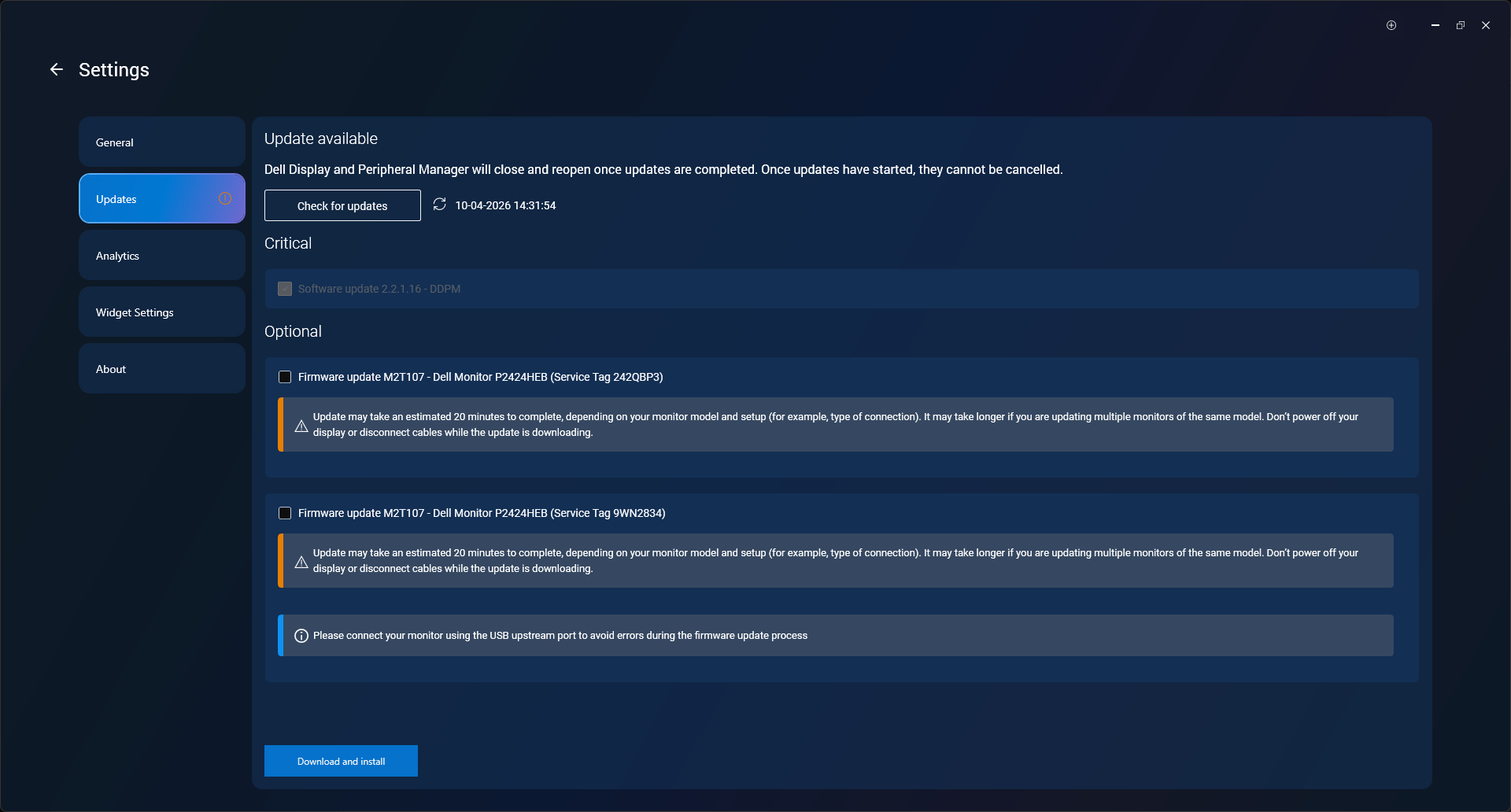
- Under Updates, select Check for updates.
- If a firmware update is available for your connected monitor, click Download and install.
- Follow any on-screen instructions. Do not disconnect the USB cable or turn off your monitor during the update.
- The update can take between 15 to 30 minutes depending on your monitor model. The monitor screen may go blank briefly near the end, this is normal.
- When complete, the monitor restarts automatically.
Update on Mac using Dell Display and Peripheral Manager
Important: DDPM for Mac supports the following Apple devices with M1, M2, M3, M4, or M5 chips: MacBook Air, Mac Mini, and Mac Pro. macOS versions 12, 13, 14, 15, and 26 are supported. iMac is not currently supported.
To update monitor firmware using DDPM on Mac:
- Make sure sleep mode is turned off on your Mac before you start. Go to System Settings > Battery (or Energy Saver) and turn off automatic sleep.
- Connect your monitor to your Mac using a USB-C or Thunderbolt cable plugged in directly.
- Open Dell Display and Peripheral Manager from Launchpad.
- Select Settings (gear icon).
- Under Updates, select Check for updates.
- If a firmware update is available for your connected monitor, click Download and install.
- Follow any on-screen instructions. Do not disconnect the USB cable or turn off your monitor during the update.
- The update can take between 15 to 30 minutes depending on your monitor model. The monitor screen may go blank briefly near the end, this is normal.
- When complete, the monitor restarts automatically.
Method 2: Update Manually (Windows Only)
If you prefer to update without the DDPM app, or if DDPM is not available for your monitor model, you can update the firmware manually by downloading the package directly from Dell.
Step 1: Set Up Your Monitor and Computer
Getting the connections right is the most important part of this process.
- Turn off power saving or sleep mode on both your monitor and your computer.
- Disconnect all video cables from the monitor you want to update. For example, HDMI, DisplayPort, or VGA cables.
- Disconnect all USB cables from the monitor, except for the USB upstream cable you'll use in the next step.
- If you have more than one monitor connected to your computer, disconnect all other monitors.
- Connect a USB upstream cable directly from your monitor to your computer. Do not use a docking station, USB hub, or any other device, use a direct connection only.
- Make sure your monitor is plugged into a power outlet and turned on.
Choosing your computer:
- A laptop is the best choice, its built-in display lets you follow instructions while the update runs.
- If using a desktop, you can connect a second monitor via video cable only to view instructions, but make sure that second monitor has no USB cables connected to it.
Important: Do not disconnect the USB cable or turn off your monitor or computer at any point during the update.
Step 2: Download the Firmware Update Utility
- Go to Dell Drivers & Downloads.
- Identify your monitor using one of these options:
- Enter your monitor's Service Tag, Express Service Code, or Model Number, and then select Search.
- Or, select Browse all products to find your monitor manually from the product list.
- Select xxxxx.
- Choose your Operating System from the dropdown menu.
- Under Category, select Application.
- Find the most recent Firmware Update Package in the list.
- Select Download and save the file somewhere easy to find, such as your Desktop or Downloads folder.
Step 3: Install the Firmware Update
- Open File Explorer and go to the folder where you saved the downloaded file.
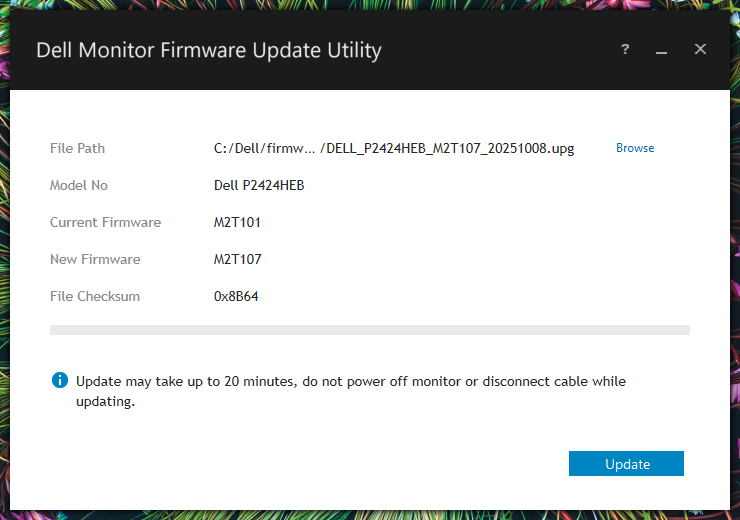
- Double-click the downloaded firmware update utility.
- Select Update and follow the on-screen instructions to complete the installation. The update utility detects your connected monitor and begins the firmware update automatically.
Silent Installation (Advanced)
If you prefer to install from the Command Prompt without the on-screen installer, follow these additional steps after completing the Download instructions.
- Open File Explorer and navigate to the extracted firmware folder.
- Select the address bar at the top of File Explorer, type cmd, and then press Enter. A Command Prompt window opens in that folder.
- Type the following command, replacing the filename with the exact name of your firmware file, and then press Enter:
start /wait Dell_MonitorFirmwareUpdateUtility_XXXXXXX_XXXXXX.exe -s - The firmware installs silently in the background. No additional steps are needed.
How to Check Your Current Monitor Firmware Version
Before you update, it's a good idea to check which firmware version your monitor is currently running. This helps you confirm whether an update is actually needed, and lets you verify the update was successful afterward.
There are two ways to check.
Option 1: Check Using Dell Display and Peripheral Manager
- Open Dell Display and Peripheral Manager from the system tray (Windows) or Launchpad (Mac).
- Select Settings.
- Select your monitor from the list of connected devices.
- The current firmware version is displayed under your monitor's name or in the firmware section of the settings panel.
Option 2: Check Using Your Monitor's On-Screen Menu
You can also find the firmware version directly on the monitor itself, no computer needed.
- Press the menu button on your monitor to open the on-screen display (OSD) menu.
- Navigate to Menu > Others or Menu > Personalize, depending on your monitor model.
- Scroll down to find the firmware version. It typically appears as a number, for example: M3B106.
What to Do If Your Firmware Update Doesn't Complete
Firmware updates usually go smoothly, but occasionally something can interrupt the process. Here's how to get back on track.
Step 1: Don't Force Power Off
If the update appears to be stuck even if the progress bar hasn't moved for several minutes, do not unplug the monitor or turn it off. The update may still be running in the background. Forcing a shutdown mid-update could leave the monitor in an unrecoverable state.
Wait at least 10–15 minutes before taking any further action.
Step 2: Power Cycle Your Monitor and Computer
If the update has clearly stopped or an error message has appeared:
- Turn off the monitor using the power button.
- Unplug the monitor's power cable from the outlet.
- Wait 10 seconds.
- Plug the power cable back in and turn the monitor on.
- Restart your computer to clear any software state that may be blocking the update.
- Try running the firmware update again.
Step 3: Reset All Connections
If power cycling doesn't resolve the issue:
- Turn off the monitor and disconnect all cables, including power, video, and USB.
- Wait 30 seconds.
- Reconnect only the power cable and the USB upstream cable going directly to your computer.
- Do not connect any video cables, other USB devices, or a docking station at this point.
- Retry the firmware update.
Additional Steps
If the steps above didn't resolve the issue, try the following:
- Run the updater as Administrator (Windows). Right-click the Dell Monitor Firmware Update Utility file and select Run as administrator. This gives the utility the permissions it needs to communicate with your monitor.
- Check for Windows updates. Some firmware update issues maybe linked to specific versions of Windows. Make sure your computer has the latest Windows updates installed before retrying. Go to Settings > Windows Update and select Check for updates.
- Try a different computer. If your current computer still cannot detect the monitor, try running the update from a different Windows computer, ideally a desktop with a direct USB connection.
Common Reasons a Firmware Update May Not Complete
If the update continues to fail, one of the following is often the cause:
- No direct USB connection The update requires a USB upstream cable connected directly from the monitor to your computer. If this cable is missing or routed through a docking station or USB hub, the updater cannot communicate with the monitor. Bypass any docking station and plug the USB cable straight into your computer.
- Other USB devices connected Extra peripherals such as webcams, USB drives, or headsets plugged into your monitor or computer can interfere with the update. Disconnect everything except your mouse, keyboard, and the monitor you are updating.
- DDC/CI is turned off The update utility needs DDC/CI enabled to detect and communicate with your monitor. Press the menu button on your monitor, go to Menu > Others, and confirm DDC/CI is set to On.
- Webcam disabled in the monitor menu (certain models) On monitors with a built-in webcam such as the Dell UltraSharp 32 4K Video Conferencing Monitor (U3224KB) or the Dell 24 Video Conferencing Monitor (S2422HZ), the firmware update may not complete if the webcam is turned off in the OSD menu. Enable the webcam setting before retrying.
- Incompatible firmware file If you see the message "The selected firmware is not for this monitor," you have downloaded a firmware file intended for a different monitor model. Go back to Dell Drivers & Downloads, confirm you are looking at the correct monitor by Service Tag or Model Number, and download the right firmware file.
If the Monitor Does Not Turn On After a Failed Update
In rare cases, a monitor may appear unresponsive after a failed update. Before assuming the monitor is damaged, try a full reset:
- Disconnect all cables from the monitor, including the power cable.
- Wait 30 seconds.
- Reconnect the power cable only and turn the monitor on.
- If the monitor powers on, reconnect the USB cable and retry the firmware update from the beginning.
If the monitor remains unresponsive after these steps, it may need to be serviced. Check your warranty status at Dell Support Services & Warranty.
Need More Help?
- Visit the Dell Community Forums to get answers from other Dell users.
- Having some issue with your display? Check out our Monitor Support page for troubleshooting guides.