Režimy Dell Data Security Shield
Zusammenfassung: Tento článek pojednává o režimech stínění nástroje Dell Data Security (dříve Dell Data Protection).
Dieser Artikel gilt für
Dieser Artikel gilt nicht für
Dieser Artikel ist nicht an ein bestimmtes Produkt gebunden.
In diesem Artikel werden nicht alle Produktversionen aufgeführt.
Symptome
Dotčené produkty:
- Credant Mobile Guardian
- Dell Encryption Enterprise
- Dell Data Protection | Enterprise Edition
- Dell Encryption External Media
- Dell Data Protection | External Media Edition
- Dell Encryption Personal
- Dell Data Protection | Personal Edition
- Dell Data Protection | Security Tools
- Dell Encryption Enterprise for Server
- Dell Data Protection | Server Edition
Dotčené platformy:
- Windows
Software Dell Data Security (dříve Dell Data Protection) založený na zásadách používá pro klasifikaci produktu identifikátor režimu Shield.
Ursache
Varování:
- Režim Shield se určuje během instalace produktu a nelze jej ručně změnit.
- Režim Shield slouží pouze k odstraňování problémů s typem nebo stavem produktu.
Lösung
Režimy stínění pro produkty Dell Data Security jsou:
| ID | Režim | Produkt |
|---|---|---|
| 0 | Neznámé/neinicializované | Neinicializováno /zrušeno 1 |
| 1 | Firemní režim | Dell Encryption Enterprise \ Dell Data Protection Enterprise Edition Shield |
| 2 | Samostatný režim | Credant Mobile Guardian |
| 3 | Režim pouze Enterprise EME | Dell Encryption External Media \ Dell Data Protection | Externí edice médií |
| 4 | Místně spravovaný režim | Dell Encryption Personal \ Dell Data Protection | Personal Edition |
| 5 | Režim Essentials | Řešení Dell Data Protection | Bezpečnostní nástroje2 |
| 6 | Režim šifrování serveru | Dell Encryption Enterprise for Server / Dell Data Protection | Šifrování serveru |
| 7 | Režim SaaS | Dell Encryption Enterprise Shield |
1 ksVšechny produkty Dell Data Protection zůstanou nezřízené, dokud nebudou aktivovány.
2 ksZákladní režim se vyskytuje pouze u instalací nástroje Dell Data Protection | Nástroje zabezpečení
Postup vyhledání režimu Shield:
Varování: Přenese vás do registru Windows:
- Úprava registru může způsobit, že počítač přestane po příštím restartování reagovat.
- Pokud máte obavy ohledně provedení tohoto kroku, použijte telefonická čísla mezinárodní podpory Dell Data Security a požádejte o pomoc.
- Pravým tlačítkem klikněte na nabídku Start systému Windows a poté vyberte možnost Spustit.
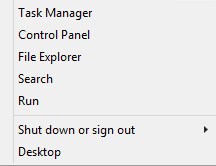
Obrázek 1: (Pouze v angličtině) Spustit
- V uživatelském rozhraní (UI) Spustit zadejte příkaz regedit a stiskněte tlačítko OK.
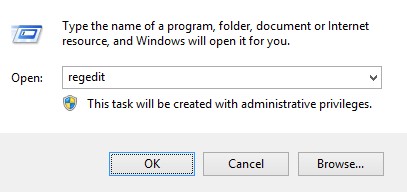
Obrázek 2: (Pouze v angličtině) Zadejte příkaz regedit.
- Přejděte do složky HKEY_LOCAL_MACHINE\SOFTWARE\Credant\CMGShield.
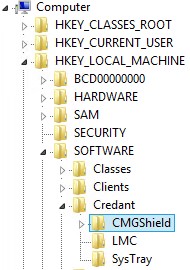
Obrázek 3: (Pouze v angličtině) CMGShield
- Vyhledejte klíč DWORD SM.
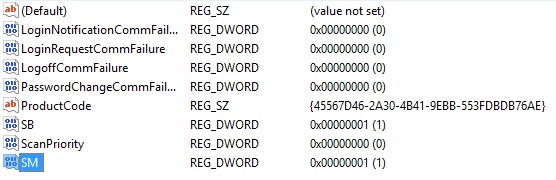
Obrázek 4: (Pouze v angličtině) SM
Poznámka: V tomto příkladu je klíč SM nastaven na hodnotu 1. To identifikuje režim Shield Enterprise Edition.
Chcete-li kontaktovat podporu, přečtěte si článek Telefonní čísla mezinárodní podpory Dell Data Security.
Přejděte na portál TechDirect a vygenerujte online žádost o technickou podporu.
Další informace a zdroje získáte na fóru komunity Dell Security.
Weitere Informationen
Videos
Betroffene Produkte
Dell EncryptionArtikeleigenschaften
Artikelnummer: 000132837
Artikeltyp: Solution
Zuletzt geändert: 05 März 2024
Version: 10
Antworten auf Ihre Fragen erhalten Sie von anderen Dell NutzerInnen
Support Services
Prüfen Sie, ob Ihr Gerät durch Support Services abgedeckt ist.