Windows Server: Active Directory GPO Management using PowerShell
Zusammenfassung: Instructions below give examples of PowerShell commands available to gather a list of GPOs found in a specific Windows Active Directory Domain. TSDOMAIN.Local is an example in commands below and should be replaced with the domain name where we are gathering the GPO information. ...
Dieser Artikel gilt für
Dieser Artikel gilt nicht für
Dieser Artikel ist nicht an ein bestimmtes Produkt gebunden.
In diesem Artikel werden nicht alle Produktversionen aufgeführt.
Weisungen
Steps below use Windows PowerShell to manage Active Directory Windows Group Policy Objects.
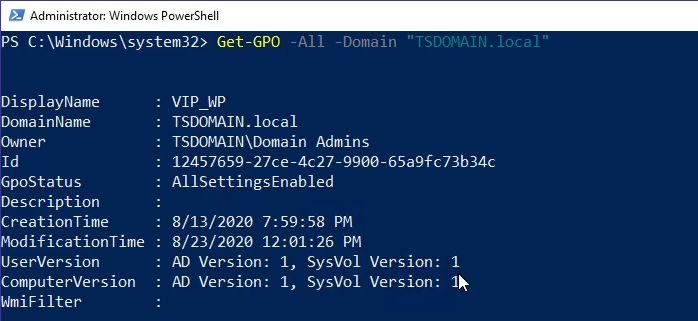


- Command example below returns all GPOs found in the specified Domain:
Get-GPO -All -Domain “TSDOMAIN.local”
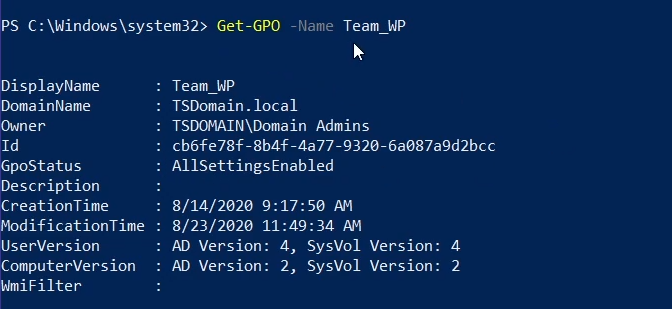
Get-GPOcan be used to return general information for a specific GPO. The example below returns general information for the "Team_WP" GPO:
Get-GPO -Name Team_WP
- GPO information can be returned by querying the GPO’s GUID ID; the command below is an example:
Get-GPO -Guid cb6fe78f-8b4f-4a77-9320-6a087a9d2bcc -Domain “TSDOMAIN.local”
Get-GPOReportcommand below returns a comprehensive report for all domain GPOs found, compiling the information in HTML format for review.
Get-GPOReport -All -Domain “TSDOMAIN.Local” -ReportType HTML -Path “C:\GPOReports\GPOReportsAll.html”
- After running
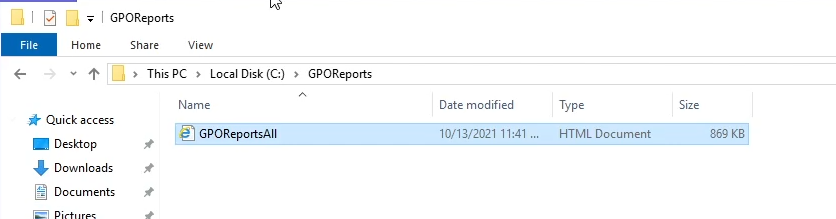
Get-GPOReportan HTML file is created at the file path designated in the command above.
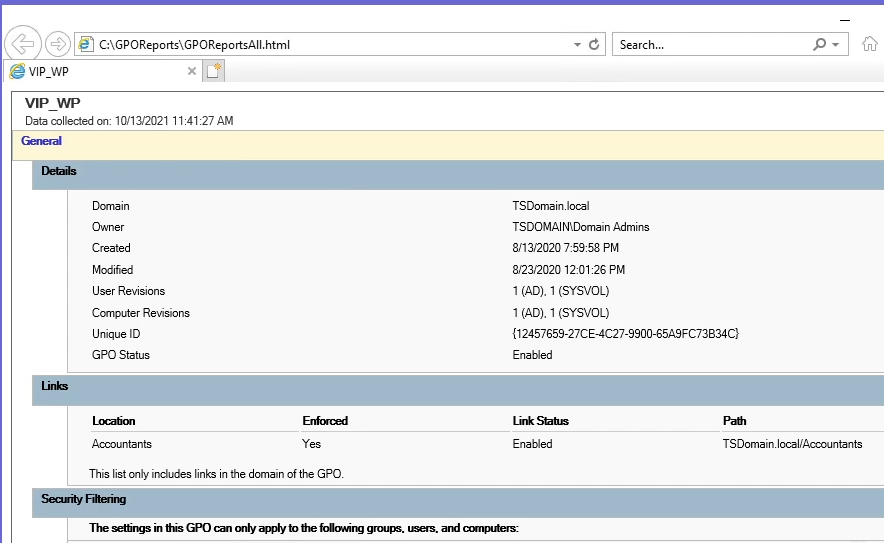
- The file when opened will come up as a browser page with extensive detail about all Domain GPOs found.
Weitere Informationen
See this video:
Betroffene Produkte
Microsoft Windows Server 2016, Microsoft Windows Server 2019, Microsoft Windows Server 2022Produkte
PowerEdge XR2, PowerEdge FC640, PowerEdge M640, PowerEdge M640 (for PE VRTX), PowerEdge MX5016s, PowerEdge MX740C, PowerEdge MX750c, PowerEdge MX760c, PowerEdge MX840C, PowerEdge R240, PowerEdge R250, PowerEdge R260, PowerEdge R340, PowerEdge R350
, PowerEdge R360, PowerEdge R440, PowerEdge R450, PowerEdge R540, PowerEdge R550, PowerEdge R640, PowerEdge R6415, PowerEdge R650, PowerEdge R650xs, PowerEdge R6515, PowerEdge R6525, PowerEdge R660, PowerEdge R660xs, PowerEdge R6615, PowerEdge R6625, PowerEdge R740, PowerEdge R740XD, PowerEdge R740XD2, PowerEdge R7415, PowerEdge R7425, PowerEdge R750, PowerEdge R750XA, PowerEdge R750xs, PowerEdge R7515, PowerEdge R7525, PowerEdge R760, PowerEdge R760XA, PowerEdge R760xd2, PowerEdge R760xs, PowerEdge R7615, PowerEdge R7625, PowerEdge R840, PowerEdge R860, PowerEdge R940, PowerEdge R940xa, PowerEdge R960, PowerEdge T140, PowerEdge T150, PowerEdge T160, PowerEdge T340, PowerEdge T350, PowerEdge T360, PowerEdge T440, PowerEdge T550, PowerEdge T560, PowerEdge T640, PowerEdge XR11, PowerEdge XR12
...
Artikeleigenschaften
Artikelnummer: 000200551
Artikeltyp: How To
Zuletzt geändert: 05 Sept. 2025
Version: 9
Antworten auf Ihre Fragen erhalten Sie von anderen Dell NutzerInnen
Support Services
Prüfen Sie, ob Ihr Gerät durch Support Services abgedeckt ist.