Windows Server: Microsoft SQL Server MSDB Database Recovery
Zusammenfassung: Information on how to recover a Microsoft SQL Server MSDB database.
Dieser Artikel gilt für
Dieser Artikel gilt nicht für
Dieser Artikel ist nicht an ein bestimmtes Produkt gebunden.
In diesem Artikel werden nicht alle Produktversionen aufgeführt.
Symptome
When damaged and corrupted, a Microsoft SQL Server MSDB database may not come online and be operational. The SQL Server Agent Service does not start, and any scheduled jobs do not run automatically or manually.
Ursache
SQL Server database file damage can occur for many different reasons. Most Microsoft SQL Server damaged MSDB database events occur because of hardware issues related to memory, disk, or processor problems.
Lösung
There are three methods to recover Microsoft SQL MSDB databases:

The msdbdata.mdf and msdblog.ldf files are the MSDB database template files that we must bring up a new stable MSDB database.





- Restore from backup
- Use DBCC CheckDB to repair MSDB database
- Replace the MSDB database files
MSDB database restore from backup:
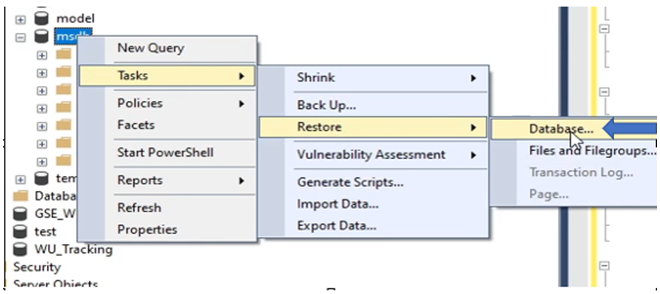
The restore process using SQL Server Management Studio requires a current backup and can be performed by going to properties of the "msdb" database, Tasks > Restore > Database and pointing to the location of backup media.
Use DBCC CheckDB for Database repair:
If no backup is available, we can run DBCC CheckDB to save the current MSDB database and its contents. The T-SQL commands below check the integrity of the MSDB database. Run a soft repair of the MSDB database, and finally a hard repair of the MSDB database:

Replace the MSDB database files.
If the MSDB database is corrupt, and DBCC repair options do not work, put a new MSDB database in by replacing the MSDB database files.
When we replace the MSDB database files we lose all information like custom backup jobs, task information, replication, log shipping, and maintenance plan data.
The steps below are used to replace an existing MSDB database with a new default MSDB database.
The restore process using SQL Server Management Studio requires a current backup and can be performed by going to properties of the "msdb" database, Tasks > Restore > Database and pointing to the location of backup media.
Use DBCC CheckDB for Database repair:
If no backup is available, we can run DBCC CheckDB to save the current MSDB database and its contents. The T-SQL commands below check the integrity of the MSDB database. Run a soft repair of the MSDB database, and finally a hard repair of the MSDB database:
- MSDB integrity check; is the database free of corruption?
Run the command below in the SSMS query window:
USE Master;
      GO
        ALTER Database MSDB
        SET SINGLE_USER WITH ROLLBACK IMMEDIATE;
        GO
        DBCC CHECKDB (msdb, NOINDEX);
        GO
        ALTER DATABASE MSDB
        SET-MULTI_USER;
        GO
We want to check the line at the bottom of the return window reporting "allocation" and "consistency" errors. A damaged MSDB database reports an error and requires the DBCC CHECKDB commands below to repair.
- MSDB T-SQL command for an attempted "soft recovery" with no data loss:
Run the command below in the SSMS query window:
USE Master;
      GO
        ALTER Database MSDB
        SET SINGLE_USER WITH ROLLBACK IMMEDIATE;
        GO
        DBCC CHECKDB (msdb, REPAIR_REBUILD);
        GO
        ALTER DATABASE MSDB
        SET-MULTI_USER;
        GO
After running the command above, run DBCC CheckDB again to see new status of the database.
- MSDB T-SQL command for an attempted "hard recovery" with possible data loss:
Run the command below in the SSMS query window:
USE Master;
      GO
        ALTER Database MSDB
        SET SINGLE_USER WITH ROLLBACK IMMEDIATE;
        GO
        DBCC CHECKDB (msdb, REPAIR_ALLOW_DATA_LOSS);
        GO
        ALTER DATABASE MSDB
        SET-MULTI_USER;
        GO
After running the command above, run DBCC CheckDB again to see new status of the database.
Replace the MSDB database files.
If the MSDB database is corrupt, and DBCC repair options do not work, put a new MSDB database in by replacing the MSDB database files.
When we replace the MSDB database files we lose all information like custom backup jobs, task information, replication, log shipping, and maintenance plan data.
The steps below are used to replace an existing MSDB database with a new default MSDB database.
- Browse to the SQL Server installation directory and go to the Templates folder under the Binn directory:
The msdbdata.mdf and msdblog.ldf files are the MSDB database template files that we must bring up a new stable MSDB database.
- We must stop the SQL Server Service to replace the existing MSDB database files.
- Go to the SQL Server Data directory. The directory path in the example below is
C:\Program Files\Microsoft SQL Server\MSSQL15.SQL2019\MSSQL\DATA
- Find the corrupt "msdbdata.mdf" and "msdblog.ldf" files.
- Copy and move the files to another directory; in this case we are moving them to a folder called "MSDB_Save." There is a chance that these files can be imported into another SQL Server installation and checked again with DBCC CHECKDB; it is not a best practice to delete corrupt database files when troubleshooting.
- Find where the MSDB temp database files are saved and put a copy of them back into our default SQL Server database directory:
- Final location for the MSDB database temp files; back in the default data directory of
C:\Program Files\Microsoft SQL Server\MSSQL15.SQL2019\MSSQL\DATA.
- After replacing the MSDB database files, start the SQL Server Service.
Betroffene Produkte
Microsoft Windows Server 2016, Microsoft Windows Server 2019, Microsoft Windows Server 2022, Microsoft Windows Server 2025Produkte
C Series, HS Series, Modular Infrastructure, Tower Servers, PowerEdge R240, PowerEdge R250, PowerEdge R260, PowerEdge R340, PowerEdge R350, PowerEdge R360, PowerEdge R440, PowerEdge R450, PowerEdge R540, PowerEdge R550, PowerEdge R640
, PowerEdge R6415, PowerEdge R650, PowerEdge R650xs, PowerEdge R6515, PowerEdge R6525, PowerEdge R660, PowerEdge R660xs, PowerEdge R6615, PowerEdge R6625, PowerEdge R740, PowerEdge R740XD, PowerEdge R740XD2, PowerEdge R7415, PowerEdge R7425, PowerEdge R750, PowerEdge R750XA, PowerEdge R750xs, PowerEdge R7515, PowerEdge R7525, PowerEdge R760, PowerEdge R760XA, PowerEdge R760xd2, PowerEdge R760xs, PowerEdge R7615, PowerEdge R7625, PowerEdge R840, PowerEdge R860, PowerEdge R940, PowerEdge R940xa, PowerEdge R960
...
Artikeleigenschaften
Artikelnummer: 000200606
Artikeltyp: Solution
Zuletzt geändert: 05 Sept. 2025
Version: 9
Antworten auf Ihre Fragen erhalten Sie von anderen Dell NutzerInnen
Support Services
Prüfen Sie, ob Ihr Gerät durch Support Services abgedeckt ist.