How to Reseat the Keycap when a Key Falls Off the Laptop Keyboard
Summary: The following article explains how to reseat the keycap when a key falls off the keyboard on a Laptop.
Αυτό το άρθρο ισχύει για
Αυτό το άρθρο δεν ισχύει για
Αυτό το άρθρο δεν συνδέεται με κάποιο συγκεκριμένο προϊόν.
Δεν προσδιορίζονται όλες οι εκδόσεις προϊόντων σε αυτό το άρθρο.
Instructions
Reseating the keycap
It is possible for the keycap on the internal keyboard to get stuck or come off while using a laptop. To put the keycap back on the keyboard, run through the following steps.
You can reseat a loose keycap:
- Align it with the scissored spring underneath.
- Press down with your finger until the keycap snaps back into place. See Figure 1.
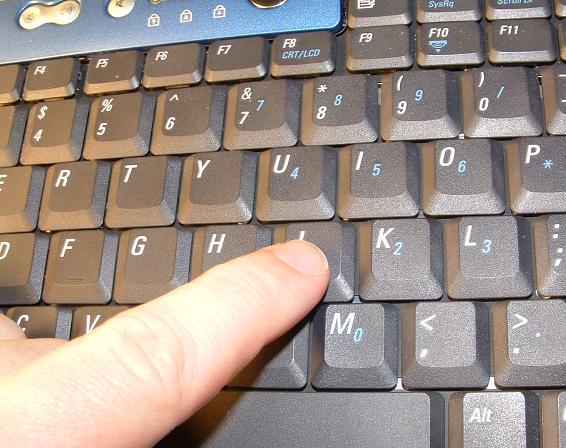
NOTE: You might be required to wiggle your finger back and forth for the keycap to snap down on the scissor spring. There are two snaps, one at the top and one at the bottom of the key.
- Where there is a scissor support bar that is loose, clip the lower part of the bar on first under the bottom scissor rail.
- Snap the upper part over the top scissor rail.
- Line up the keycap to reattach it. See Figure 2.
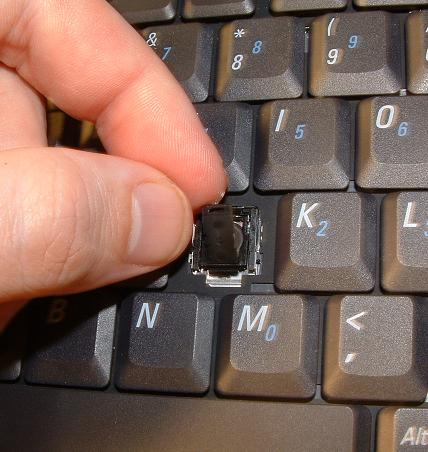
You can learn more about the Dell Service Descriptions at this page:
NOTE: Did the above instructions fail to resolve your issue? Are your keyboard keys popped, broken, damaged, or lost? Use the following link to contact Dell Support:
Επηρεαζόμενα προϊόντα
Chromebook, G Series, Alienware, Dell Laptops, Dell Plus, Dell Pro, Dell Pro Max, Dell Pro Plus, Dell Pro Premium, Inspiron, Latitude, Dell Pro Rugged, Vostro, XPS, Legacy Laptop Models, Mobile Workstations, Dell Pro Max 16 XE MC16250Ιδιότητες άρθρου
Article Number: 000133100
Article Type: How To
Τελευταία τροποποίηση: 19 Ιουν 2025
Version: 7
Βρείτε απαντήσεις στις ερωτήσεις σας από άλλους χρήστες της Dell
Υπηρεσίες υποστήριξης
Ελέγξτε αν η συσκευή σας καλύπτεται από τις Υπηρεσίες υποστήριξης.