How to Create Custom VMware Carbon Black Cloud Roles
Summary: Learn how to create custom administrator roles for VMware Carbon Black Cloud by following these step-by-step instructions for Windows, Mac, and Linux.
This article applies to
This article does not apply to
This article is not tied to any specific product.
Not all product versions are identified in this article.
Instructions
This article discusses how to create custom administration roles for the VMware Carbon Black Cloud.
Affected Products:
- VMware Carbon Black Cloud Endpoint
Affected Operating Systems:
- Windows
- Mac
- Linux
- In a web browser, go to <REGION>.conferdeploy.net
Note: <REGION> = Region of tenant
- Americas = https://defense-prod05.conferdeploy.net/
- Europe = https://defense-eu.conferdeploy.net/
- Asia Pacific = https://defense-prodnrt.conferdeploy.net/
- Australia and New Zealand = https://defense-prodsyd.conferdeploy.net
- Americas = https://defense-prod05.conferdeploy.net/
- Sign In to the VMware Carbon Black Cloud.

- In the left menu pane, expand SETTINGS and then click ROLES.
 Note: The layout in the example may differ slightly from your environment.
 - In the upper right, click Add Role.

- In the Add Role menu:
- Populate the Role name.
- Populate a role Description.
- Optionally, Copy permissions from another role.
- Check the appropriate Permissions.
- Click Save.
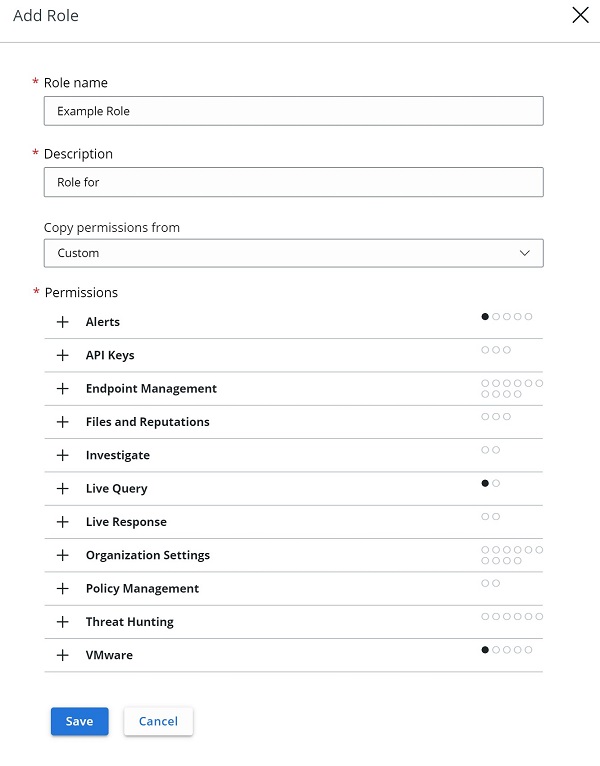 Note: The examples that are used in the screenshot will differ in your environment.

Affected Products
VMware Carbon BlackArticle Properties
Article Number: 000126081
Article Type: How To
Last Modified: 28 Jul 2026
Version: 13
Find answers to your questions from other Dell users
Support Services
Check if your device is covered by Support Services.