Gather Logs via Troubleshooting Script (TSS) in Windows PowerShell
Summary: Troubleshooting Script (TSS) is a collection of scripts and tools developed by Microsoft to facilitate the collection of logs and diagnostic information on Windows systems. Using Windows PowerShell, TSS collects a variety of data, such as event logs, process information, system configuration details, and other data relevant to troubleshooting technical issues. This script is especially useful for identifying and troubleshooting complex issues in Windows, providing a comprehensive compilation of information that can be reviewed by Technical Support. ...
This article applies to
This article does not apply to
This article is not tied to any specific product.
Not all product versions are identified in this article.
Instructions
To collect logs using Troubleshooting Script (TSS) through Windows PowerShell, follow the instructions below to suit the online or offline mode depending on your environment conditions.
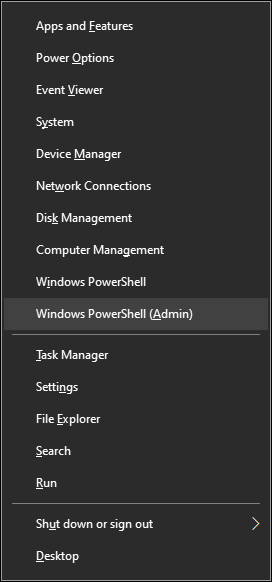
1 . Open PowerShell as Administrator.
- Press
Windows + Xand selectWindows PowerShell (Admin)key or theWindows Terminal (Admin)specification. - Confirm the User Account Control (UAC) prompt if prompted.
2 . Run command.
Copy and paste the below command into PowerShell and press Enterspecification.
[Net.ServicePointManager]::SecurityProtocol = [Net.SecurityProtocolType]::Tls12; Invoke-Expression('$module="TSSCollect"; $repo="PowershellScripts"'+(new-object net.webclient). DownloadString('https://raw.githubusercontent.com/fginacio/MS/main/TSSCollect.ps1')); Invoke-TSSCollect

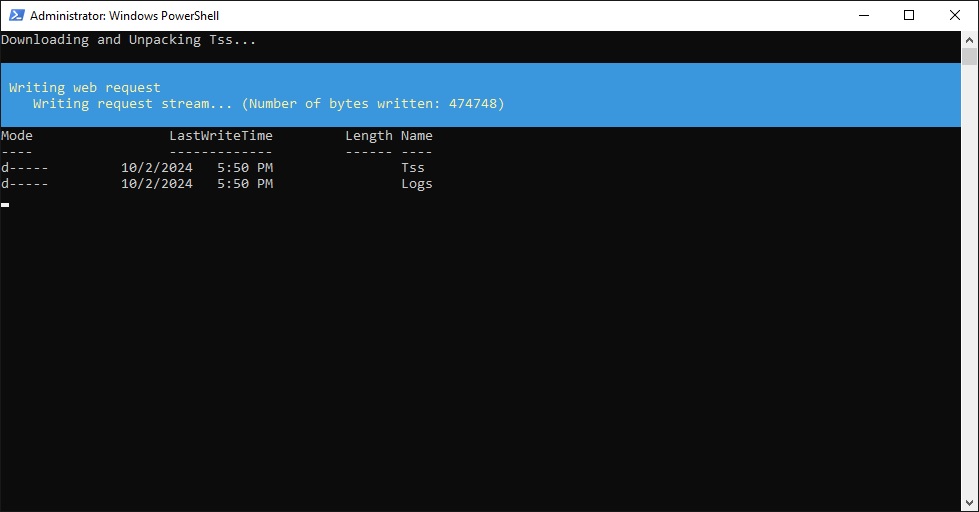
3 . TSS Download and Unpack.
Wait for TSS download and unzip to complete.
4 . Menu.
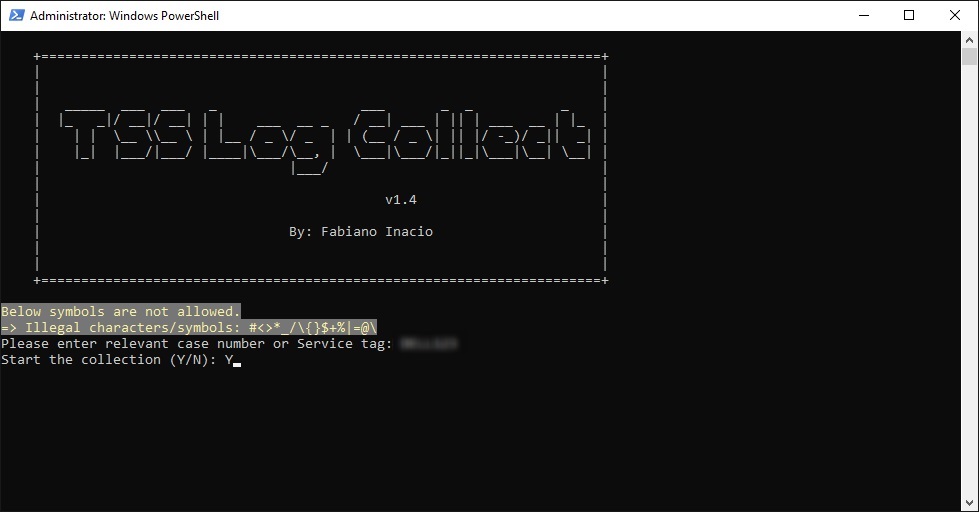
From the menu, enter the Service Tag of the appliance and then, when prompted to start the collection, type the letter Y key, and then press the Enterspecification.
5. Collection.
Wait for the collection to complete.
NOTE: This step may take several minutes.

6. Conclusion.
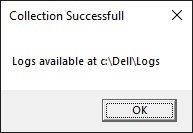
A dialog window opens informing you that the collection completed successfully.
NOTE: The file will be saved to the
C:\Dell\Logsspecification.
1 . TSS Download and Unpack.
- Download TSS from this link.
- Save the file on the host where you need to perform the collection
TSS.zipIn the directoryC:\Dell\and extract the contents to theC:\Dell\TSSv2specification. - Download the
TSSv2Collect_Offline.ps1from this link and save to the folderC:\Dell\specification.
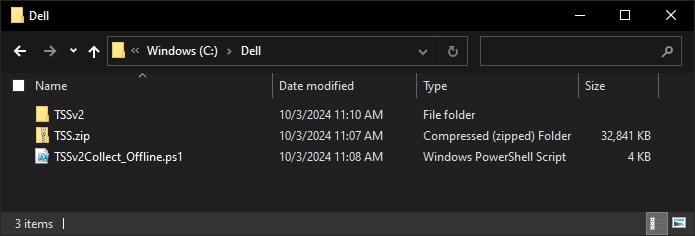
2 . Open PowerShell as Administrator.
- Press
Windows + Xand selectWindows PowerShell (Admin)key or theWindows Terminal (Admin)specification. - Confirm the User Account Control (UAC) prompt if prompted.
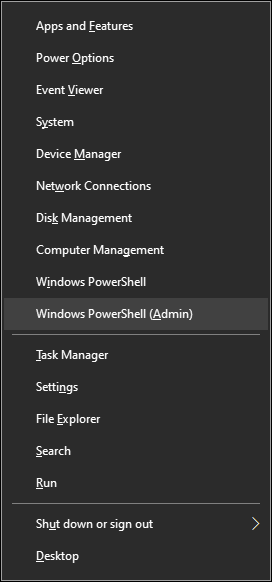
3 . Run command.
Copy and paste the below command into PowerShell and press Enterspecification.
Echo TSSv2Collect_Offline; [Net.ServicePointManager]::SecurityProtocol = [Net.SecurityProtocolType]::Tls12; Invoke-Expression('$module="TSSv2Collect_Offline"; $repo="PowershellScripts"'+(new-object net.webclient). DownloadString('c:\dell\TSSv2Collect_offline.ps1'));

4 . Menu.
From the drop-down menu, choose the collection option.
- Standard: Press '1' to use the default setting.
- Cluster: Press '2' to capture logs in cluster environments.
- HyperV: Press '3' for virtual machine logs.
- Output: Press 'Q' to end the program.

5. Collection.
Wait for the collection to complete.
NOTE: This step may take several minutes.
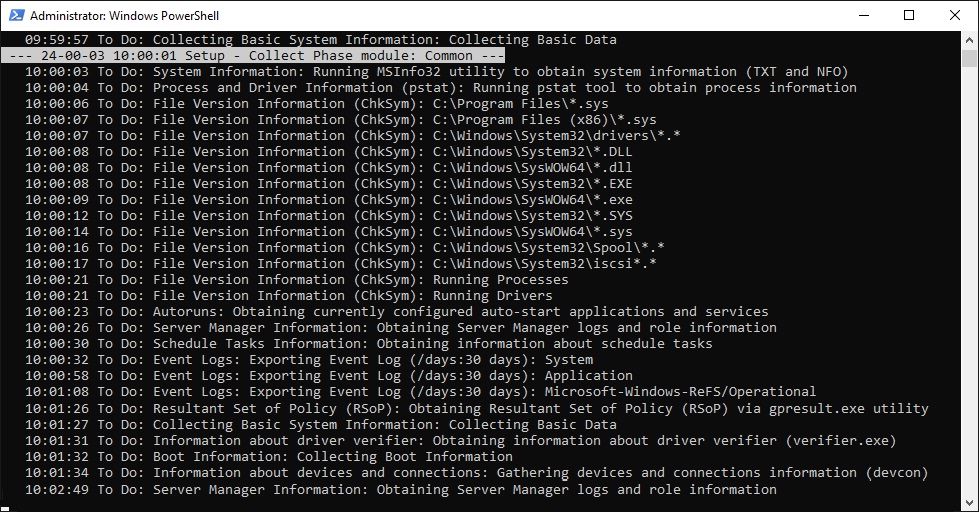
6. Conclusion.
A dialog window opens stating that the collection completed successfully and indicating the directory where the file was saved.
To send the generated log to Dell Technical Support, use the portal available at: https://tdm.dell.com/file-upload.
NOTE: The information contained in this document is based on Fabiano Inacio's GitHub repository, available at: https://github.com/fginacio/MS.
Affected Products
Microsoft Windows Server 2016, Microsoft Windows Server 2019, Microsoft Windows Server 2022Article Properties
Article Number: 000231601
Article Type: How To
Last Modified: 21 May 2025
Version: 2
Find answers to your questions from other Dell users
Support Services
Check if your device is covered by Support Services.