Dell Data Vault Control Device (DDV Device) 在设备管理器中显示黄色感叹号
Summary: 由于在 SupportAssist (SA) 安装、卸载或升级过程中出现蓝屏而无法卸载 Dell Data Vault Control Device (DDV Device)。
This article applies to
This article does not apply to
This article is not tied to any specific product.
Not all product versions are identified in this article.
Symptoms
受影响的产品:
- SupportAssist
- SupportAssist for Business PCs
受影响的操作系统:
- Windows 10 20H2、21H2
- Windows 11 22H2
Dell Data Vault Control Device (DDV Device) 在设备管理器中显示黄色感叹号。
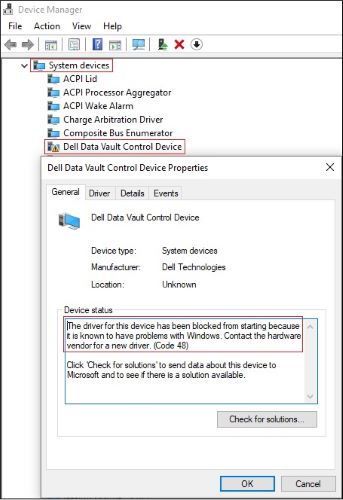
图 1:(仅英文)Dell Data Vault Control Device 显示黄色感叹号
Cause
Microsoft 已阻止 Dell Data Vault Control Device 的驱动程序启动,因为已知它在 Windows 中存在问题。
提醒:
- 戴尔应用程序可能已安装 DDV,并且应该已将其删除,因为它已停售。
- 此问题与特定 Windows 操作系统版本相关,与戴尔应用程序版本无关。
Resolution
案例 1
重复的 Dell Data Vault Control Device 带有黄色感叹号
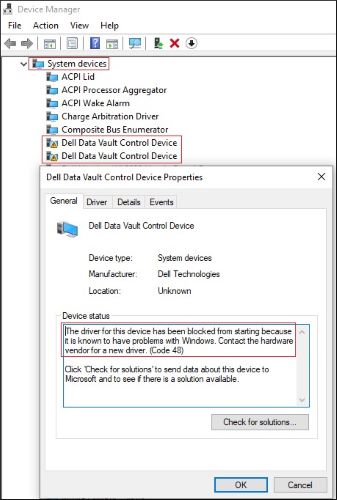
图 2:(仅英文)重复的 Dell Data Vault Control Device 带有黄色感叹号
- 打开设备管理器 > 展开系统设备。
- 右键单击第一个 Dell Data Vault Control Device > 单击卸载设备 > 清除删除此设备的驱动程序软件 > 单击卸载按钮。
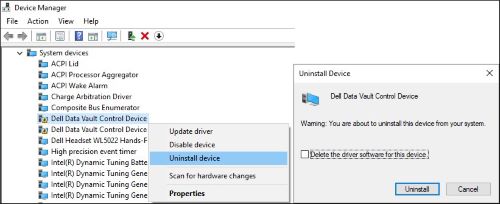
图 3:(仅英文)卸载第一个 Dell Data Vault Control Device
- 对其他 Dell Data Vault Control Device,重复步骤 2。
- 右键单击最后一个 Dell Data Vault Control Device > 单击卸载设备 > 选中删除此设备的驱动程序软件 > 单击卸载按钮。
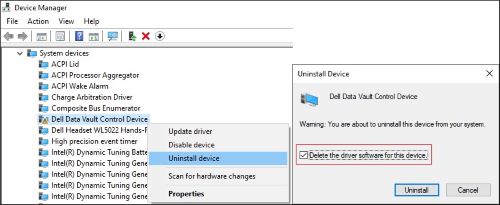
图 4:(仅英文)清除“删除此设备的驱动程序软件”并卸载最后一个 Dell Data Vault Control Device。
案例 2
单个 Dell Data Vault Control Device 带有黄色感叹号
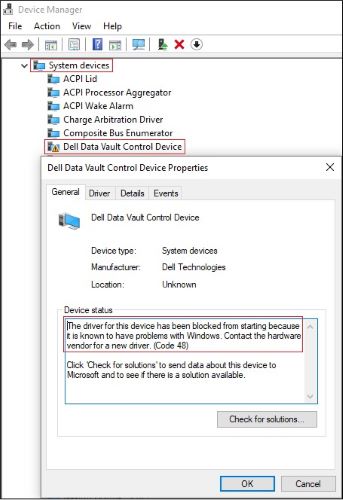
图 5:(仅英文)带有黄色感叹号的 Dell Data Vault Control Device
- 打开设备管理器 > 展开系统设备。
- 右键单击 Dell Data Vault Control Device > 单击卸载设备 > 选中删除此设备的驱动程序软件 > 单击卸载按钮。
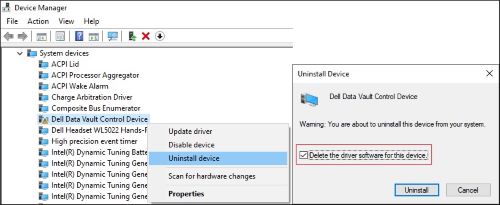
图 6:(仅英文)清除“删除此设备的驱动程序软件”并卸载最后一个 Dell Data Vault Control Device
Affected Products
SupportAssist for Home PCsArticle Properties
Article Number: 000204902
Article Type: Solution
Last Modified: 13 Nov 2023
Version: 6
Find answers to your questions from other Dell users
Support Services
Check if your device is covered by Support Services.