PowerProtect Data Manager:インターフェイスのタイムアウトを変更する方法
Summary: PowerProtectインターフェイスは、デフォルトの1800秒(30分)後にタイムアウトします。
This article applies to
This article does not apply to
This article is not tied to any specific product.
Not all product versions are identified in this article.
Instructions
19.22.0.24以前でPowerProtectインターフェイスのタイムアウトを増やす方法。
- PowerProtectへのSSHセッションを開き、管理者アカウントで認証します。
- 次のディレクトリーのコピーを作成します。
app-config.json:cp -p /usr/local/brs/lib/ecdm-ui/main/app-config.json /usr/local/brs/lib/ecdm-ui/main/app-config.json.orig - 「
idle-timeout値をapp-config.json1 から 3600 秒までの値を持つファイル。- テキスト エディター:
vi /usr/local/brs/lib/ecdm-ui/main/app-config.json - 「
sedユーティリティ:sed -i 's/"idle-timeout": 1800/"idle-timeout": 3600/' /usr/local/brs/lib/ecdm-ui/main/app-config.json
- テキスト エディター:
- 次のことを確認します。
app-config.jsonファイルが正しく更新されました:grep 'idle-timeout' /usr/local/brs/lib/ecdm-ui/main/app-config.json
注:値が 1 秒から 3600 秒の間にない場合は、デフォルトの 1800 秒 (30 分) が使用されます。
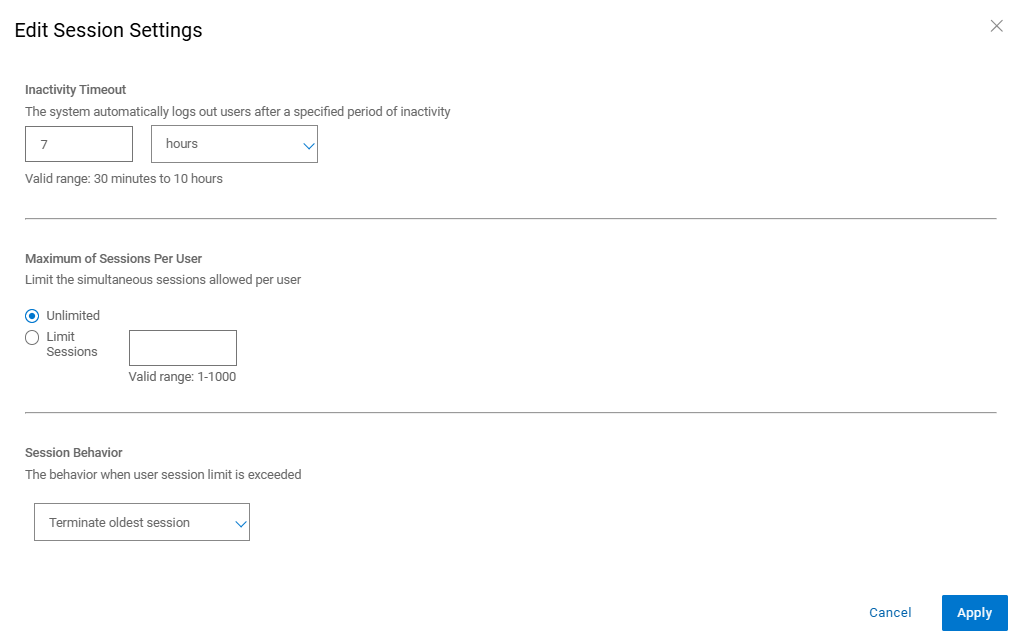
20.1.0.0-17以降でPowerProtectインターフェイスのタイムアウトを増やす方法
PowerProtectインターフェイスで、[Administration > Access Control > Session Settings]に移動します。
Additional Information
デフォルトの app-config.json :
admin@ppdm:/> cat /usr/local/brs/lib/ecdm-ui/main/app-config.json
{
    "idle-timeout": 1800
}
admin@ppdm:/>
「 app-config.json アップデート後のファイル:
admin@ppdm:/> cat /usr/local/brs/lib/ecdm-ui/main/app-config.json
{
    "idle-timeout": 3600
}
admin@ppdm:/>
Article Properties
Article Number: 000221611
Article Type: How To
Last Modified: 22 May 2026
Version: 3
Find answers to your questions from other Dell users
Support Services
Check if your device is covered by Support Services.