PowerProtect Data Manager:如何變更介面逾時
Summary: PowerProtect 介面會在預設的 1800 秒 (30 分鐘) 後逾時。
This article applies to
This article does not apply to
This article is not tied to any specific product.
Not all product versions are identified in this article.
Instructions
如何在 19.22.0.24 及更舊版本中增加 PowerProtect 介面逾時。
- 開啟 SSH 工作階段至 PowerProtect,並使用管理員帳戶進行驗證。
- 製作
app-config.json檔案:cp -p /usr/local/brs/lib/ecdm-ui/main/app-config.json /usr/local/brs/lib/ecdm-ui/main/app-config.json.orig - 更新
idle-timeout值在app-config.json值介於 1 到 3600 秒之間的檔。- 文字編輯器:
vi /usr/local/brs/lib/ecdm-ui/main/app-config.json - 可使用
sed公用程式:sed -i 's/"idle-timeout": 1800/"idle-timeout": 3600/' /usr/local/brs/lib/ecdm-ui/main/app-config.json
- 文字編輯器:
- 請確認
app-config.json檔案已正確更新:grep 'idle-timeout' /usr/local/brs/lib/ecdm-ui/main/app-config.json
注意:如果值不在 1 到 3600 秒之間,則使用預設的 1800 秒(30 分鐘)。
如何在 20.1.0.0-17 及更新版本中增加 PowerProtect 介面逾時。
在 PowerProtect 介面中,瀏覽至「管理 > 存取控制 > 工作階段設定」。
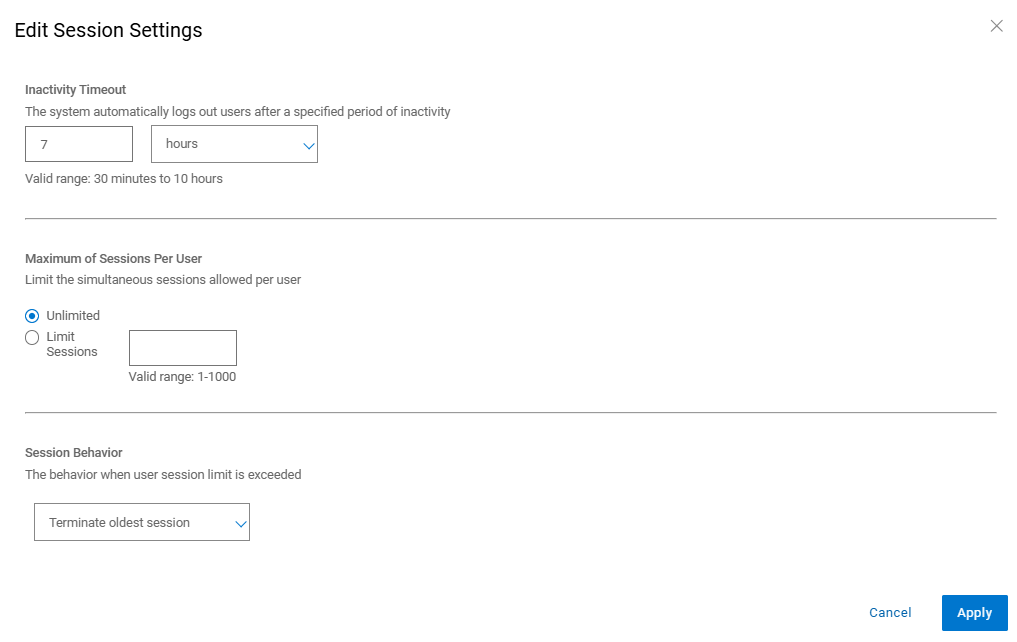
Additional Information
預設值 app-config.json 檔案:
admin@ppdm:/> cat /usr/local/brs/lib/ecdm-ui/main/app-config.json
{
    "idle-timeout": 1800
}
admin@ppdm:/>
可使用 app-config.json 更新後的檔案:
admin@ppdm:/> cat /usr/local/brs/lib/ecdm-ui/main/app-config.json
{
    "idle-timeout": 3600
}
admin@ppdm:/>
Article Properties
Article Number: 000221611
Article Type: How To
Last Modified: 22 May 2026
Version: 3
Find answers to your questions from other Dell users
Support Services
Check if your device is covered by Support Services.