Touch Function Does Not Work on Dell P2424HT Monitor When Used with Mac Operating System
Summary: This article provides information for Mac operating system users on how to use multi-touch function on the Dell P2424HT Monitor.
This article applies to
This article does not apply to
This article is not tied to any specific product.
Not all product versions are identified in this article.
Symptoms
The touch function on a P2424HT monitor may not work. The issue occurs when a monitor is used on a Mac operating system.
Affected Monitor:
- Dell P2424HT
Cause
This is due to the incorrect way of the usage, such as no UPDD tool is used.
Resolution
Follow the steps below to use touch function when using P2424HT with a Mac computer:
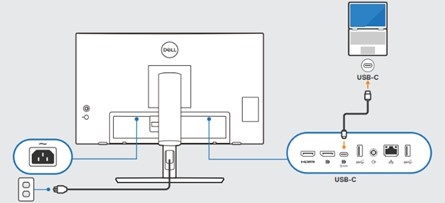
- Connect the USB-C to USB-C cable with a Mac computer and a P2424HT monitor.
Note: The USB-C connector interface must be inserted in place.
- Download and install the UPDD Multi-Touch macOS Driver from the Dell Drivers & Downloads page.
Note: To download the driver, reference How to Download and Install Dell Drivers.Note: To install the driver, reference https://support.touch-base.com/Documentation/50245/Quickinstallation-guide?Keywords=quick+installation
.
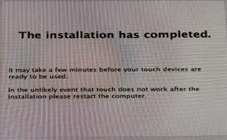
- Ensure that the computer has successfully completed the installation of the UPDD tool.
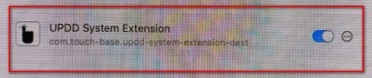
- The UPDD tool must be enabled on the computer.
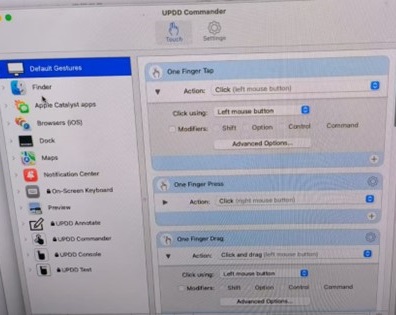
- The UPDD Commander gestures cannot be blank. It must be set as follows:
- Action under One Finger Tap - Select Click.
- Action under One Finger Press - Select Click.
- Action under One Finger Drag - Select Click and drag.
Affected Products
Dell P2424HTArticle Properties
Article Number: 000222447
Article Type: Solution
Last Modified: 10 Apr 2025
Version: 5
Find answers to your questions from other Dell users
Support Services
Check if your device is covered by Support Services.