Windows 10 中的能源計劃遺失或有瑕疵
Summary: 本文說明如何在標準 Windows 節能計劃遺失或故障時還原。
This article applies to
This article does not apply to
This article is not tied to any specific product.
Not all product versions are identified in this article.
Symptoms
Cause
不適用。
Resolution
存取 BIOS 設定
以滑鼠右鍵按一下工作列中的 電池圖示 ,然後選取 能源設定。或者,您可以開啟開始功能表並輸入能源設定,然後按一下 Enter 鍵。在能源設定視窗中,您可以看到所有可用的節能計畫。
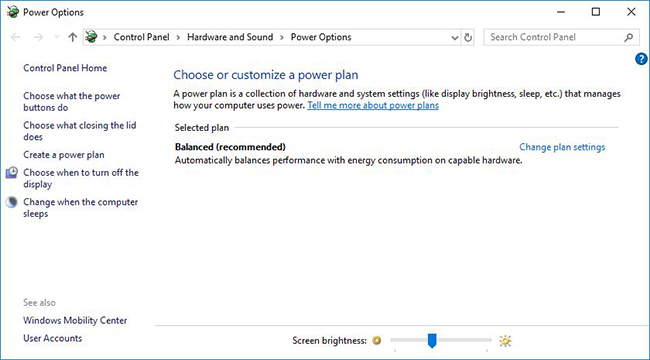
(圖 1:Windows 10 節能計劃)
注意: 如果您沒有看到任何節能計劃或顯示的計劃有錯誤,請轉到下一節中的資訊
復原節能計劃
-
以滑鼠右鍵按一下「開始」,然後以系統管理員身分選取命令提示字元。
-
輸入下列命令,然後按下 Enter 鍵:
Powercfg -RestoreDefaultSchemes
此後,所有標準的 Windows 節能計劃應再次完全正常運行。
建立能源報告
在 能源報告中,您可以看到節能計劃的所有功能以及哪些功能有故障。這些都以 紅色標記。
-
以滑鼠右鍵按一下 開始 ,然後按一下 命令提示字元 (系統管理員)
-
輸入下列命令,然後按下 Enter 鍵:
電源 -能源
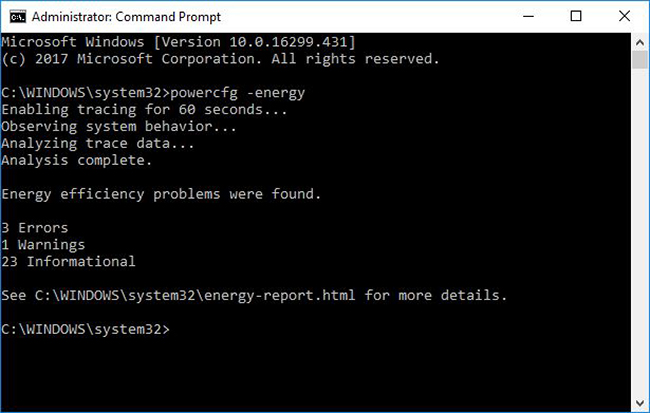
(圖 2:建立能源報告)
-
報告會儲存在 C:\Windows\system32\energy-report.html
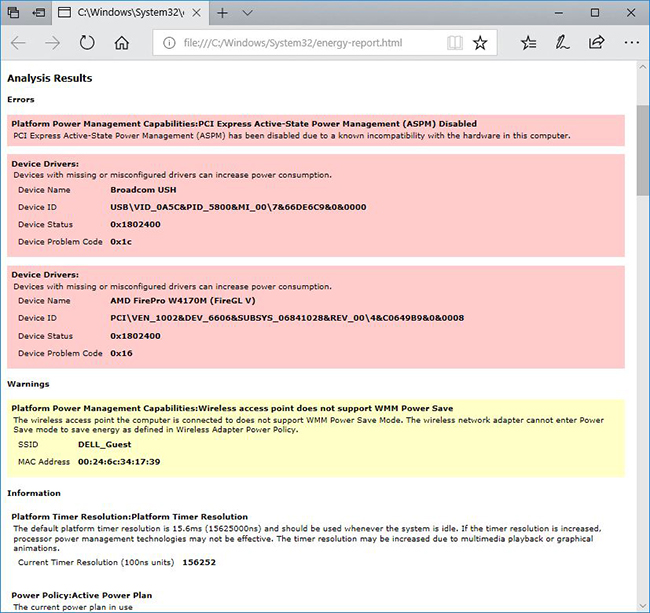
(圖 3:有錯誤的能源報告)
對於任何報告的問題的解決方案,您只需在互聯網上搜索報告的錯誤,因為最新資訊將直接從Microsoft獲得。
Affected Products
G Series, Alienware, Dell Plus, Dell Pro, Dell Pro Max, Dell Pro Plus, Dell Pro Premium, Inspiron, Latitude, Dell Pro Rugged, Vostro, XPS, Latitude Tablets, Surface, XPS Tablets, Mobile Workstations, Dell Pro Max 16 XE MC16250Article Properties
Article Number: 000148983
Article Type: Solution
Last Modified: 01 Sept 2026
Version: 10
Find answers to your questions from other Dell users
Support Services
Check if your device is covered by Support Services.