Windows 10 中的能源计划缺失或出错
Summary: 本文介绍在标准 Windows 节能计划缺失或出现故障时如何恢复这些计划。
This article applies to
This article does not apply to
This article is not tied to any specific product.
Not all product versions are identified in this article.
Symptoms
Cause
不适用。
Resolution
访问 BIOS 设置
右键单击任务栏上的 电池图标 ,然后选择 能源设置。或者,您可以打开开始菜单并键入能源设置,然后单击 Enter键。在能源设置窗口中,您可以看到所有可用的节能计划。
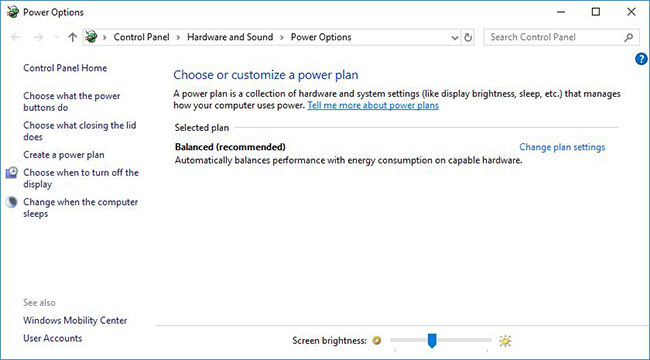
(图 1:Windows 10 节能计划)
注意: 如果您未看到任何节能计划或显示的计划有缺陷,请转至下一节中的信息
恢复节能计划
-
右键单击开始,然后选中以管理员权限运行命令提示符。
-
然后键入以下命令并按 Enter 键确认:
powercfg -restoredefaultschemes
此后,所有标准 Windows 节能计划都应再次完全正常工作。
创建 SOS 报告
在 能源报告中,您可以看到节能计划的所有功能以及哪些功能存在故障。这些用 红色标记。
-
右键单击 开始 ,然后单击 命令提示符(管理员)
-
键入以下命令并按 Enter 键:
PowerCFG -Energy
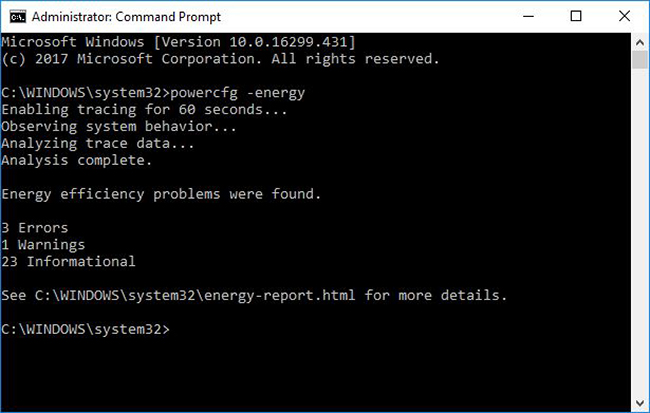
(图 2:创建能源报告)
-
报告保存在 C:\Windows\system32\energy-report.html
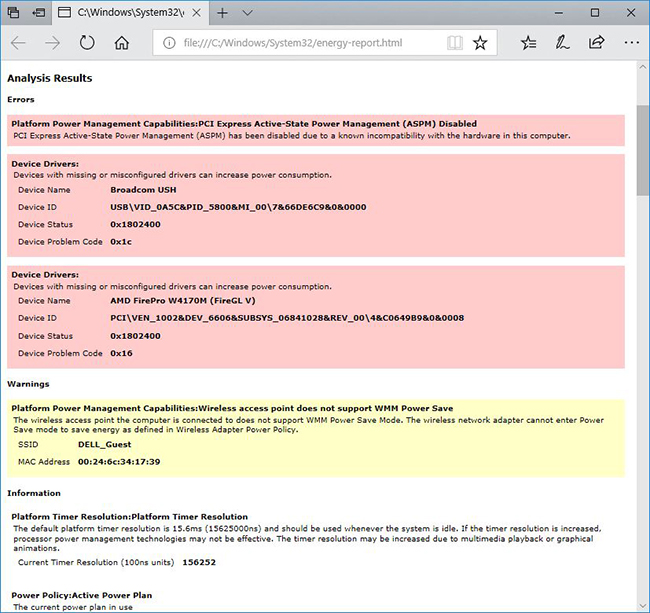
(图 3:有错误的能源报告)
有关任何报告问题的解决方案,您只需在 Internet 上搜索报告的错误,因为最新信息将直接从 Microsoft 获得。
Affected Products
G Series, Alienware, Dell Plus, Dell Pro, Dell Pro Max, Dell Pro Plus, Dell Pro Premium, Inspiron, Latitude, Dell Pro Rugged, Vostro, XPS, Latitude Tablets, Surface, XPS Tablets, Mobile Workstations, Dell Pro Max 16 XE MC16250Article Properties
Article Number: 000148983
Article Type: Solution
Last Modified: 01 Sept 2026
Version: 10
Find answers to your questions from other Dell users
Support Services
Check if your device is covered by Support Services.