Bluetooth Power Save Setting Causing Connectivity Issues
Summary: This article describes a how to troubleshoot a Bluetooth device that loses connection intermittently in Windows 11.
This article applies to
This article does not apply to
This article is not tied to any specific product.
Not all product versions are identified in this article.
Instructions
The Bluetooth device randomly loses connection to a Windows computer.
If your Bluetooth device is randomly disconnecting from your Windows computer, it may be because of the Windows Power Management saving feature.
Turning off the Windows Power Management save feature may resolve the issue.
Change the Bluetooth Power Management Settings in Windows 11
- Right-click the Windows icon and select Device Manager.
- Click the arrow to the left of Bluetooth to open the section.
- Right-click the Bluetooth Adapter and select Properties (Figure 1).
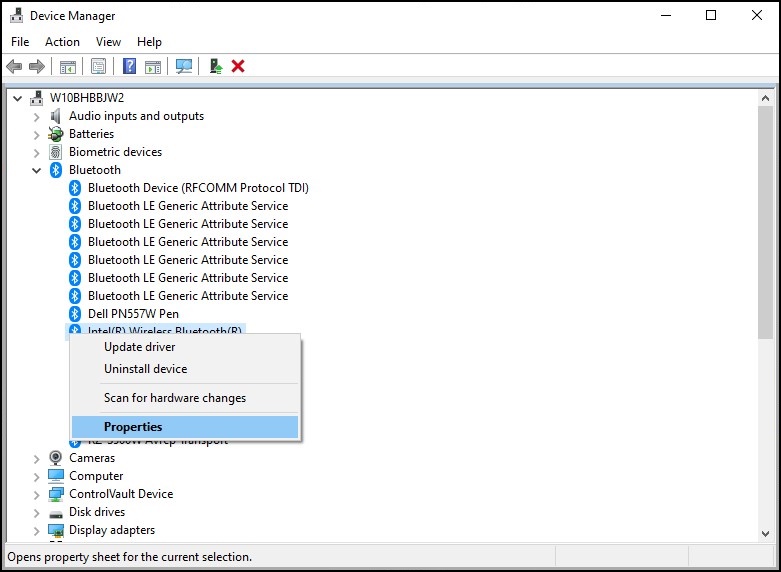
Figure 1: Bluetooth Devices Window - A Bluetooth adapter window (Figure 2) opens. Go to the Power Management tab, and ensure that the checkbox next to "Allow the computer to turn off this device to save power" is cleared.
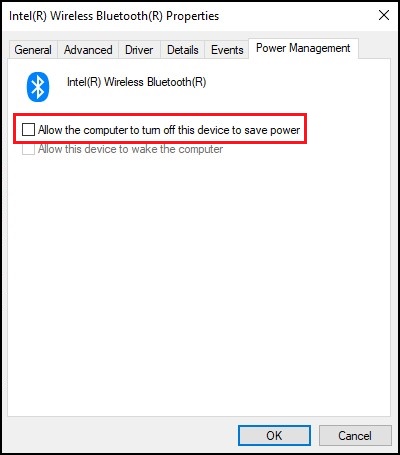
Figure 2: Bluetooth Device Properties Window - Click Ok.
If your Bluetooth device continues to have connectivity issues, use the information in the Bluetooth Not Working? Solve Pairing and Detection Issues Library page.
Affected Products
Alienware, Dell All-in-One, Dell Pro All-in-One, Dell Pro Max Micro, Dell Pro Max Slim, Dell Pro Max Tower, Dell Pro Micro, Dell Pro Slim, Dell Pro Tower, Dell Slim, Dell Tower, Inspiron, Legacy Desktop Models, OptiPlex, Vostro, XPS, G Series
, G Series, Alienware, Dell Plus, Dell Pro, Dell Pro Max, Dell Pro Plus, Dell Pro Premium, Inspiron, Latitude, Dell Pro Rugged, Vostro, XPS, Legacy Laptop Models, Fixed Workstations, Mobile Workstations, Dell Pro Max Micro XE FCM2250, Dell Pro Max Slim XE FCS1250, Dell Pro Max Tower T2 XE FCT2250, Dell Pro Micro Plus XE QBM1250, Dell Pro Slim Plus XE5 QBS1250, Dell Pro Tower Plus XE5 QBT1250
...
Article Properties
Article Number: 000122996
Article Type: How To
Last Modified: 13 May 2026
Version: 15
Find answers to your questions from other Dell users
Support Services
Check if your device is covered by Support Services.