如何備份和還原 Dell 安全性管理伺服器虛擬
Summary: 您可以使用這些指示來備份和還原 Dell Security Management Server Virtual 和 Dell Data Protection Virtual Edition。
This article applies to
This article does not apply to
This article is not tied to any specific product.
Not all product versions are identified in this article.
Symptoms
本指南說明如何備份和還原 Dell Security Management Server Virtual (之前稱為 Dell Data Protection | Virtual Edition)。
受影響的產品:
- Dell Security Management Server Virtual
- Dell Data Protection | Virtual Edition
受影響的作業系統:
- Linux
Cause
不適用
Resolution
Dell Security Management Server Virtual 的備份與還原功能會因版本而異。如需詳細資訊,請按一下 v9.11.0 和 更新版本或 v8.2.0 至 9.10.1 。如需版本資訊,請參閱如何識別 Dell Data Security/Dell Data Protection 伺服器版本。
注意:若使用 Dell Endpoint Security Suite Enterprise (之前稱為 Dell Data Protection | Endpoint Security Suite Enterprise),則必須另外備份及儲存進階威脅保護憑證。如需詳細資訊,請參閱 「如何備份及還原 Dell 資料安全伺服器的進階威脅防護證書」。
v9.11.0 及更新版本
如需更多資訊,請按一下建立備份、卸載備份、載入備份或還原備份。
- 登入 Dell Security Management Server Virtual 管理主控台。

注意:
- Dell Security Management Server Virtual 的預設登入資料為:
- 使用者名稱:
delluser - 密碼:
delluser
- 使用者名稱:
- 系統管理員可以變更在產品的虛擬裝置選單中的預設密碼。
- 從主功能表中,選取進階組態,然後按下 Enter 鍵。
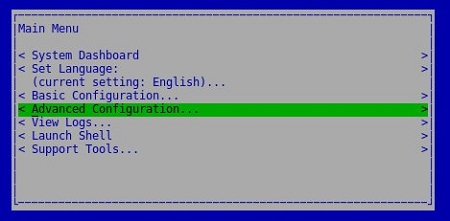
- 選取備份與還原,然後按下 Enter 鍵。
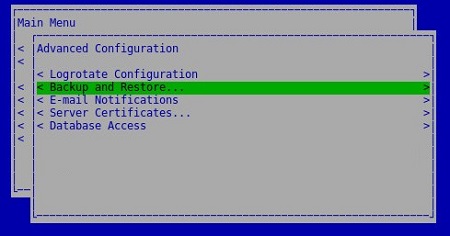
- 選取立即備份,然後按下 Enter 鍵。
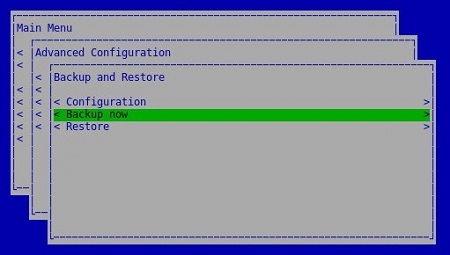
- 在確定上按下 Enter 鍵,以確認
dsmsv_[VERSION]_backup_[TIMESTAMP].tgz備份完成。
注意:
[VERSION]= Dell Security Management Server Virtual 的版本[TIMESTAMP]= 執行備份的時間
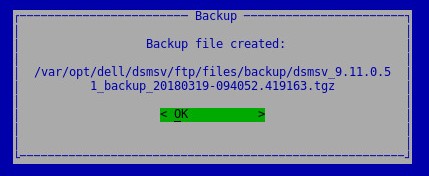
若要成功卸載備份,Dell Security Management Server Virtual 需要:
- 已完成的備份
- 第三方 FTP (檔案傳輸通訊協定) 用戶端
- FTP 用戶端的範例包括但不限於:
- Filezilla
- WinSCP
- CuteFTP
- FTP 用戶端的範例包括但不限於:
- 儲存裝置 (位於 Dell Security Management Server Virtual 之外)
注意:
- 針對列出的第三方產品,Dell 不會為其背書,亦不提供支援。列出以上用戶端的目的為提供客戶可使用的潛在產品範例。請聯絡產品製造商,以取得有關設定、組態及管理的相關資訊。
- 您的 FTP 用戶端 UI 可能與以下螢幕擷取畫面範例有所不同。
- 啟動 FTP 用戶端。
- 在 FTP 用戶端中,使用 FTP 使用者登入 Dell Security Management Server Virtual。
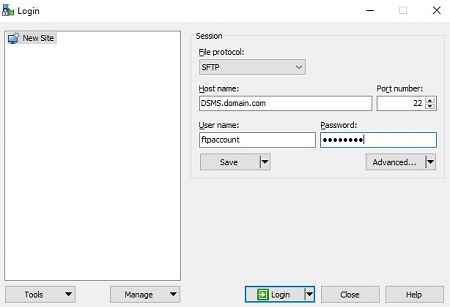
注意:必須在 Dell Security Management Server Virtual 內建立 FTP 使用者。請參閱如何在 Dell Security Management Server Virtual / Dell Data Protection Virtual Edition 內建立 FTP 使用者,以獲得更多資訊。
- 前往
/backup/。

- 選取並傳送適當的
dsmsv_[VERSION]_backup_[TIMESTAMP].tgz檔案至次要儲存裝置。
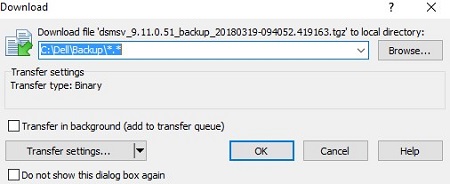
注意:
[VERSION]= Dell Security Management Server Virtual 的版本[TIMESTAMP]= 執行備份的時間
- 關閉 FTP 用戶端。
若要成功載入備份,Dell Security Management Server Virtual 需要:
- Dell Security Management Server Virtual 的已卸載備份
- 第三方 FTP (檔案傳輸通訊協定) 用戶端
- FTP 用戶端的範例包括但不限於:
- Filezilla
- WinSCP
- CuteFTP
- FTP 用戶端的範例包括但不限於:
- 儲存裝置 (位於 Dell Security Management Server Virtual 之外)
注意:
- 針對列出的第三方產品,Dell 不會為其背書,亦不提供支援。列出以上用戶端的目的為提供客戶可使用的潛在產品範例。請聯絡產品製造商,以取得有關設定、組態及管理的相關資訊。
- 您的 FTP 用戶端 UI 可能與以下螢幕擷取畫面範例有所不同。
- 啟動 FTP 用戶端。
- 在 FTP 用戶端中,使用 FTP 使用者登入 Dell Security Management Server Virtual。
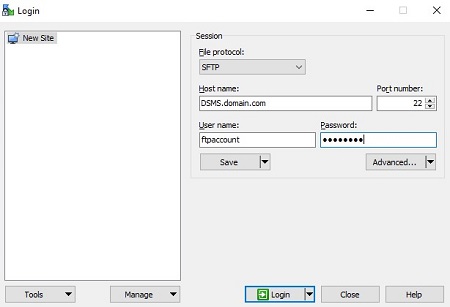
注意:必須在 Dell Security Management Server Virtual 內建立 FTP 使用者。請參閱如何在 Dell Security Management Server Virtual/Dell Data Protection Virtual Edition 內建立 FTP 使用者,以獲得更多資訊。
- 前往
/backup/。
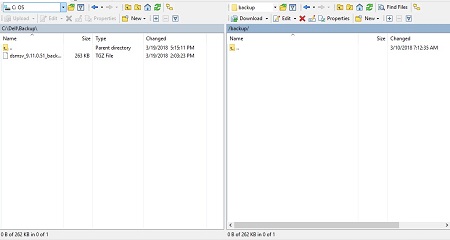
- 將
dsmsv_[VERSION]_backup_[TIMESTAMP].tgz從儲存裝置移動到/backup/。
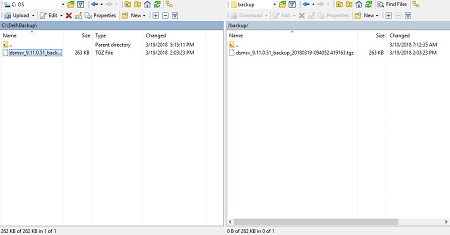
注意:
[VERSION]= Dell Security Management Server Virtual 的版本[TIMESTAMP]= 執行備份的時間
- 關閉 FTP 用戶端。
- 登入 Dell Enterprise Server Virtual 管理主控台。

注意:
- Dell Security Management Server Virtual 的預設登入資料為:
- 使用者名稱:
delluser - 密碼:
delluser
- 使用者名稱:
- 系統管理員可以變更在產品的虛擬裝置選單中的預設密碼。
- 從主功能表中,選取進階組態,然後按下 Enter 鍵。
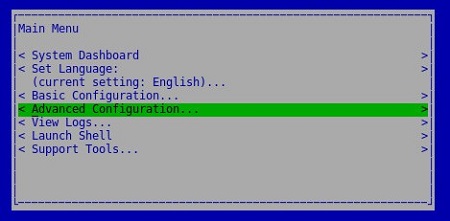
- 選取備份與還原,然後按下 Enter 鍵。
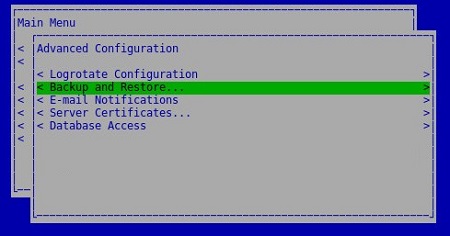
- 選取還原,然後按下 Enter 鍵。

- 選取是以確認已關閉用於建立備份的例項,然後按下 Enter 鍵。

- 選取適當的
dsmsv_[VERSION]_backup_[TIMESTAMP].tgz,然後按下 Enter 鍵。
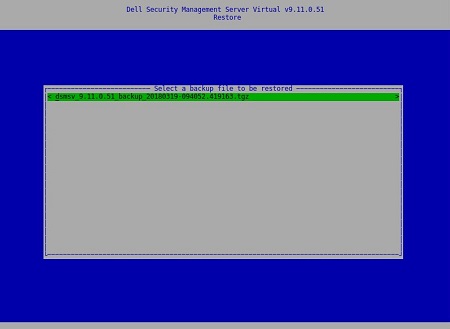
注意:
[VERSION]= Dell Security Management Server Virtual 的版本[TIMESTAMP]= 執行備份的時間
- 選取是以確認服務將會關閉,且必須變更資料庫密碼,然後按下 Enter 鍵。
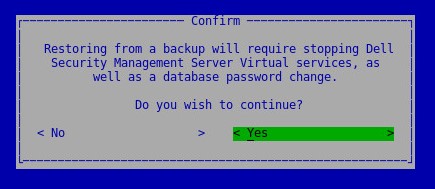
- 在確定上按下 Enter 鍵。

- 在「資料庫存取」功能表中:
- 選擇性檢查 啟用遠端存取 (IPv4) 或啟用來自外部來源 (例如 pgAdmin ) 的遠端存取 (IPv6) 。
- 輸入並確認新的資料庫密碼。
- 選取為裝置重新開機,然後按下 Enter 鍵。

v8.2.0 至 9.10.1
如需更多資訊,請按一下建立備份、卸載備份、載入備份或還原備份。
- 登入 Dell Enterprise Server Virtual 管理主控台。
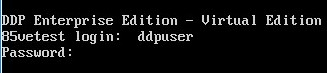
注意:
- Dell Security Management Server Virtual 的預設登入資料為:
- 使用者名稱:
ddpuser - 密碼:
ddpuser
- 使用者名稱:
- 系統管理員可以變更在產品的虛擬裝置選單中的預設密碼。
- 從主功能表中,選取進階組態,然後按下 Enter 鍵。

- 選取備份與還原,然後按下 Enter 鍵。
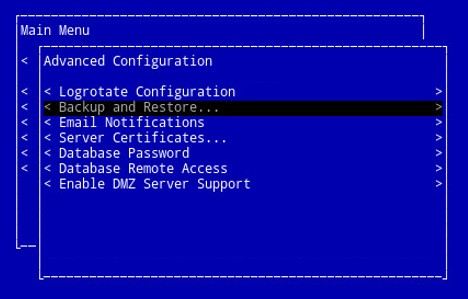
- 選取立即備份,然後按下 Enter 鍵。
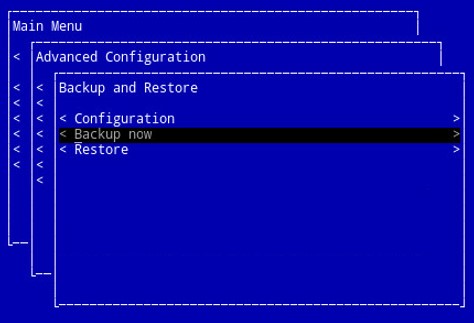
- 隨即會執行備份。移至步驟 6。
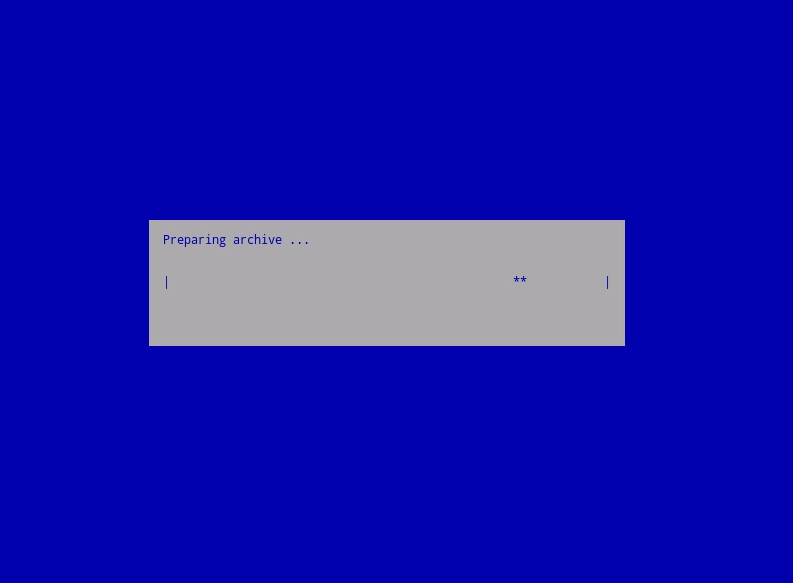
- 在確定上按下 Enter 鍵,以確認
ddp_[VERSION]_fullback_[TIMESTAMP].tar.gz備份完成。
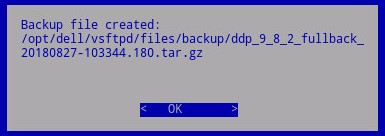
注意:
[VERSION]= Dell Data Protection | Virtual Edition 的版本[TIMESTAMP]= 執行備份的時間
若要成功卸載備份,Dell Security Management Server Virtual 需要:
- 已完成的備份
- 第三方 FTP (檔案傳輸通訊協定) 用戶端
- FTP 用戶端的範例包括但不限於:
- Filezilla
- WinSCP
- CuteFTP
- FTP 用戶端的範例包括但不限於:
- 儲存裝置 (位於 Dell Security Management Server Virtual 之外)
注意:
- 針對列出的第三方產品,Dell 不會為其背書,亦不提供支援。列出以上用戶端的目的為提供客戶可使用的潛在產品範例。請聯絡產品製造商,以取得有關設定、組態及管理的相關資訊。
- 您的 FTP 用戶端 UI 可能與以下螢幕擷取畫面範例有所不同。
- 啟動 FTP 用戶端。
- 在 FTP 用戶端中,使用 FTP 使用者登入 Dell Security Management Server Virtual。
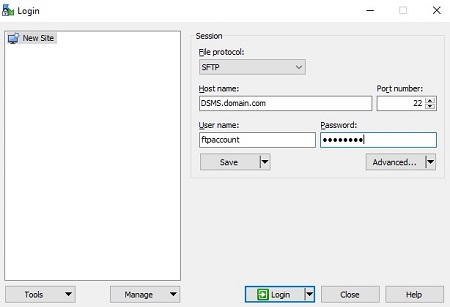
注意:必須在 Dell Security Management Server 內建立 FTP 使用者。請參閱如何在 Dell Security Management Server Virtual/Dell Data Protection Virtual Edition 內建立 FTP 使用者,以獲得更多資訊。
- 前往
/backup/。
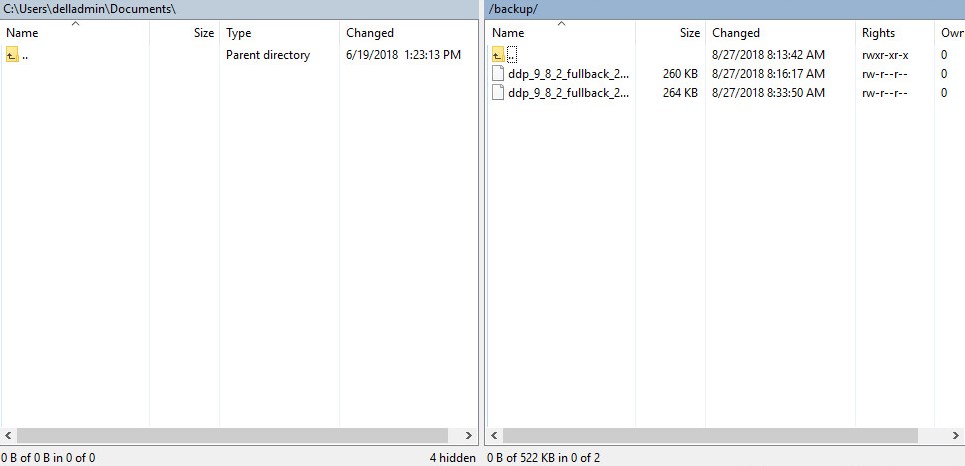
- 選取並傳送適當的
ddp_[VERSION]_fullback_[TIMESTAMP].tar.gz檔案至次要儲存裝置。
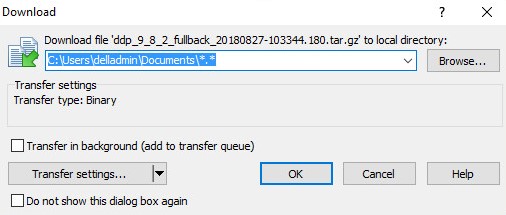
注意:
[VERSION]= Dell Data Protection | Virtual Edition 的版本[TIMESTAMP]= 執行備份的時間
- 關閉 FTP 用戶端。
若要成功載入備份,Dell Security Management Server Virtual 需要:
- Dell Security Management Server Virtual 的已卸載備份
- 第三方 FTP (檔案傳輸通訊協定) 用戶端
- FTP 用戶端的範例包括但不限於:
- Filezilla
- WinSCP
- CuteFTP
- FTP 用戶端的範例包括但不限於:
- 儲存裝置 (位於 Dell Security Management Server Virtual 之外)
注意:
- 針對列出的第三方產品,Dell 不會為其背書,亦不提供支援。列出以上用戶端的目的為提供客戶可使用的潛在產品範例。請聯絡產品製造商,以取得有關設定、組態及管理的相關資訊。
- 您的 FTP 用戶端 UI 可能與以下螢幕擷取畫面範例有所不同。
- 啟動 FTP 用戶端。
- 在 FTP 用戶端中,使用 FTP 使用者登入 Dell Security Management Server Virtual。
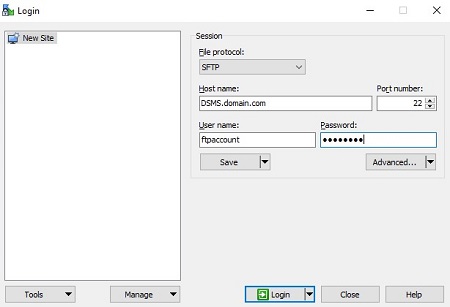
注意:必須在 Dell Security Management Server 內建立 FTP 使用者。請參閱如何在 Dell Security Management Server Virtual/Dell Data Protection Virtual Edition 內建立 FTP 使用者,以獲得更多資訊。
- 前往
/backup/。
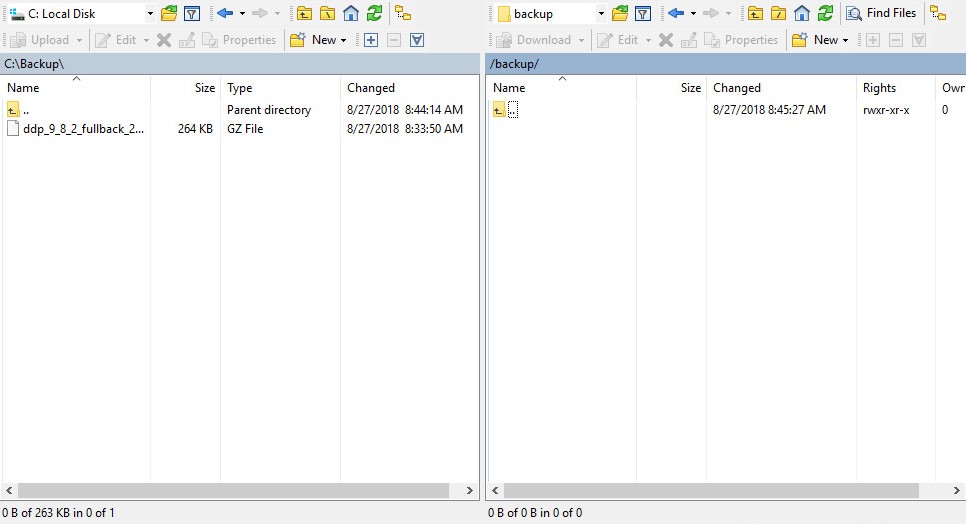
- 將
ddp_[VERSION]_fullback_[TIMESTAMP].tar.gz從儲存裝置移動到/backup/。
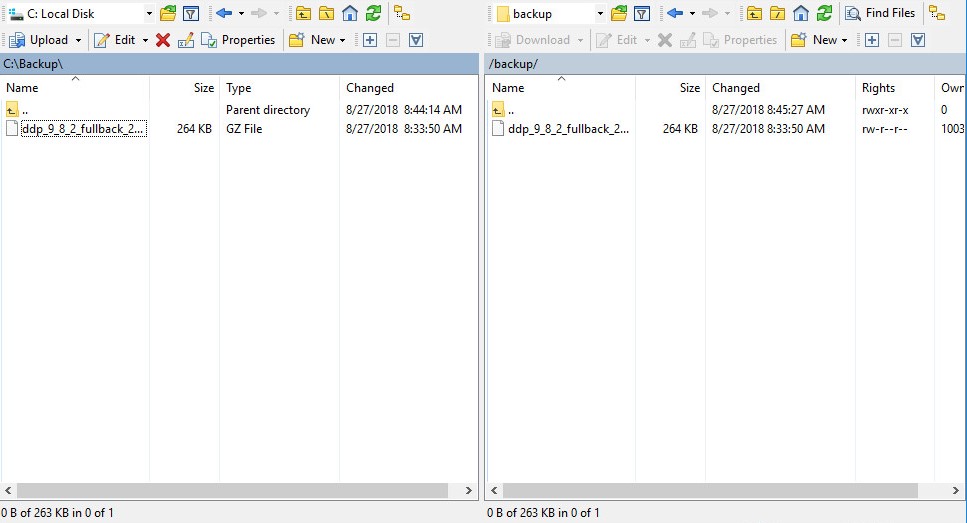
注意:
[VERSION]= Dell Data Protection | Virtual Edition 的版本[TIMESTAMP]= 執行備份的時間
- 關閉 FTP 用戶端。
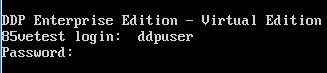
- 登入 Dell Enterprise Server Virtual 管理主控台。
注意:
- Dell Security Management Server Virtual 的預設登入資料為:
- 使用者名稱:
ddpuser - 密碼:
ddpuser
- 使用者名稱:
- 系統管理員可以變更在產品的虛擬裝置選單中的預設密碼。
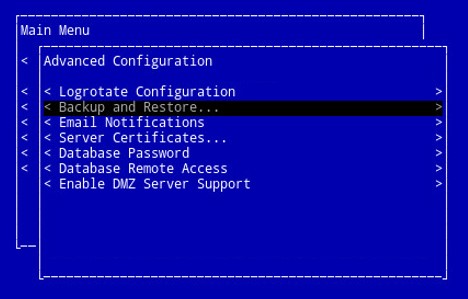
- 從主功能表中,選取進階組態,然後按下 Enter 鍵。

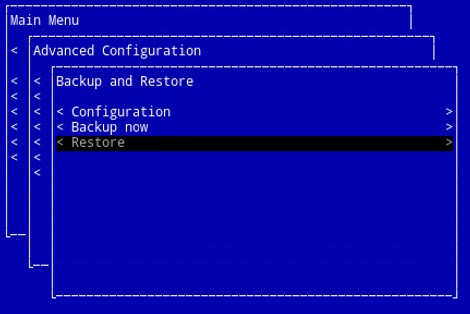
- 選取備份與還原,然後按下 Enter 鍵。
- 選取還原,然後按下 Enter 鍵。
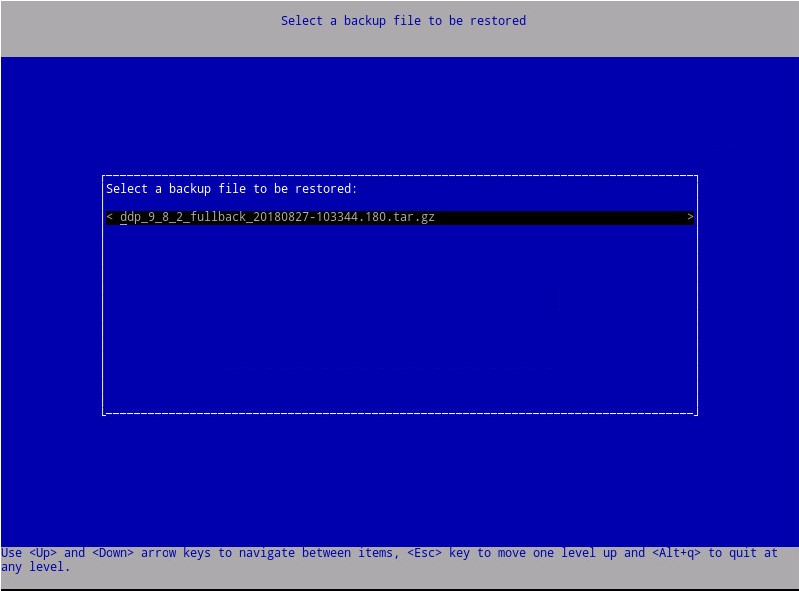
- 選取適當的
ddp_[VERSION]_fullback_[TIMESTAMP].tar.gz,然後按下 Enter 鍵。
注意:
[VERSION]= Dell Data Protection | Virtual Edition 的版本[TIMESTAMP]= 執行備份的時間
- 選取是以在還原完成時將虛擬裝置重新開機,然後按下 Enter 鍵。
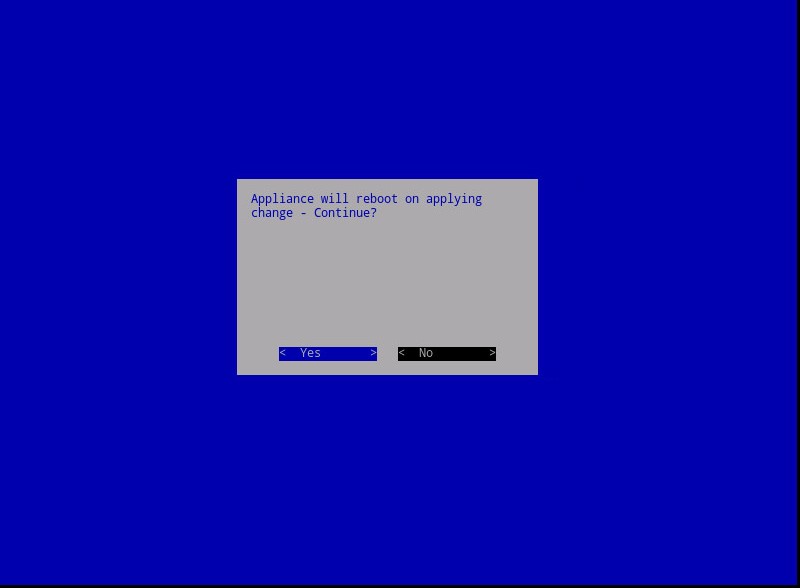
- 在確定上按下 Enter 鍵。
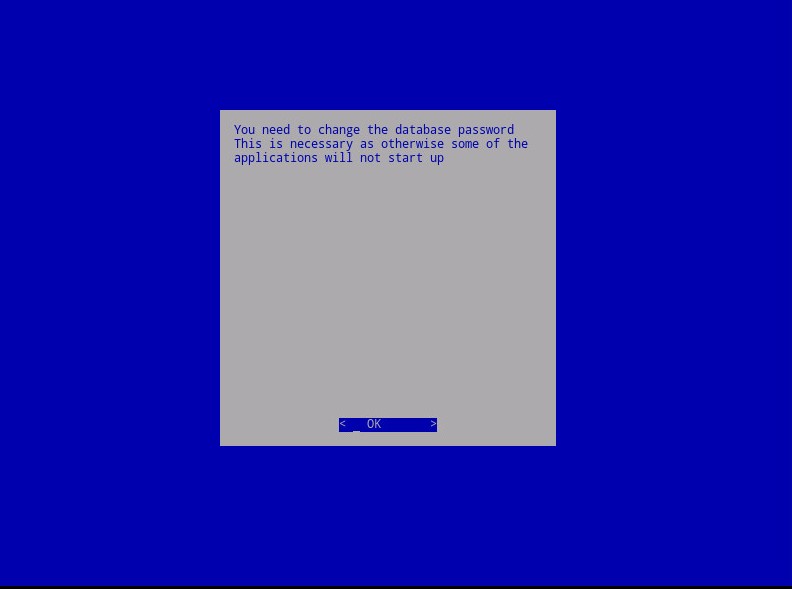
- 備份會繼續執行。移至步驟 9。
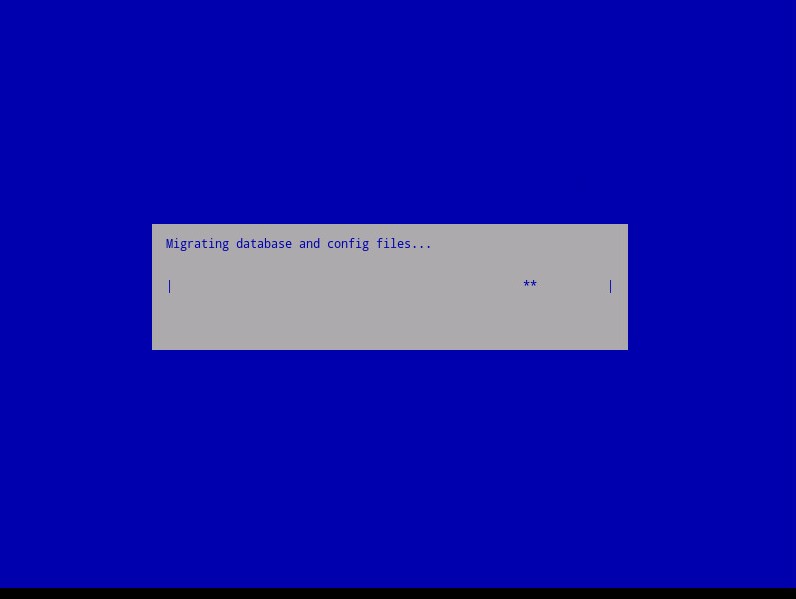
- 還原時,在確定上按下 Enter 鍵。
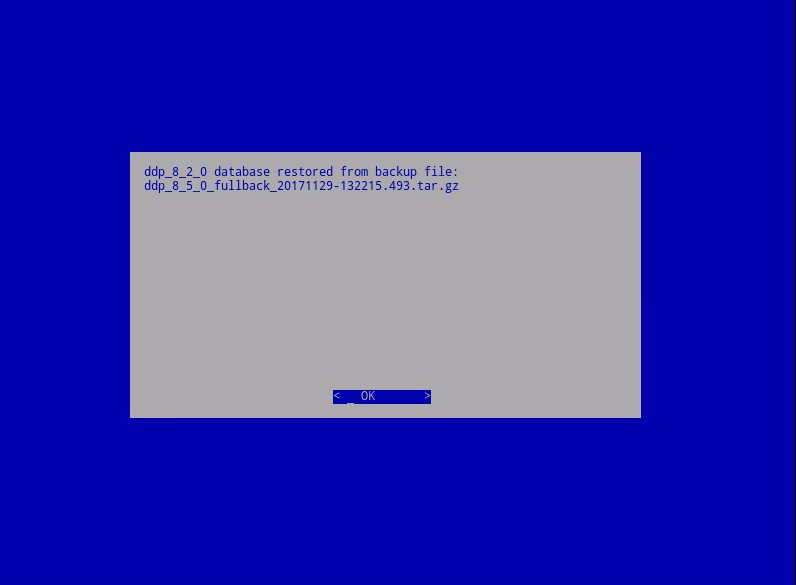
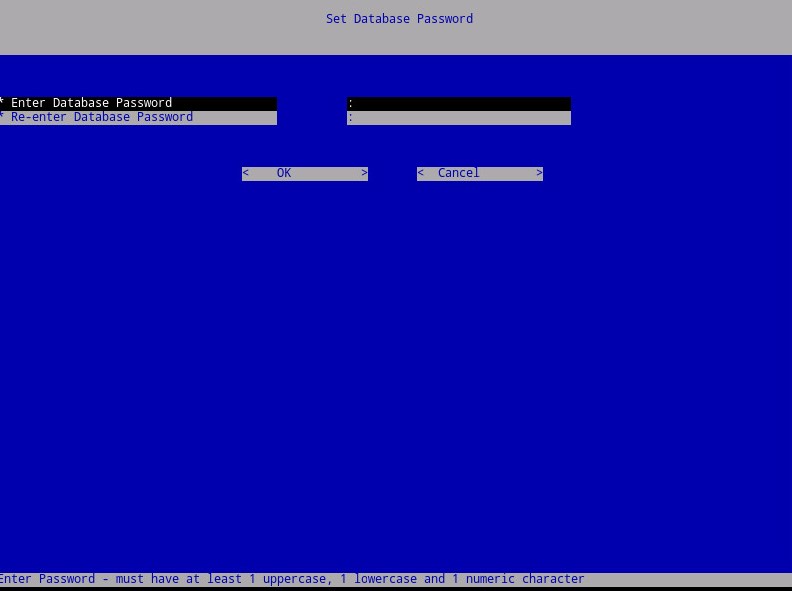
- 輸入並重新輸入新資料庫密碼。完成後,按下確定以將虛擬裝置重新開機。
如要聯絡支援部門,請參閱 Dell Data Security 國際支援電話號碼。
請前往 TechDirect,以線上產生技術支援要求。
如需更多深入見解與資源,請加入 Dell 安全性社群論壇。
Additional Information
Videos
Affected Products
Dell EncryptionArticle Properties
Article Number: 000124658
Article Type: Solution
Last Modified: 26 Oct 2023
Version: 14
Find answers to your questions from other Dell users
Support Services
Check if your device is covered by Support Services.