如何卸載 Dell 安全性管理伺服器
Summary: 可依照以下指示卸載 Dell Security Management Server 或 Dell Data Protection Enterprise Edition 伺服器。
This article applies to
This article does not apply to
This article is not tied to any specific product.
Not all product versions are identified in this article.
Symptoms
Dell Security Management Server (先前稱為 Dell Data Protection | Enterprise Edition Server) 可能需要解除安裝以進行:
- 故障診斷產品。
- 解決作業系統不相容的問題。
- 遷移伺服器。
本文說明解除安裝產品的步驟。
受影響的產品:
- Dell Security Management Server
- Dell Data Protection | Enterprise Edition Server
受影響的版本:
- v8.0.0 及更新版本
受影響的作業系統:
- Windows
Cause
不適用
Resolution
Dell Security Management Server 的解除安裝會依版本而有所不同。按一下適當的版本,以瞭解特定的步驟。如需版本資訊,請參閱如何識別 Dell Data Security/Dell Data Protection 伺服器版本。
警告:解除安裝前應先備份 Dell Security Management Server。如需關於執行備份的更多資訊,請參閱如何備份與還原 Dell Security Management Server / Dell Data Protection Enterprise Edition Server。
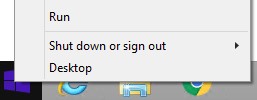
- 使用系統管理員身份,在 Windows「開始」功能表上按右鍵,然後按一下執行。
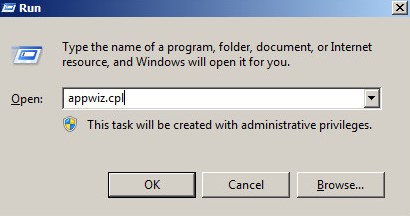
- 在「執行」UI 中,輸入
appwiz.cpl,然後按下確定。
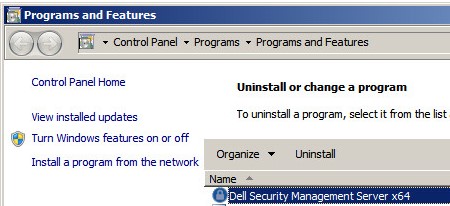
- 在「程式和功能」中,按兩下 Dell Security Management Server x64。
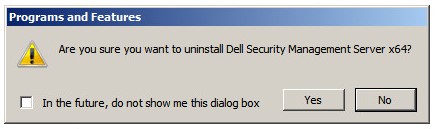
- 按一下是。
- 使用系統管理員身份,在 Windows「開始」功能表上按右鍵,然後按一下執行。
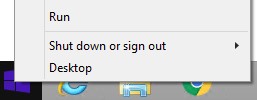
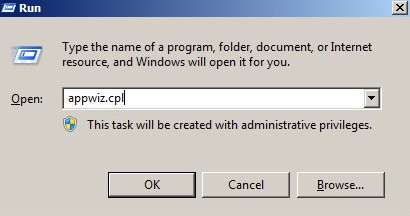
- 在「執行」UI 中,輸入
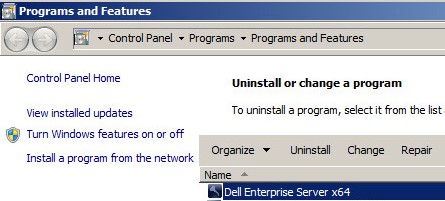
appwiz.cpl,然後按下確定。這會開啟「程式與功能」。
- 按兩下 Dell Enterprise Server x64 或 Dell Enterprise Server x86。
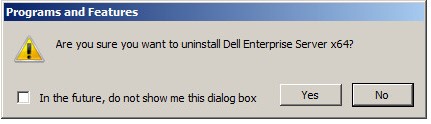
- 按一下是。
- 使用系統管理員身份,在 Windows「開始」功能表上按右鍵,然後按一下執行。
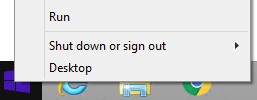
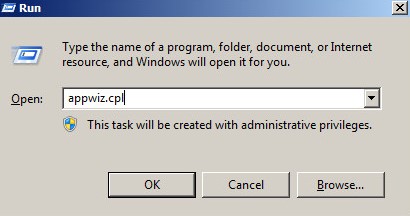
- 在「執行」UI 中,輸入
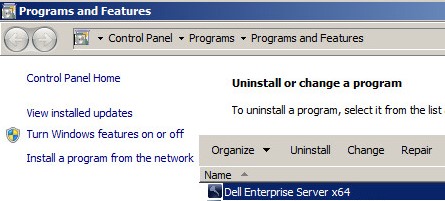
appwiz.cpl,然後按下確定。這會開啟「程式與功能」。
- 按兩下 Dell Enterprise Server x64 或 Dell Enterprise Server x86。
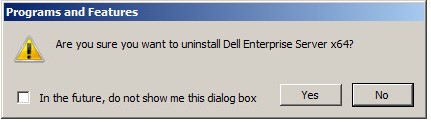
- 按一下是。
- 按一下確定。
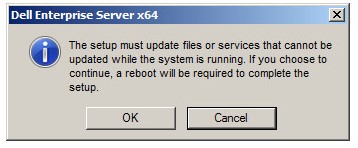
- 將 Windows 伺服器重新開機。
如要聯絡支援部門,請參閱 Dell Data Security 國際支援電話號碼。
請前往 TechDirect,以線上產生技術支援要求。
如需更多深入見解與資源,請加入 Dell 安全性社群論壇。
Additional Information
Videos
Affected Products
Dell EncryptionArticle Properties
Article Number: 000124927
Article Type: Solution
Last Modified: 19 Oct 2023
Version: 15
Find answers to your questions from other Dell users
Support Services
Check if your device is covered by Support Services.