如何为 Dell Data Security 服务器计划托管报告
Summary: 可按照以下说明在 Dell Data Security 服务器上计划托管报告。
This article applies to
This article does not apply to
This article is not tied to any specific product.
Not all product versions are identified in this article.
Symptoms
管理员可以将托管报告设置为发送到 Dell Data Security 服务器(Dell Security Management Server 或 Dell Security Management Server Virtual)的电子邮件收件人列表。
受影响的产品:
- Dell Security Management Server
- Dell Security Management Server Virtual
受影响的版本:
- v10.1.0 及更高版本
Cause
不适用
Resolution
新 托管 或 现有 托管报告可能会计划发送到一个或多个电子邮件地址。单击相应的任务以了解更多信息。
提醒:
- 电子邮件通知要求在 Dell Data Security 服务器上配置 SMTP 设置。
- 有关更多信息,请参阅如何为 Dell Data Security 服务器配置 SMTP 设置。
全新
- 登录到 Dell Data Security 管理控制台。
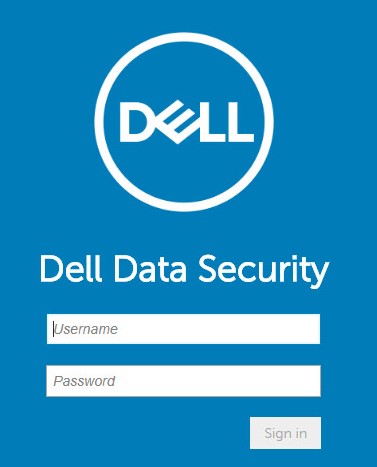
提醒:有关更多信息,请参阅 如何访问 Dell Data Security Server 管理控制台 。
- 从左侧菜单窗格中,单击 Reporting,然后单击 Manage Reports。

- 单击 Create New Report 下拉列表,然后选择相应的报告。
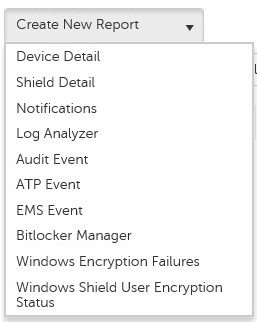
- 对默认报告筛选器进行任何更改。完成后,单击 Save As。

- 从“Report - Save As”菜单中:
- 填充报告名称。
- 填充描述。
- (可选)选中 Private。
- 单击 Save。
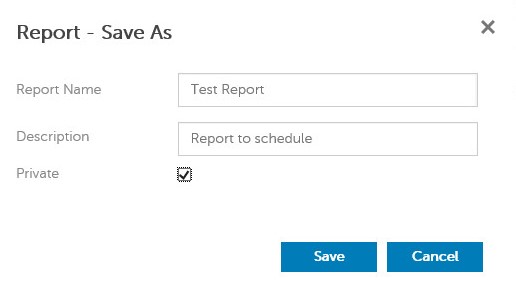
提醒:只有所有者和报告管理员可以查看私有报告。
- 单击 Schedule。

- 单击 Add Schedule。

- 在“Add Schedule”菜单中:
- 填写电子邮件以接收报告。
- 为要运行的报告选择计划。
- 选择运行的时间。
- 选择区域设置。
- 单击 Save。
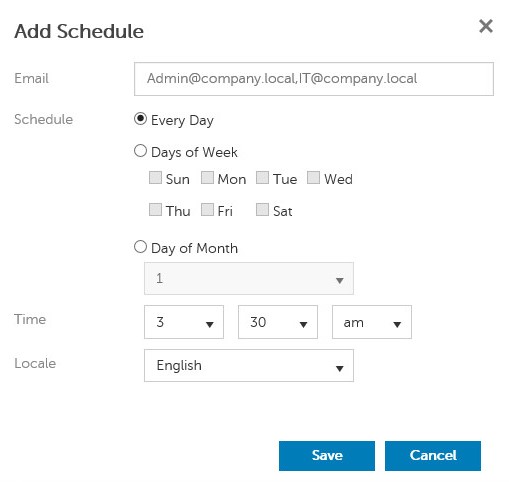
提醒:多个电子邮件地址可以用逗号分隔。
现有报告
- 登录到 Dell Data Security 管理控制台。
提醒:有关更多信息,请参阅 如何访问 Dell Data Security Server 管理控制台 。
- 从左侧菜单窗格中,单击 Reporting,然后单击 Manage Reports。
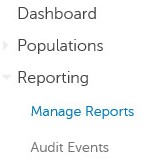
- 选择要计划的报告。

提醒:您环境中的报告信息(名称、描述和报告类型)可能有所不同。
- 单击 Schedule。

- 单击 Add Schedule。

- 在“Add Schedule”菜单中:
- 填写电子邮件以接收报告。
- 为要运行的报告选择计划。
- 选择运行的时间。
- 选择区域设置。
- 单击 Save。
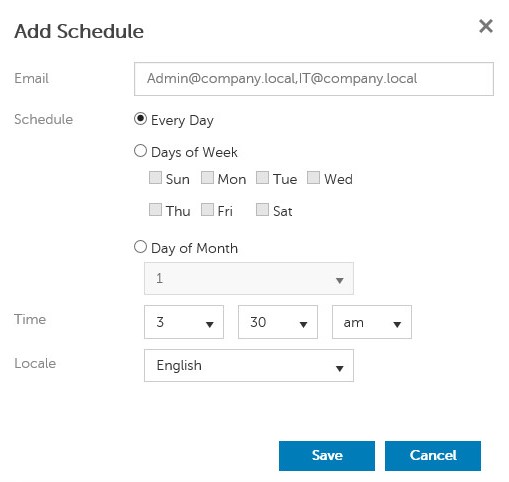
提醒:多个电子邮件地址可以用逗号分隔。
要联系支持部门,请参阅 Dell Data Security 国际支持电话号码。
转至 TechDirect,在线生成技术支持请求。
要获得更多见解和资源,请加入戴尔安全社区论坛。
Affected Products
Dell EncryptionArticle Properties
Article Number: 000125166
Article Type: Solution
Last Modified: 23 Oct 2023
Version: 8
Find answers to your questions from other Dell users
Support Services
Check if your device is covered by Support Services.