How to Configure SMTP Settings for Dell Data Security Servers
Summary: Learn how to configure Simple Mail Transfer Protocol (SMTP) settings for Dell Data Security or Dell Data Protection servers with these instructions.
Instructions
This article provides the steps for configuring SMTP server information about Dell Security Management Server (formerly Dell Data Protection | Enterprise Edition) and Dell Security Management Server Virtual (formerly Dell Data Protection | Virtual Edition).
Affected Products:
- Dell Security Management Server
- Dell Data Protection | Enterprise Edition
- Dell Security Management Server Virtual
- Dell Data Protection | Virtual Edition
Affected Versions:
- v8.0.0 and later
Affected Operating Systems:
- Windows
- Linux
SMTP configuration is performed manually for Dell Security Management Server or Dell Security Management Server Virtual. Click the appropriate server type for more information.
Dell Security Management Server
- Log in to the Dell Security Management Server.
- Stop all [PRODUCT] services.
Note:
- [PRODUCT]=
- v8.15 and later = Dell
- v8.14.1 and earlier = Dell Data Protection
- For more information, reference How to Stop and Start Services in Dell Security Management Server.
- [PRODUCT]=
- In Windows Explorer, go to
C:\Program Files\Dell\Enterprise Edition\Server Configuration Tool\and then double-clickCredant.Configuration.exeto open the Server Configuration Tool. Note: The directory differs if the Dell Security Management Server has been installed to a custom location.
 - In the server configuration tool, click the SMTP tab.

- From the SMTP menu:
- Populate an SMTP Host Name.
- Populate a User Name for the SMTP server.
- Populate the user’s Password.
- Populate a From Address on email messages.
- Populate an SMTP port.
- Select Authentication as True or False.
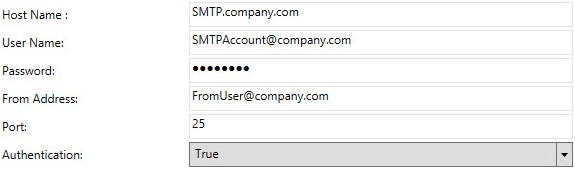 Note:
Note:- The hostname, accounts, port, and settings may differ in your environment.
- If the environment requires authentication to relay, set authentication to True. If no authentication is required to relay, set authentication to False.
- Click Configuration and then select Save.
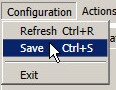
- Click Yes.

- Click Configuration, and then click Exit.
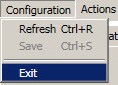
- Start all [PRODUCT] services.
Note: For more information about starting services, reference How to Stop and Start Services in Dell Security Management Server.
Dell Security Management Server Virtual
The steps to input SMTP server information in Dell Security Management Server Virtual vary between v9.11.0 and Later, v9.1.0 to 9.10.0, and v8.2.0 to 9.0.0. Click the appropriate version for more information. For versioning information, reference How to Identify the Dell Data Security Server Version.
v9.11.0 and Later
- Log in to the Dell Enterprise Server Virtual administration console using the default administrator (
delluser) credentials. Note:
Note:- The default credentials for Dell Security Management Server Virtual are:
- Username:
delluser - Password:
delluser
- Username:
- An administrator can change the default password within the product’s virtual appliance menu.
- The default credentials for Dell Security Management Server Virtual are:
- On the Main Menu, select Advanced Configuration and then press Enter.

- Select E-mail Notifications and then press Enter.
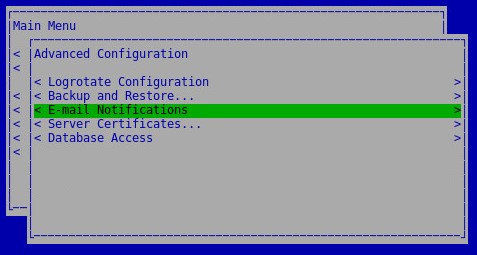
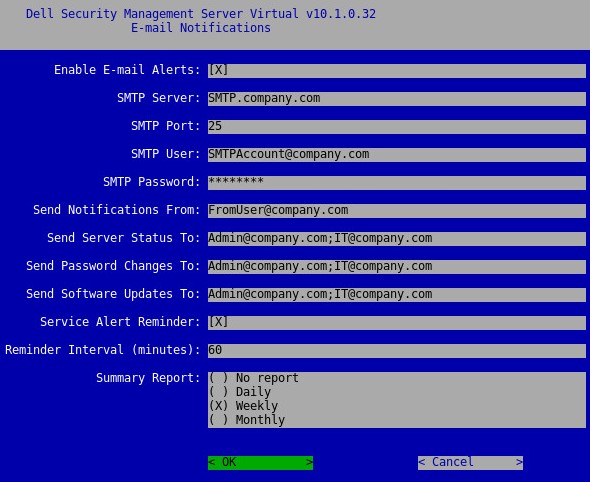
- From the Setup E-mail Notifications menu:
- Check Enable E-mail Alerts.
- Populate an SMTP Server hostname.
- Populate an SMTP Port.
- Populate an SMTP User.
- Populate the SMTP user’s Password.
- Populate an account to Send Notifications From.
- Populate an email to Send Server Status To.
- Populate an email to Send Password Changes To.
- Populate an email to Send Software Updates To.
- Optionally, check Service Alert Reminder and then populate a Reminder Interval (in minutes).
- Select the frequency of the Summary Report.
- Select OK.
- Press Enter.
 Note:
Note:- The hostname, accounts, port, and settings may differ in your environment.
- Multiple email addresses may be separated by using a semicolon.
v9.1.0 to 9.10.0
- Log in to the Dell Enterprise Server Virtual administration console using the default administrator (
ddpuser) credentials. Note:
Note:- The default credentials for Dell Security Management Server Virtual are:
- Username:
ddpuser - Password:
ddpuser
- Username:
- An administrator can change the default password within the product’s virtual appliance menu.
- The default credentials for Dell Security Management Server Virtual are:
- On the Main Menu, select Advanced Configuration and then press Enter.
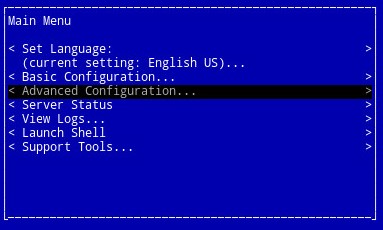
- Select Email Notifications and then press Enter.

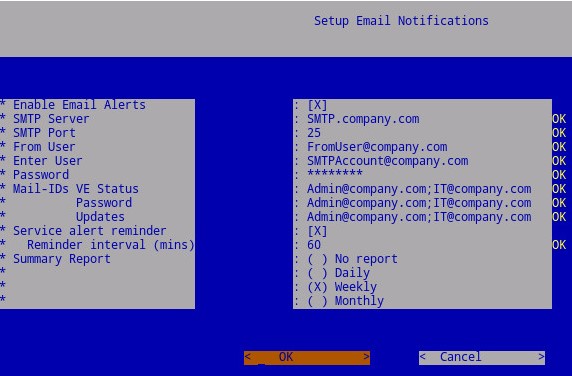
- From the Setup Email Notifications menu:
- Check Enable Email Alerts.
- Populate an SMTP Server hostname.
- Populate an SMTP port.
- Populate an SMTP From User.
- Populate an SMTP (Enter) User.
- Populate the SMTP user’s Password.
- Populate an email to send notification of VE Status to.
- Populate an email to send notification of Password changes to.
- Populate an email to send notification of software Updates to.
- Optionally, check Service Alert Reminder and then populate a Reminder Interval (in minutes).
- Select the frequency of the Summary Report.
- Select OK.
- Press Enter.
 Note:
Note:- The hostname, accounts, port, and settings may differ in your environment.
- Multiple email messages may be separated by using commas or semicolons.
v8.2.0 to 9.0.0
- Log in to the Dell Enterprise Server Virtual administration console using the default administrator (
ddpuser) credentials. Note:
Note:- The default credentials for Dell Security Management Server Virtual are:
- Username:
ddpuser - Password:
ddpuser
- Username:
- An administrator can change the default password within the product’s virtual appliance menu.
- The default credentials for Dell Security Management Server Virtual are:
- On the Main Menu, select Advanced Configuration and then press Enter.
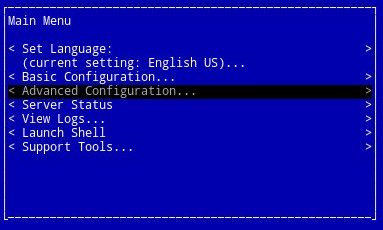
- Select Email Notifications and then press Enter.
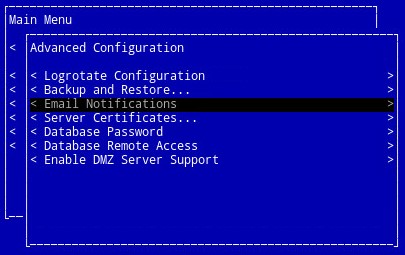
- From the Setup Email Notifications menu:
- Check Enable Email Alerts.
- Populate an SMTP Server hostname.
- Populate an SMTP Port.
- Populate an SMTP From User.
- Populate an SMTP (Enter) User.
- Populate the SMTP user’s Password.
- Populate an email to send notification of VE Status to.
- Populate an email to send notification of Password changes to.
- Populate an email to send notification of software Updates to.
- Select OK.
- Press Enter.
 Note:
Note:- The hostname, accounts, port, and settings may differ in your environment.
- Multiple email messages may be separated by using commas or semicolons.
To contact support, reference Dell Data Security International Support Phone Numbers.
Go to TechDirect to generate a technical support request online.
For additional insights and resources, join the Dell Security Community Forum.