如何确定CrowdStrike Falcon传感器的版本
Summary: 了解如何确定 CrowdStrike Falcon Sensor 的版本是否存在问题、流程更改或系统要求。请按照适用于 Windows、Mac 或 Linux 的步骤进行操作。
This article applies to
This article does not apply to
This article is not tied to any specific product.
Not all product versions are identified in this article.
Instructions
通过了解 CrowdStrike Falcon Sensor 版本,您可以:
- 识别已知问题
- 了解过程变更
- 了解系统要求
受影响的产品:
- CrowdStrike Falcon Sensor
受影响的操作系统:
- Windows
- Mac
- Linux
有关如何确定 CrowdStrike Falcon Sensor 版本的说明,请单击 Windows、 Mac 或 Linux。
注:
- 确定版本之前,必须安装 CrowdStrike Falcon Sensor。有关安装过程的信息,请参阅如何安装 CrowdStrike Falcon Sensor。
- 有关检查 CrowdStrike Falcon Sensor 的更多信息,请参阅 https://supportportal.crowdstrike.com/s/article/Checking-Falcon-Sensor-Version-Locally
。
Windows
- 右键单击 Windows 的“开始”菜单,然后单击运行。

- 在“运行”UI 中,键入 ,然后按确定。
cmd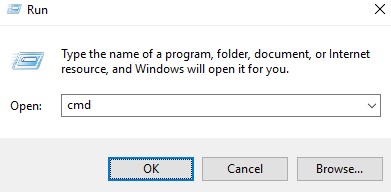
- 在命令提示符处,键入以下命令,然后按 Enter 键:
"C:\Program Files\CrowdStrike\CSSensorSettings.exe" –version
- 记录版本。在示例中,版本为 7.04.17605.0。
 您的传感器的版本可能与上面的屏幕截图不同。
Mac
- 找到并双击终端。

- 在 终端中,键入以下命令,然后按 Enter 键。
sysctl cs.version
- 记录版本。在示例中,版本为 4.18.8013.0。
 您的传感器的版本可能与上面的屏幕截图不同。
Linux
- 在目标端点上,打开终端。

- 在 终端中,键入以下命令,然后按 Enter 键。
sudo /opt/CrowdStrike/falconctl -g --version
- 填写 sudo 帐户密码,然后按 Enter 键。
- 记录版本。在示例中,版本为 4.20.6602.0。
 您的传感器的版本可能与上面的屏幕截图不同。
Additional Information
Videos
Affected Products
CrowdStrikeArticle Properties
Article Number: 000126120
Article Type: How To
Last Modified: 27 Jul 2026
Version: 23
Find answers to your questions from other Dell users
Support Services
Check if your device is covered by Support Services.