新しいBIOSバージョンでのUSBおよびThunderbolt設定の再構築
Summary: この記事では、新しいBIOSバージョンでのUSBおよびThunderbolt設定の表示の変更について説明します。
Instructions
古いBIOSビュー
USB-CまたはThunderboltコントローラーを搭載した新しいDell製ノートパソコンでは、BIOSでこれらのテクノロジーを1つのエントリーで設定できます。ただし、「インストールされていない」機能がまだ表示されていても使用できないため、このレイアウトや表示はどういうわけか混乱していました(下の画像を参照)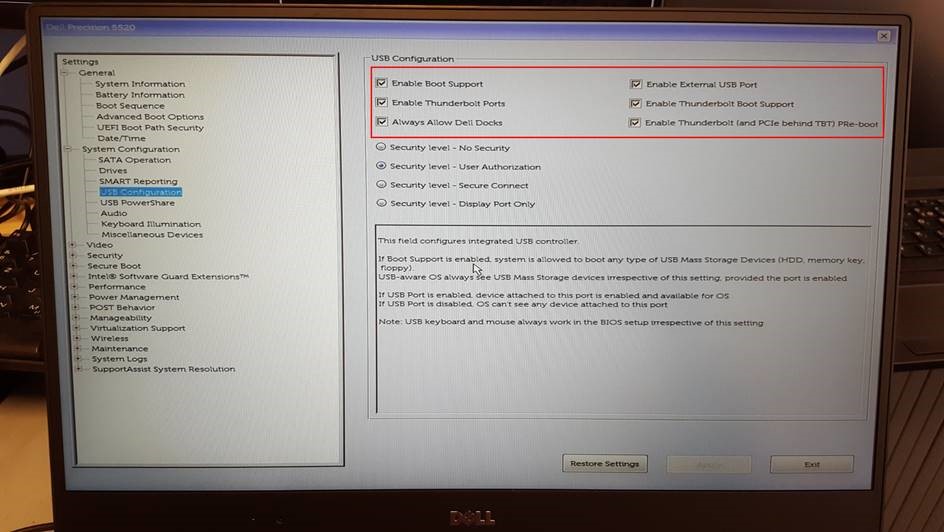
(図1: 古いシステムBIOS)
新しいBIOSビュー
最新のBIOS 1.1.3を搭載したDell Precision 5520の以下の例のように、新しいBIOSバージョンがリリースされると、これは個別のBIOSエントリーに変更されます。
-
USB設定:
![[System Configuration]セクションでは、[USB Configuration]の設定を見つけることができます](https://supportkb.dell.com/img/ka0Do000000liT5IAI/ka0Do000000liT5IAI_ja_2.jpeg)
(図2:[System Configuration]セクションでは、[USB Configuration]の設定を確認できます。 -
Dell Type-Cドッキング ステーションの構成:
![[System Configuration]セクションでは、[Dell Type-C Dock Configuration]の設定を確認できます](https://supportkb.dell.com/img/ka0Do000000liT5IAI/ka0Do000000liT5IAI_ja_3.jpeg)
(図3:[System Configuration]セクションでは、[Dell Type-C Dock Configuration]の設定を確認できます。 -
Thunderboltアダプターの設定:
![[System Configuration]セクションでは、[Thunderbolt Adapter Configuration]の設定があります](https://supportkb.dell.com/img/ka0Do000000liT5IAI/ka0Do000000liT5IAI_ja_4.jpeg)
(図4:[System Configuration]セクションでは、[Thunderbolt Adapter Configuration]の設定を確認できます。
その目的は、インストールされているテクノロジーの表示を改善し、混乱を抑えることです。Dellでは、このテクノロジーを搭載したシステム用のBIOSバージョンを提供しています。ベスト プラクティスとして、最新のBIOSバージョンでシステムを維持することをお勧めします。最新バージョンは、Dellサポート サイトのお使いのシステムの [ドライバーおよびダウンロード]セクション にあります。