如何诊断戴尔喷墨打印机
Summary: 本文提供常规故障处理步骤和为您的喷墨打印机设计的文章的链接。
This article applies to
This article does not apply to
This article is not tied to any specific product.
Not all product versions are identified in this article.
Symptoms
无可用的症状信息。
Cause
无可用的原因信息。
Resolution
目录:
1.打印机故障诊断步骤和过程
提醒:以下步骤适用于所有品牌的打印机。
- 如果使用 USB 线缆进行连接,请重新拔插位于计算机和打印机两端的线缆。
- 重新启动计算机。
- 关闭打印机电源。
- 从交流电源插座或电涌保护器中拔下打印机电源线,并至少等待 30 秒钟。
- 将打印机电源线重新插入交流电源插座或电涌保护器。
- 重新启动打印机。
- 打印测试页。
(有关如何从 Windows 打印测试页的说明,请单击下面与计算机上安装的作系统对应的链接。) (如果页面打印成功,则无需采取其他措施。)
- 确保所需打印机设置为默认打印机。
- 按住 Windows 键
 ,然后按 r 键。
 - 在“Run”(运行)框中键入shell:PrintersFolder,然后轻触或单击“OK”(确定)。
- 轻触或单击以突出显示所需的打印机。
- 轻触并按住或右键单击所需的打印机。
- 轻触或单击Set as default printer(设置为默认打印机)。
提醒:如果没有“设置为默认打印机”选项,这通常意味着打印机已设置为默认打印机,并且打印机旁边通常有一个复选标记。
- 按住 Windows 键
- 对于联网打印机(通过无线或有线网络而不是 USB 电缆连接),请确保计算机已连接网络,并且打印机门户设置和 IP 地址正确。(有关如何确保计算机已连接网络且打印机门户设置和IP地址均正确的说明,请单击下面与计算机上所安装操作系统对应的链接。)
- 运行打印机故障诊断程序,以便诊断和自动纠正任何打印机后台打印程序问题。有关更多信息,请参阅戴尔知识库文章 如何解决打印机后台处理程序错误(英文版)。
- 打印测试页。
(有关如何从 Windows 打印测试页的说明,请单击下面与计算机上安装的作系统对应的链接。) (如果页面打印成功,则无需采取其他措施。)
- 执行系统还原到打印机正常工作的时间。
有关如何执行系统还原的说明,请参阅戴尔知识库文章:- 对于 Windows 11 或 Windows 10, 请在戴尔计算机上重置或重新安装 Windows 10。
- 对于 Windows 8, 如何在戴尔计算机上还原或重新安装 Microsoft Windows。
提醒:如果打印机仍然无法正常工作,请转至步骤 13。 - 卸载打印机驱动程序,下载并安装最新的打印机驱动程序。
- 有关如何为戴尔打印机执行此作的说明,请参阅戴尔知识库文章 如何下载和安装打印机驱动程序和固件(英文版)。
- 有关非戴尔打印机的帮助,请参阅戴尔知识库文章 非戴尔打印机驱动程序、手册和支持。
2.戴尔喷墨打印机驱动程序下载、设置信息
、维护指南和故障处理步骤
提醒:如果您正在为您的打印机寻找 Windows 11、Windows 10 或 Windows 8(8.1) 驱动程序,并且它未被列为具有任何、部分或全部打印机功能,则仍然可以使用较旧的打印机驱动程序与 Windows 11、Windows 10 或 Windows 8 配合使用。
有关在 Windows 11、Windows 10 或 Windows 8(8.1) 中下载和安装旧版打印机驱动程序的说明,请参阅戴尔知识库文章 从上一版本的 Windows 安装打印机驱动程序
 A920 |
 A940 |
 A960 |
 725 |
 810 |
 922 |
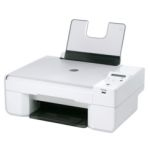 924 |
 926 |
 928 |
 942 |
 944 |
 946 |
 948 |
 962 |
 964 |
 966 |
 968 |
 P513w |
 P703 |
 P713w |
 V105 |
 V305 |
 V313w |
 V505 |
 V515w |
 V715w |
 V525w |
 V725w |
3.操作系统与戴尔 打印机的兼容性
此链接会将您带到戴尔知识库文章,其中提供了有关哪些作系统与您的打印机兼容的信息。
4.获取并安装打印机驱动程序和软件
此链接让您转到戴尔知识文库文章“Obtaining and Installing Printer Drivers and Software(获取并安装打印机驱动程序和软件)”。
5.下载并查看打印机手册
此链接会将您转到戴尔手册。
用户指南/手册。
Affected Products
Dell 720 Color Printer, Dell 725 Personal Inkjet Printer, Dell 810 All In One Inkjet Printer, Dell A920 All In One Personal Printer, Dell 922 All In One Photo Printer, Dell 924 All-in-One Photo Printer, Dell 926 All In One Inkjet Printer
, Dell 928 All In One Inkjet Printer, Dell A940 All In One Personal Printer, Dell 942 All In One Inkjet Printer, Dell 944 All In One Inkjet Printer, Dell 946 All In One Printer, Dell 948 All In One Printer, Dell 948w All In One Photo Printer, Dell A960 All In One Personal Printer, Dell 962 All In One Photo Printer, Dell 964 All In One Photo Printer, Dell 966 All In One Inkjet Printer, Dell 968 All In One Photo Printer, Dell 968w All In One Wireless Photo Printer, Dell J740 Personal Inkjet Printer, Dell P513w All In One Photo Printer, Dell P703w All In One Photo Printer, Dell P713w All In One Photo Printer, Dell Ink-Free Printer PZ310, Dell V105 All In One Inkjet Printer, Dell V305 All In One Inkjet Printer, Dell V305w All In One Wireless Inkjet Printer, Dell V313 All In One Inkjet Printer, Dell V313w All In One Wireless Inkjet Printer, Dell V505 All In One Inkjet Printer, Dell V505w All In One Wireless Inkjet Printer, Dell V515w All In One Wireless Inkjet Printer, Dell V525w All In One Wireless Inkjet Printer, Dell V715w All In One Wireless Inkjet Printer, Dell V725w All In One Wireless Inkjet Printer
...
Article Properties
Article Number: 000130802
Article Type: Solution
Last Modified: 26 Aug 2025
Version: 14
Find answers to your questions from other Dell users
Support Services
Check if your device is covered by Support Services.