故障診斷 Windows 桌面 偏移畫面未對齊或移動
Summary: 瞭解如何透過更新驅動程式、調整顯示器設定和配對螢幕解析度來修正桌面偏移問題。
This article applies to
This article does not apply to
This article is not tied to any specific product.
Not all product versions are identified in this article.
Instructions
偏移 Windows 桌面
如果您的 Windows 桌面顯示器向右或左側偏移幾度。下列故障診斷步驟應有助於解決此問題:
- 確認所有驅動程式均為最新版本。您可以執行 Windows Update 或使用 Dell SupportAssist 來更新驅動程式。
- 檢查您使用的電腦或擴充基座解決方案限制,以確保您未超過視訊限制。
- 以滑鼠右鍵按一下桌面,然後選取 顯示設定。
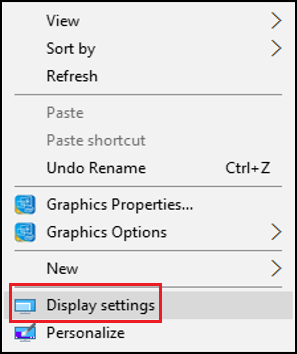
- 選取底部中央 的進階顯示設定 。

- 確認桌上型電腦和使用中的解析度均相同 (紅色方塊)。

- 如果解析度不一樣,請按一下 顯示卡內容 (綠色方塊),以變更顯示卡內容中的解析度。
- 按一下 列出所有模式。

- 從給定的清單中,選擇正確的解析度。

選取對應的解決方案後,您的桌面映像應該會正確對齊。
Affected Products
Alienware, Dell All-in-One, Dell Pro All-in-One, Dell Pro Max Micro, Dell Pro Max Slim, Dell Pro Max Tower, Dell Pro Micro, Dell Pro Slim, Dell Pro Tower, Dell Slim, Dell Tower, Inspiron, OptiPlex, Vostro, XPS, G Series, G Series, Alienware
, Dell Laptops, Dell Plus, Dell Pro, Dell Pro Max, Dell Pro Plus, Dell Pro Premium, Inspiron, Latitude, Dell Pro Rugged, Vostro, XPS, Fixed Workstations, Mobile Workstations, Dell Pro Max Micro XE FCM2250, Dell Pro Max Slim XE FCS1250, Dell Pro Max Tower T2 XE FCT2250, Dell Pro Max 16 XE MC16250, Dell Pro Micro Plus XE QBM1250, Dell Pro Slim Plus XE5 QBS1250, Dell Pro Tower Plus XE5 QBT1250
...
Article Properties
Article Number: 000138732
Article Type: How To
Last Modified: 22 Jul 2025
Version: 8
Find answers to your questions from other Dell users
Support Services
Check if your device is covered by Support Services.