Bluetooth May Not Turn Back on When Using Wireless Switch on a Dell Laptop
Summary: Controlling Bluetooth using the wireless switch on some Dell laptops
Symptoms
Bluetooth may not turn back on when using wireless switch.
Table of Contents:
Bluetooth may not turn back on when using wireless switch
Bluetooth may not turn back on when using the wireless switch.
If the Wireless switch is used to turn off Wireless/Bluetooth and the system is rebooted, and then the switch is used to turn back on wireless and Bluetooth, then Bluetooth may still be inactivated.
However the defaults for the BIOS are that the switch turns off both wireless networking and Bluetooth.
If the defaults for the BIOS are loaded, then this situation may occur.
Cause
Cause information is not available.
Resolution
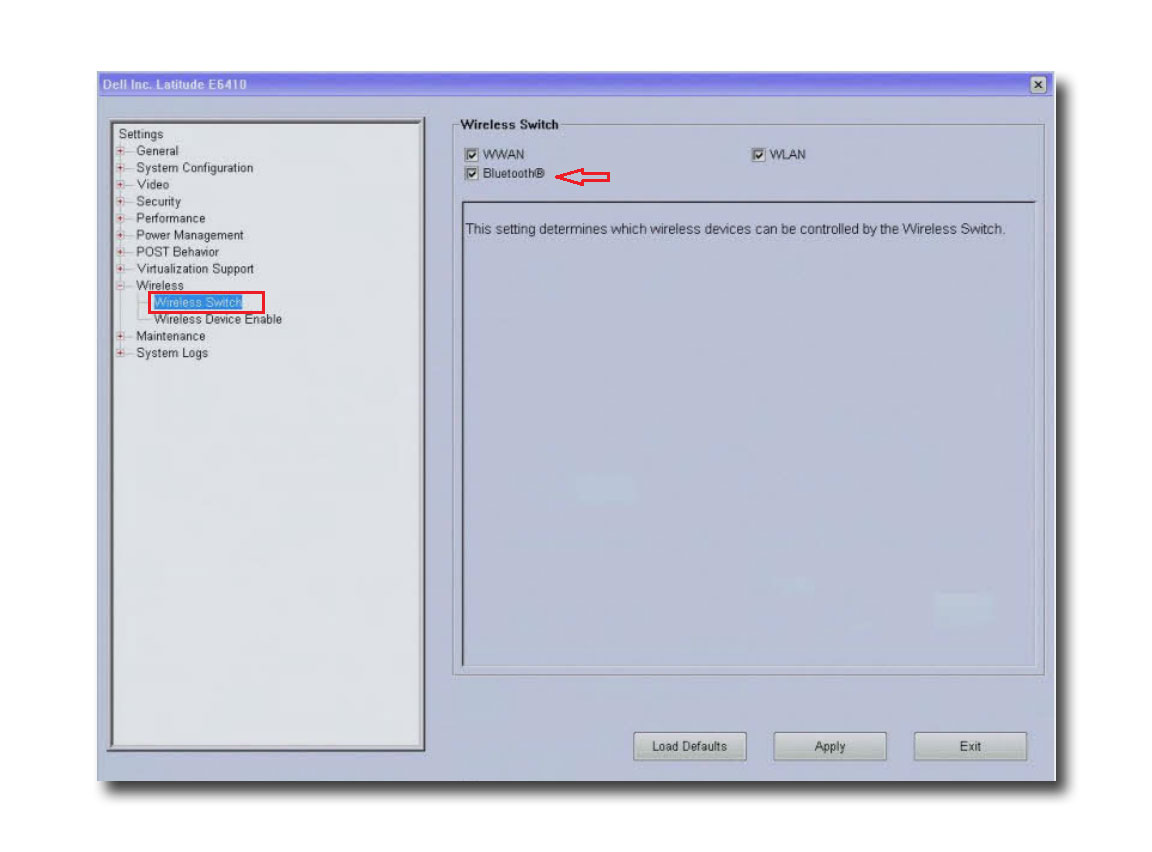
A workaround for the above issue is to change the wireless switch settings in the BIOS.
-
Turn on the system
-
Tap the < F2 > key at the Dell logo - to enter the system BIOS.
-
Select Wireless from the left menu
-
Then Wireless Switch
-
Set the Wireless Switch settings to not turn off Bluetooth
-
Press the ' Apply ' button
-
Exit from BIOS
-
Perform a full shutdown from Windows for the changes to take effect.
Note: The screen below is an example of the location of the BIOS settings for the Wireless Switch. Depending on your system BIOS, the layout may vary. Click the (+) plus signs on the menu to expand the options available.
 For more information and support for Bluetooth, please go to our dedicated support page.
See these Dell Knowledge Base articles for related information: