How to Resolve Issue With Blurry Text Within Applications Installed on Windows 8.1 or Windows 10
Summary: Applications may appear with blurry text in Windows 8.1 or Windows 10. This article provides information about how to resolve the issue.
Instructions
Applications or text appearing blurry due to dots per inch (DPI) scaling enhancements in Windows 8.1 or Windows 10
Blurry text or fonts may occur in certain applications within Windows 8.1 or Windows 10. This issue can be caused due to the display scaling setting for high DPI monitors. With DPI scaling enabled, certain applications or text within the applications may appear blurry.
Use ClearType Tuner to resolve the issue
From the Start Screen, type ClearType, then click Settings, then Adjust ClearType text. Check the box next to Turn on ClearType. This allowed you to choose the text that looked best to them and in the end cleared up the blurry text issue.
How to disable display scaling to resolve this issue
A possible resolution for the blurry appearance issue is to disable display scaling within the specific application's properties. To disable this setting, right-click the icon for the application and choose Properties from the menu. For Windows 10, you may need to access the application icon from the file location to open the Properties screen. When the Properties screen appears, click the Compatibility tab and check to Disable display scaling on high DPI settings: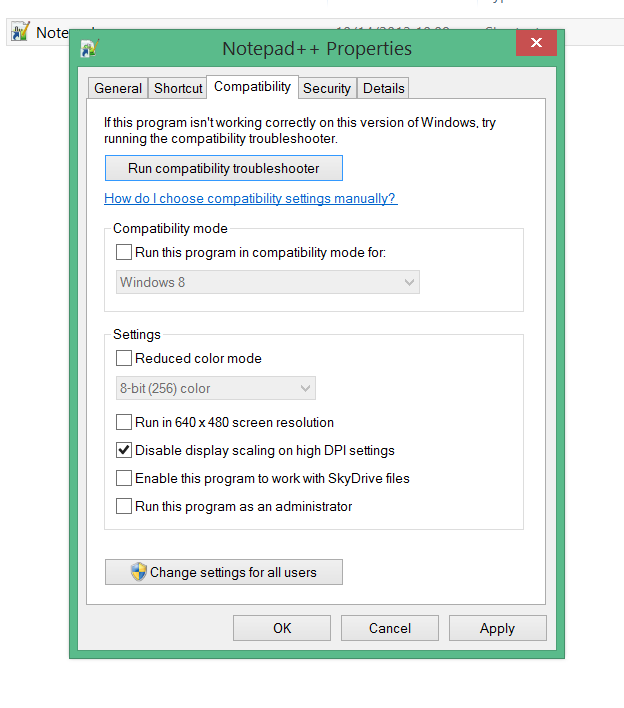
Another way to ensure that the application appearance is not affected by DPI scaling is to change the Display settings within Windows 8.1 or Windows 10. Disable the DPI scaling by custom sizing to prevent scaling from adjusting automatically within different applications: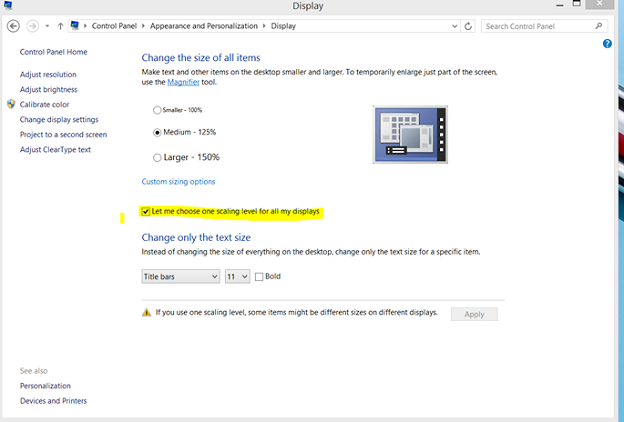
Further information about this issue and specific instructions for resolving the blurry appearance when using Google Chrome in Windows 8.1 or Windows 10 can be found at the How-To Geek website