如何在 Latitude、Precision 和 XPS 上啟用 Display Stream Compression
Summary: 本文說明如何在 Intel Tiger Lake 上啟用 Display Stream Compression (DSC) 功能。
This article applies to
This article does not apply to
This article is not tied to any specific product.
Not all product versions are identified in this article.
Instructions
受影響的產品:
- Latitude 9520
- Latitude 9420
- Latitude 7x20
- Latitude 7320
- Latitude 5x21
- Latitude 5x20
- Latitude 3x20
- Latitude 3320
- Precision 7760
- Precision 7560
- Precision 5760
- Precision 5560
- Precision 3561
- Precision 3560
- XPS 17
- XPS 15
- XPS 13
- XPS 13 二合一
啟用 DSC 的步驟:
- 在工作列上的搜尋方塊中,輸入裝置管理員。然後從顯示的程式清單中選取「裝置管理員」。「裝置管理員」視窗應會開啟,並看起來類似於下面顯示的範例:

圖 1:(僅限英文版) 裝置管理員
- 在「裝置管理員」中,開啟顯示卡區段。此區段會顯示電腦正在使用的顯示卡。

圖 2:(僅限英文版) 顯示卡
- 在顯示的顯示卡上按右鍵,然後按一下內容

圖 3:(僅限英文版) 顯示卡內容
- 按一下詳細資料標籤,在「內容」下拉式清單中選取驅動程式金鑰。這會顯示目前顯示卡正在使用的驅動程式路徑。

圖 4:(僅限英文版) Intel Iris Xe 顯示卡內容的「詳細資料」標籤
警告:下一個步驟是 Windows 登錄編輯:
- 請先將登錄檔備份再繼續,並參閱如何在 Windows 中備份及還原登錄檔
。
- 編輯登錄可能會導致電腦在下次重新開機時沒有回應。
- 如果您對執行此步驟有任何疑慮,請聯絡 Dell 技術支援以取得協助。
- 在工作列上的搜尋方塊中,輸入 regedit。然後從顯示的程式清單中選取 regedit。如果出現使用者帳戶控制提示,請按一下是以開啟 Registry Editor。「Registry Editor」視窗應會開啟,並看起來類似於以下範例。
- 在視窗「Registry Editor」上,按一下 HKEY_LOCAL_MACHINE 資料夾。

圖 5:(僅限英文版) 在 Registry Editor 中的 HKEY_LOCAL_MACHINE
- 前往編輯,然後按一下尋找。
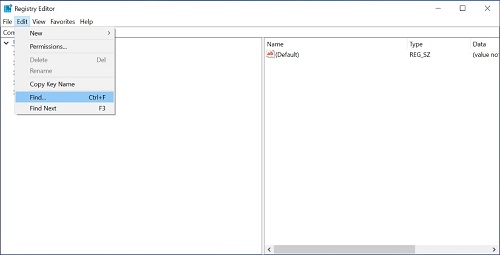
圖 6:(僅限英文版) 搜尋 DpMstDscDisable
- 「尋找」對話方塊隨即開啟。輸入
DpMstDscDisable然後按一下尋找下一個按鈕。

圖 7:(僅限英文版) 按一下「編輯」下拉式清單中的「尋找」
- 隨即開始搜尋,並在找到時顯示第一個項目結果。它會看起來類似於下面顯示的範例。

圖 8:(僅限英文版) 登錄檔項目的範例
- 檢查 Registry Editor 中的驅動程式路徑是否與步驟 4 中的驅動程式路徑相同。如果不相同,請按 F3,或按一下編輯及尋找下一個,以尋找下一個項目。

圖 9:(僅限英文版) 確認所屬版本 DpMstDscDisable
- Registry Editor 中的驅動程式路徑是否與步驟 4 中的驅動程式路徑相同。按一下
DpMstDscDisable以將其值編輯成 0,然後按一下確定按鈕。

圖 10:(僅限英文版) 將值資料變更為 0
- 將電腦重新開機以啟用 DSC 功能。
如需更多資訊,請參閱 Dell 知識文章:
Additional Information
Affected Products
XPS 13, XPS 15, XPS 17, Latitude 7320, Latitude 7320 Detachable, Latitude 5421, Latitude 7420, Latitude 9420, Latitude 5520, Latitude 5521, Latitude 7520, Latitude 9520, Latitude 5420, Precision 3560, Precision 3561, Precision 5560, Precision 7560
, Precision 5760, Precision 7760
...
Article Properties
Article Number: 000197102
Article Type: How To
Last Modified: 24 Apr 2025
Version: 13
Find answers to your questions from other Dell users
Support Services
Check if your device is covered by Support Services.