IDPAのアップグレード後にData Protection Centralの内部LDAPが機能しない
Summary: IDPAのアップグレード後、Data Protection Central (DPC)サーバーのLDAPが機能しなくなります。
This article applies to
This article does not apply to
This article is not tied to any specific product.
Not all product versions are identified in this article.
Symptoms
内部LDAPが機能していません。
- アイデンティティソースはあるが、切断と表示される
- また、グループはソースの識別からも削除されています
- 追加しようとすると、ロール マッピング エラーが表示されます
の /var/log/dpc/iam/iam-provider/keycloak.log (rootとして)次の証明書エラーが表示されます。
2024-10-21 17:17:53,937 ERROR [org.keycloak.services] (executor-thread-17) KC-SERVICES0055: Error when connecting to LDAP: <ACM FQDN>:636: javax.naming.CommunicationException: <AMC FQDN>:636 [Root exception is javax.net.ssl.SSLHandshakeException: PKIX path validation failed: java.security.cert.CertPathValidatorException: signature check failed]の /var/log/dpc/iam/iam-service/iam-service.log (rootとして)失敗すると、次のLDAPグループ追加エラーが表示されます。
2024-10-21 13:22:44,810 INFO https-jsse-nio-9922-exec-9 c.e.c.s.s.IndetitySourceService LDAP instance Id: ae45949d-40dd-46ee-8136-bc40e0d32644 . Adding group role mapping for [cn=dp_admin,ou=Group,dc=idpa,dc=local]の /var/log/dpc/elg/elg.logでは、グループ追加エラーも表示されます。
2024-10-21 13:22:44,949 ERROR https-jsse-nio-9922-exec-9 c.e.c.s.s.GlobalExceptionHnalder IdentitySourceException:com.emc.clp.security.exception.IdentitySourceException: Failed to create group role mapping. Received error for ldap mapper group [MapperGroup(cn=dp_admin,ou=Group,dc=idpa,dc=local] creation.Cause
IDPAをアップグレードした後、DPCサーバーはACM LDAPサーバーに接続できず、グループを追加できません。
Resolution
手順:
- 次のコマンドを使用して 、adminとしてDPC CLI にログインします。
SSH or PuTTYとsu -をrootユーザーに割り当てます。 - 次のコマンドを実行します。
service dp-iam restart
service msm-elg restart- DPC UIにログインし、Administration >Identity Sourcesに移動します。
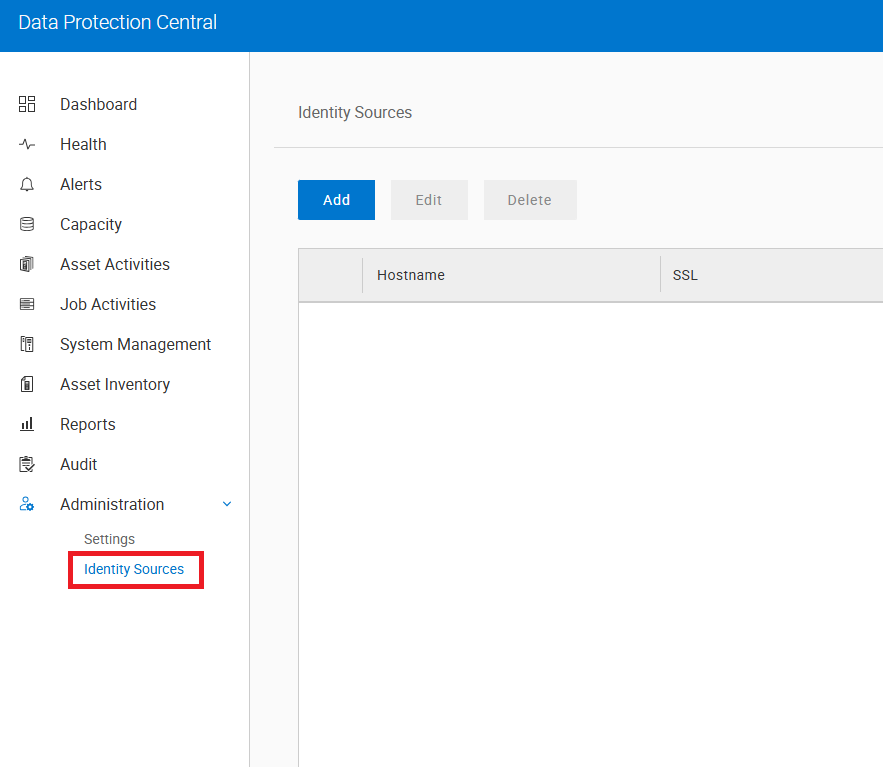
- ACM LDAPサーバーのアイデンティティ ソースを追加します。
![[Identity Source]で、次のように情報を入力します](https://supportkb.dell.com/img/ka0Do0000012sxpIAA/ka0Do0000012sxpIAA_ja_2.jpeg)
Type = LDAP

Use SSL = select

Server Address = <ACM FQDN> (Use actual ACM Fully Qualified Domain Name)

Port = 636

Domain = dc=idpa,dc=local

Query User = uid=idpauser,ou=People,dc=idpa,dc=local

Query Password = idpauser password- [次へ]ボタンをクリックし、次の画面で[保存]ボタンをクリックします。
- LDAPサーバーをハイライト表示し、
|<-をタップしてサイドバーを開きます。[Group Search Name]に次の項目を入力し、[Add Group]ボタンをクリックします。
cn=dp_admin,ou=group,dc=idpa,dc=local
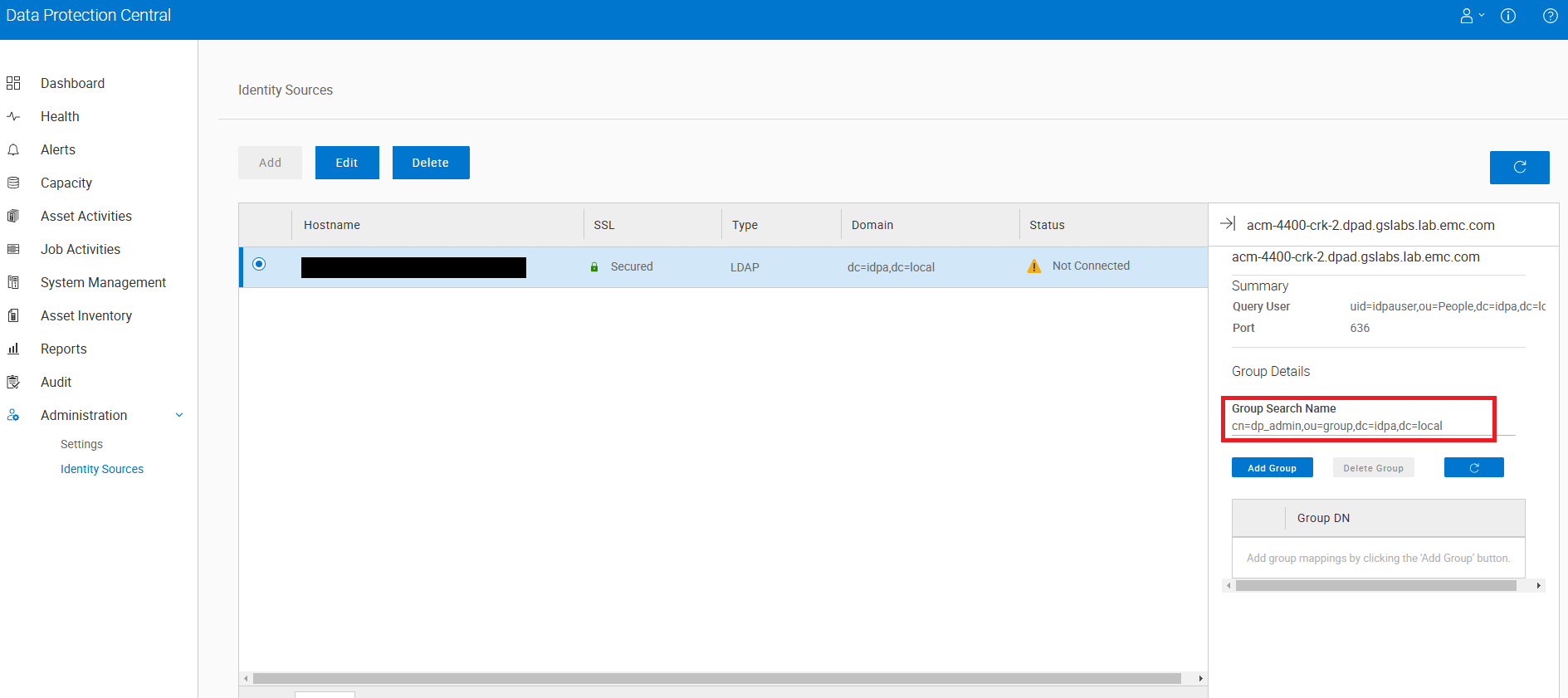
アイデンティティ ソースとグループが追加されたら、 ldapIntegrationStatus.xml ACMサーバーで、次のプロセスを実行します。
- 次を使用してACM CLIにログインします。
PuTTY or SSHrootとして、次のディレクトリに移動します。
/usr/local/dataprotection/var/configmgr/server_data/config- のバックアップを作成します。
ldpaIntgrationStatus.xml次のコマンドを使用します。
cp ldapIntegrationStatus.xml ldpaIntegrationStatus.xml.backup- 編集
ldpaIntegrationStatus.xmlで開くことによってviの詳細を確認してください。検索DATA_PROTECTION_CENTRALcomponent タグで囲み、そうでない場合は INTEGRATED に設定します。次のようになります。
        <component>
            <id>DATA_PROTECTION_CENTRAL</id>
            <status>INTEGRATED</status>
</component>- この変更を保存するには、エスケープを押し、次に入力します。
:xの詳細を確認してください。
次に、DPC UIにログインしてみます。 idpauser アカウント。
ログインに失敗した場合は、Dellサポート にお問い合わせください。
Article Properties
Article Number: 000269136
Article Type: Solution
Last Modified: 11 Dec 2025
Version: 4
Find answers to your questions from other Dell users
Support Services
Check if your device is covered by Support Services.