PowerEdge: LIC008 - The license binding ID does not match the device unique identifier
Summary: This article provides information about the LIC008 error seen when importing the IDRAC License.
This article applies to
This article does not apply to
This article is not tied to any specific product.
Not all product versions are identified in this article.
Symptoms
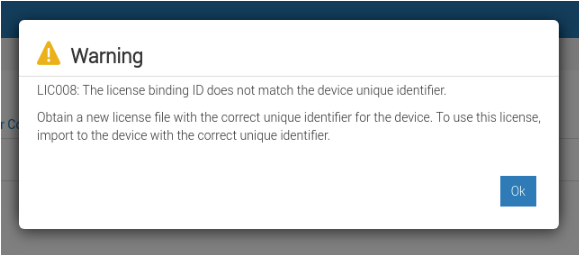
Installing the iDRAC license file fails with error "LIC008: The license binding ID does not match the device unique identifier"
Cause
Using the wrong IDRAC9 license generation:
- iDRAC9 Licenses are different for 14G/15G/16G, if you have a 14G server but the purchased license is for a 16G server it will not import.
The license is bound to the wrong Service Tag:
- If the license is bound to another server's service tag it will not import, the license binding must match the server its being imported to.
The IDRAC license is not yet bound to the servers service tag:
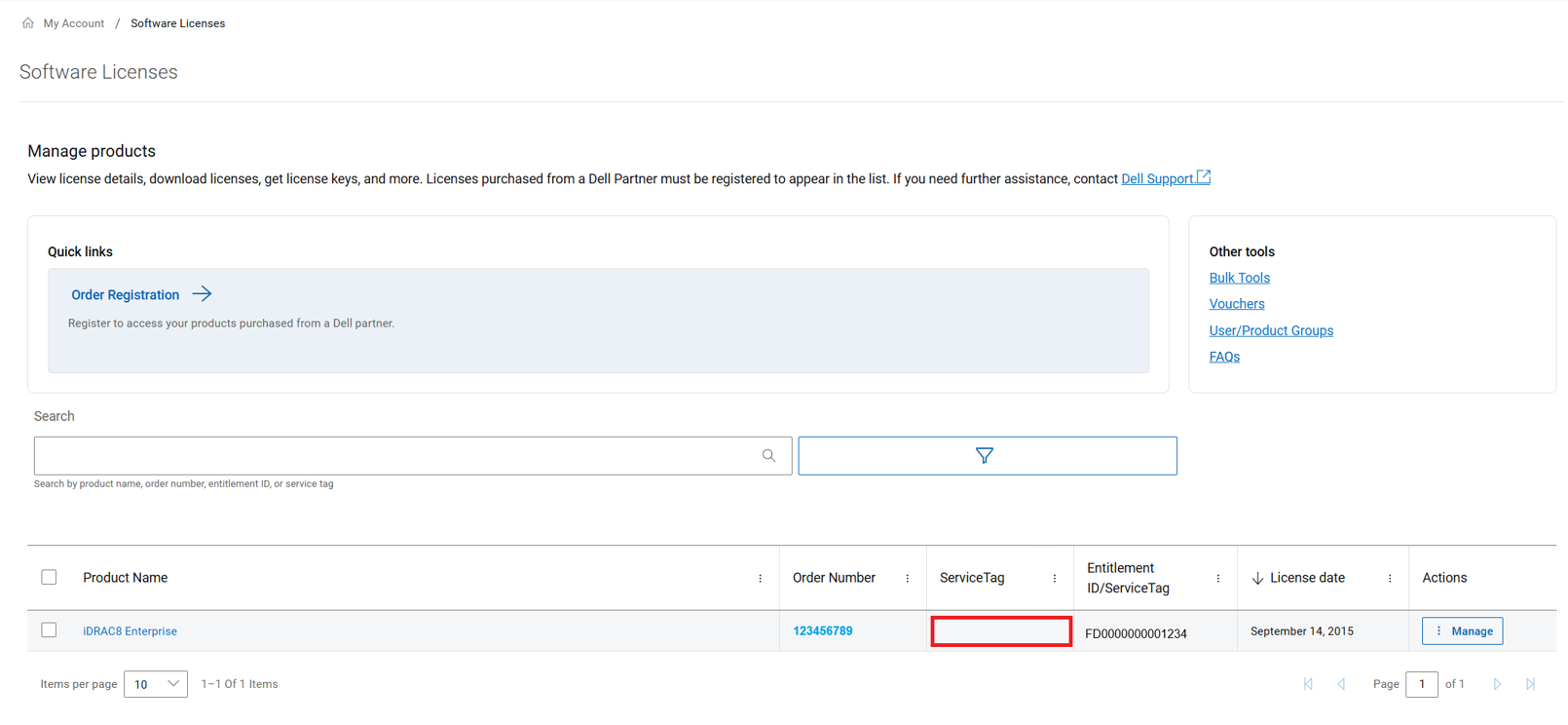
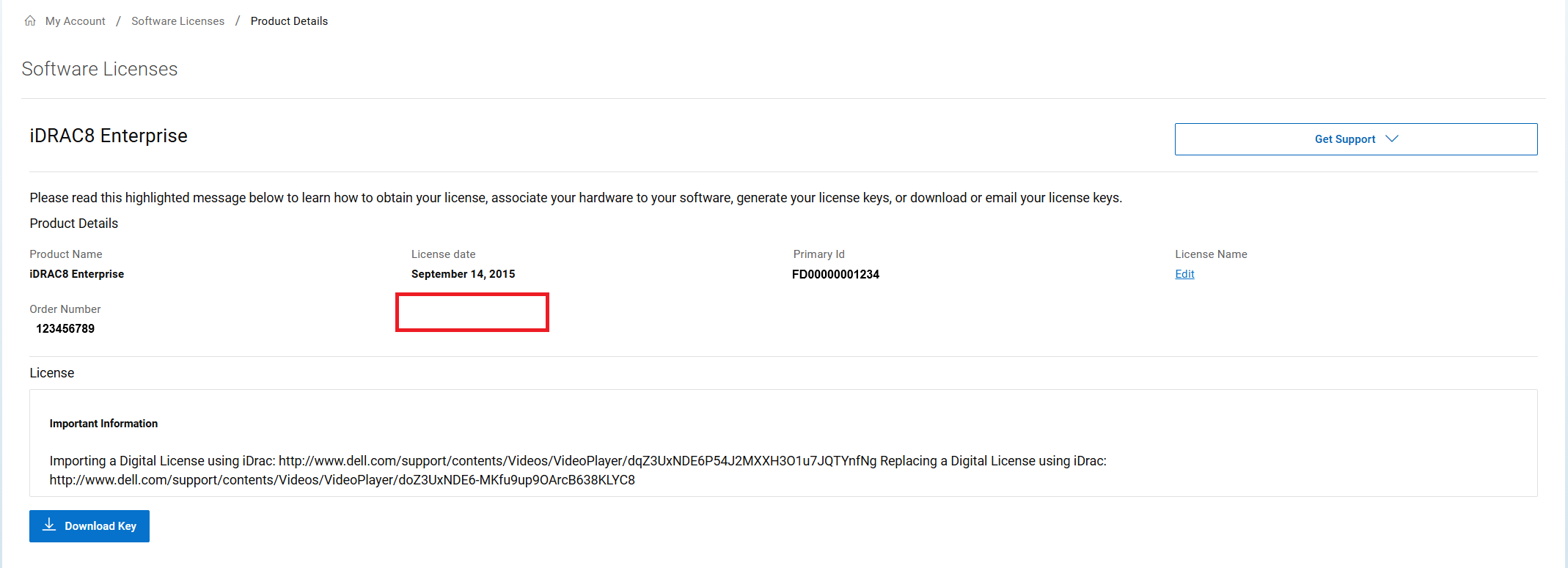
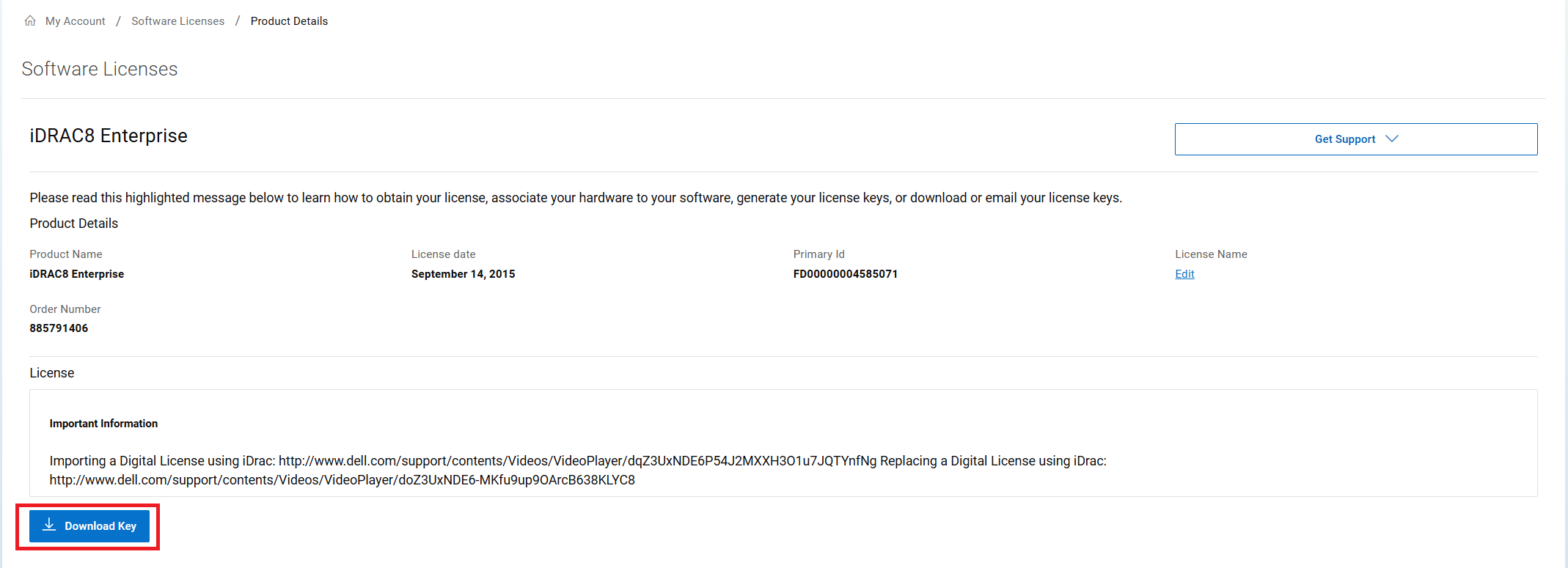
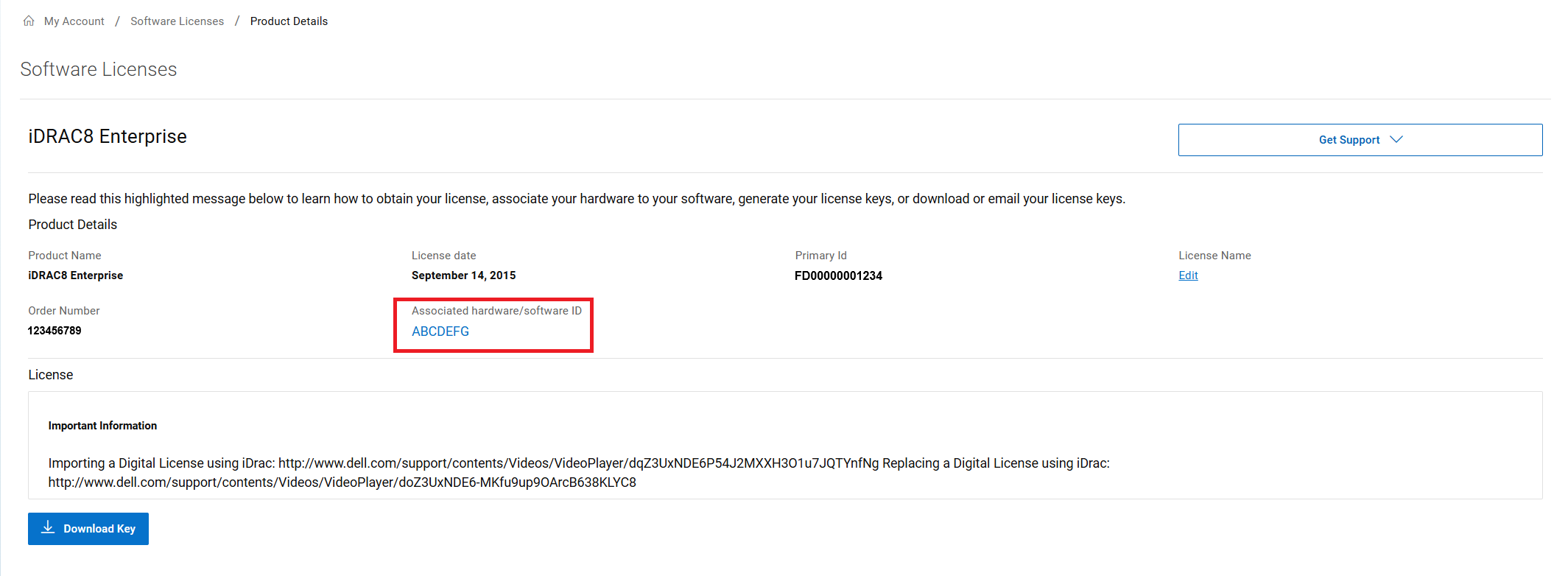
- Check the license details in MyAccount, if the license is bound you do not see the Associated hardware ID or Service Tag as shown in the figures below.
Resolution
To bind the IDRAC License to a Server's Service Tag, follow the steps below:
- Log in to MyAccount using the email and password that the license order was registered to.
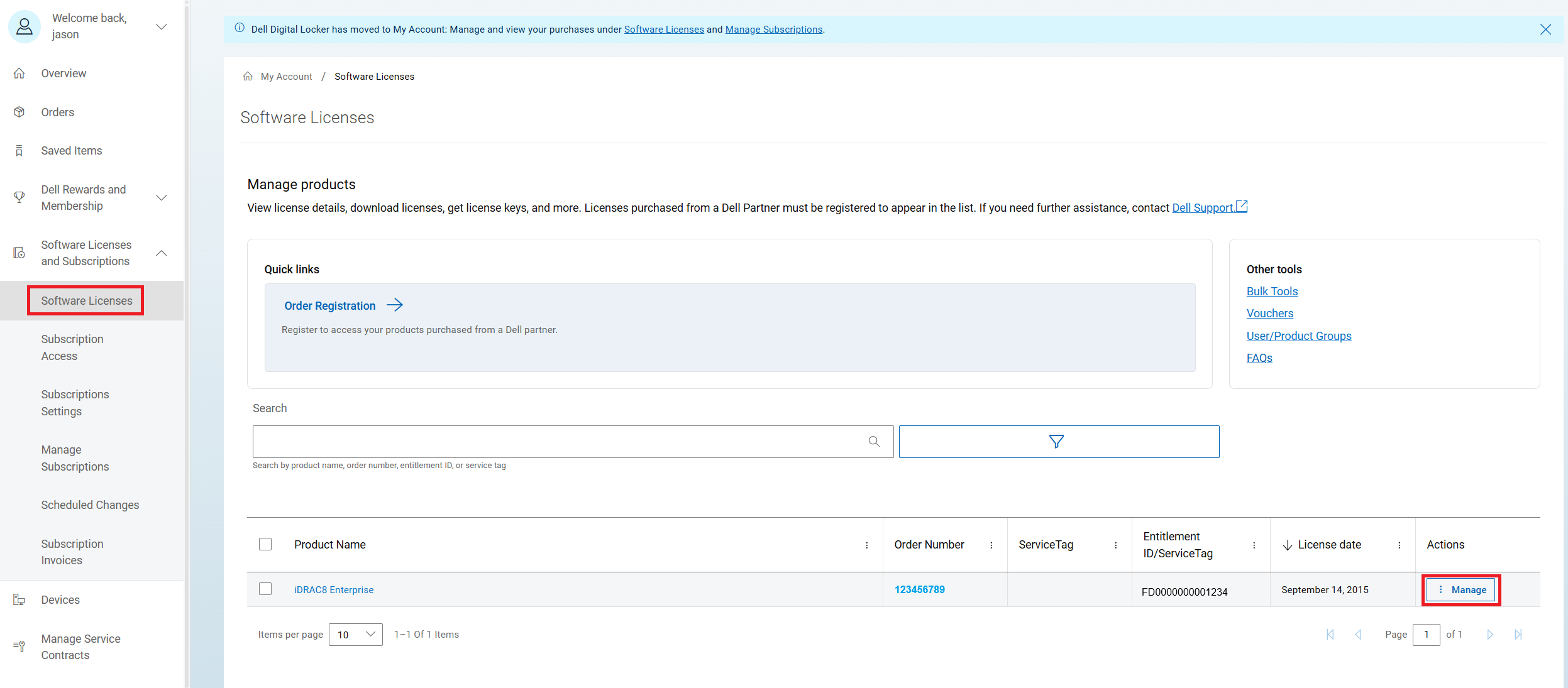
- Once Logged in Select Software Licenses on the left column
- Search for the IDRAC License order and then click Manage.
- Once on the License detail page, click "Download Key" which prompts the request to provide the service tag to bind to the key prior to downloading.
- Enter the Service Tag of the server that you want to bind the license to and the license delivery method, and then click Submit. Make sure to type the tag in all caps. Be careful not to make any mistakes as once you press submit the tag provided is bound.
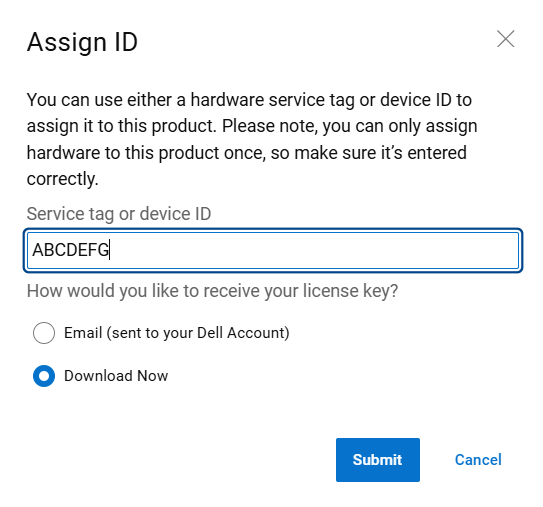
- After clicking Submit, the license is bound and the license is downloaded or emailed depending on the selection.
- After binding the license, you should now see the bound tag with the license details.
To verify the correct IDRAC license was ordered, follow the steps below:
- Check your order's line item for the iDRAC license and see if the description shows a 14G, 15G, or 16G
- For example this would be the line item for a 15G iDRAC9 License;
385-BBPP iDRAC9,Enterprise 15G, Customer Kit 8PH51 CUS,DF,IDRAC9,15G,ENT
- If unsure what generation server you have, see article: PowerEdge: Servers by generation
If the iDRAC license is bound to the wrong Server or Service Tag:
- Engage Dell Technical Support for assistance with reassigning the license to the correct tag.
Affected Products
iDRAC8, iDRAC9Products
C Series, HS Series, Modular Infrastructure, Rack Servers, Tower Servers, XE Servers, XR ServersArticle Properties
Article Number: 000353269
Article Type: Solution
Last Modified: 09 dic 2025
Version: 2
Find answers to your questions from other Dell users
Support Services
Check if your device is covered by Support Services.