安装 Windows 10 期间出现硬盘驱动器锁定错误
Summary: 本文介绍如何修复安装 Windows 10 时的硬盘锁定错误。
This article applies to
This article does not apply to
This article is not tied to any specific product.
Not all product versions are identified in this article.
Instructions
硬盘已锁定
警告: 此错误发生在安装 Windows 10 期间,并且所有数据都将从系统中擦除。
当您尝试从恢复介质安装 Windows 10 时,您可能会收到错误“硬盘已锁定”。以下步骤可用于解决此错误。
访问 Windows 恢复环境 (WinRE)
- 从计算机关闭开始。按计算机上的电源按钮,然后立即开始每秒按一次 F12 键以访问系统启动菜单。
- 选择 SupportAssist OS Recovery 以启动进入 SupportAssist OS Recovery。
- 在 SupportAssist OS Recovery 中,单击 操作系统恢复主屏幕右上角的 3 个点
 ,这将提供一个下拉菜单。
- 选择 Windows 恢复。
- 计算机将重新启动进入 Windows Recovery Environment (WinRE)。
- 选择疑难解答 > 高级选项>命令提示符(图 4)图
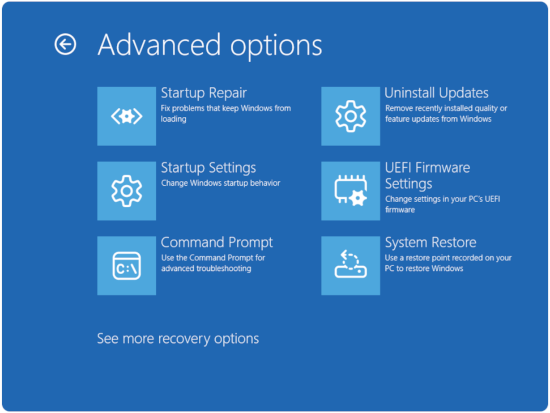
1:高级选项 - 在命令提示符下键入
diskpart。 - 在命令提示符下键入
list disk。 - 在命令提示符下键入
Select disk #。# 是要安装到的驱动器编号。 - 在命令提示符下键入
Clean。 - 在命令提示符下键入
Convert GPT。 - 在命令提示符下键入
Exit。
启动至 Windows 10 介质并开始安装过程。选择键盘语言,然后选择计算机疑难解答选项。选择从驱动器恢复。
Additional Information
有关 Windows 10 的其他信息,请参阅戴尔 Windows 支持 库页面。
Affected Products
Alienware, Inspiron, OptiPlex, Vostro, XPS, G Series, G Series, Alienware, Inspiron, Latitude, Vostro, XPS, Fixed Workstations, Mobile WorkstationsArticle Properties
Article Number: 000131936
Article Type: How To
Last Modified: 09 Oct 2026
Version: 11
Find answers to your questions from other Dell users
Support Services
Check if your device is covered by Support Services.