Avamar: How to gather logs for troubleshooting VMware image backup issues
Summary: This article describes how to gather logs when troubleshooting Avamar VMware image backup issues.
This article applies to
This article does not apply to
This article is not tied to any specific product.
Not all product versions are identified in this article.
Instructions
This article describes various methods for gathering logs for investigating Avamar VMimage client backup issues.
Method 1:
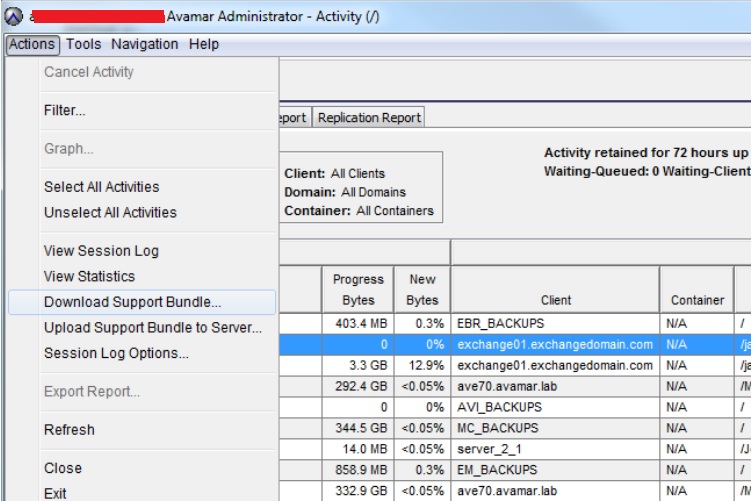
Method 1:
- Open the Avamar Administrator Interface.
- Select Activity, then Activity Monitor Tab.
- Locate the Virtual Machine (VM) client whose backup experienced an issue.
- Double-click the activity row. An Activity Session Window appears.
- Click the Export button on the bottom to export the complete log for the backup.
- Open the Avamar Administrator Interface.
- Select Activity, then the Activity Monitor Tab.
- Locate the VM client whose backup experienced an issue.
- Select Menu, then Actions.
- Select Download Support Bundle to download the complete log.
Additional Information
To enable debug logging for VM image backups.
Method 1:
- Open the Avamar Administrator interface.
- Open the manual backup and restore wizard window.
- Select More Options.
- In the Backup Command-Line Options window, select the More button.
- Add the debug information as shown below.
[avvcbimage]debug
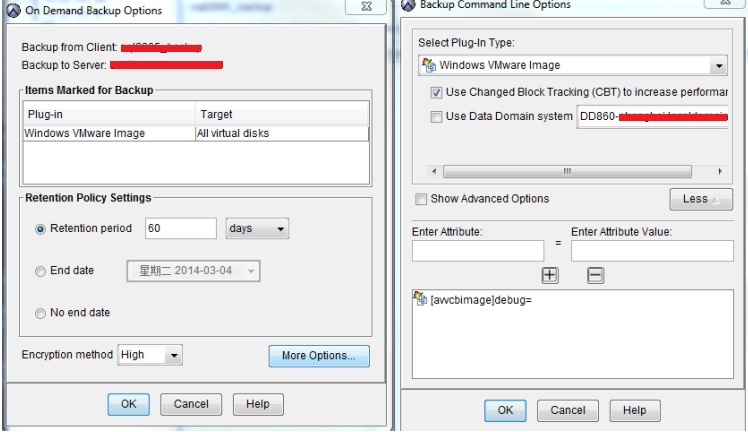
Method 2:
Open an SSH session to the Avamar Proxy Server.
- Switch to the directory:
/usr/local/avamarclient/var-proxy-1. - Edit the avvcbimage.cmd file.
- Add a line with --debug at the end of the file.
- Save the file.

To enable the debug mode for all instances under the current Avamar proxy server.
- Go to
/usr/local/avamarclient/var. - Edit the avvcbimageAll.cmd file.
- Remove the # char before the --debug to enable the debug mode.

Affected Products
AvamarProducts
Avamar, Avamar Client for VMwareArticle Properties
Article Number: 000023300
Article Type: How To
Last Modified: 06 Feb 2025
Version: 5
Find answers to your questions from other Dell users
Support Services
Check if your device is covered by Support Services.