Connectrix: Brocade: How to Set Up SolarWinds for Using SFTP
Summary: This article provides steps on how to set up the third party application named SolarWinds to use an SFTP. Using this application can help with finding firmwaredownload, configupload, configdownload, and collect supportsave. ...
This article applies to
This article does not apply to
This article is not tied to any specific product.
Not all product versions are identified in this article.
Instructions
UPDATE (As of May 2025): SolarWinds is now approved for use by Dell Professional Services and should be available on Company Portal for these resources.
This article provides steps on how to set up the third party application named SolarWinds to use an SFTP. Using this application can help with finding firmwaredownload, configupload, configdownload, and collect supportsave.
Directions:
- Run an online search for SolarWinds-SFTP-SCP-Server. Download the application and complete the installation instructions by following the prompts on the screen.
- Once installed, open SolarWinds and go to the General tab and set the Path where you want to download or upload the files. By default, there is an SFTP_Root folder created. You may modify this folder using the Browse option.
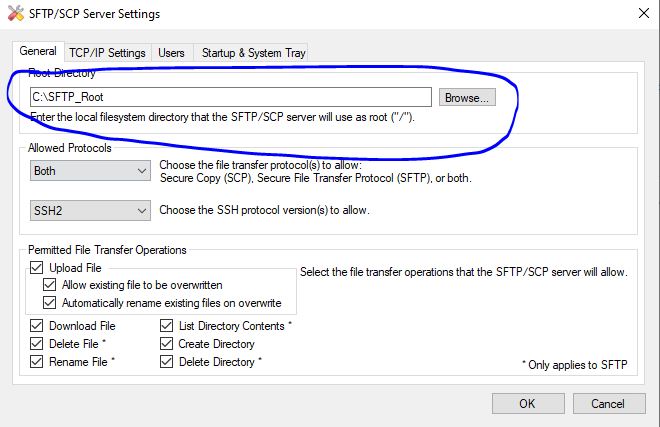
Figure 1: SFTP_Root Folder in the General Tab
- Go to the TCP/IP Settings tab. Ensure that the TCP Port is set to the default Port 22. Also, select Bind to all local IP addresses. This makes your host's IP as SFTP Server's IP.
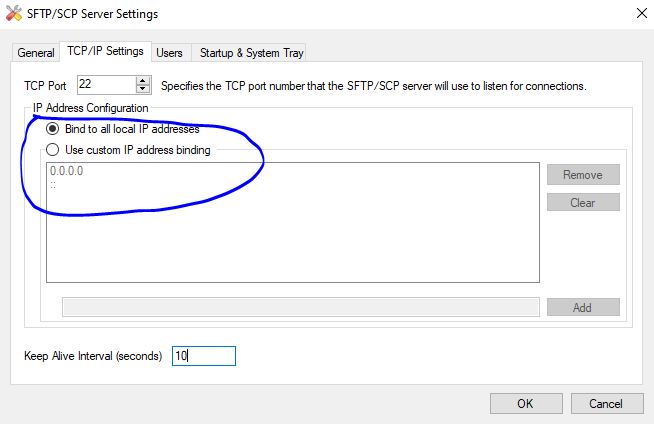
Figure 2: TCP/IP Settings has TCP Port set to default Port 22 and Bind to all local IP addresses is selected.
- Go to the Users tab, click New User, and set the new Username and Password. This is used as SFTP server's login credentials. Click Apply Changes.
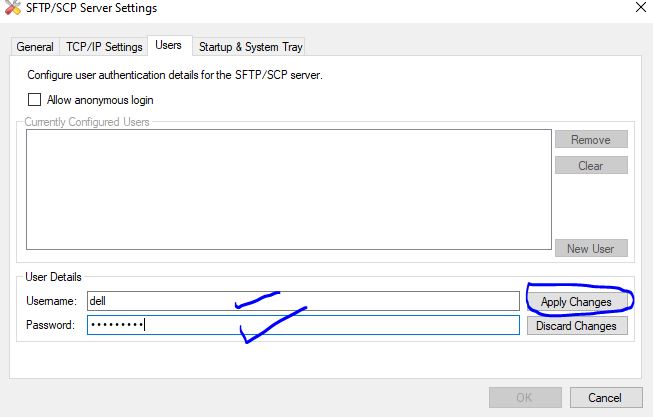
Figure 3: Setting new username and password in the Users Tab
- Ensure that the following option is entered with
firmwaredownload:
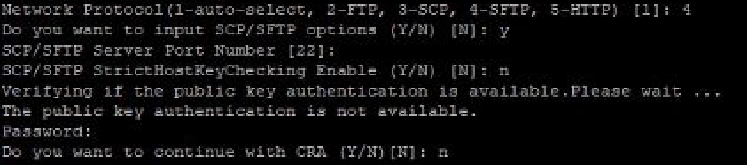
Figure 4: Enter firmwaredownload Option.
- Steps for
supportsave,configupload, andconfigdownloadremain the same as per the Fabric OS admin guide.
Affected Products
Connectrix B-SeriesArticle Properties
Article Number: 000215638
Article Type: How To
Last Modified: 20 Jun 2025
Version: 5
Find answers to your questions from other Dell users
Support Services
Check if your device is covered by Support Services.