VMware: How to Recover the Secure ESXi Configuration
Summary: This article provides instructions on how the user inputs their recovery key after system board or TPM replacement on an ESXi host.
This article applies to
This article does not apply to
This article is not tied to any specific product.
Not all product versions are identified in this article.
Instructions
Pre-requisites:
- Prior to system board or TPM replacement, get Recovery Key. Follow Dell article ESXi - How to Gather Recovery Key from TPM Security Enabled Hosts
- Ensure that the BIOS configuration is set up correctly for TPM. Review the hardware owner’s manual.
Steps:
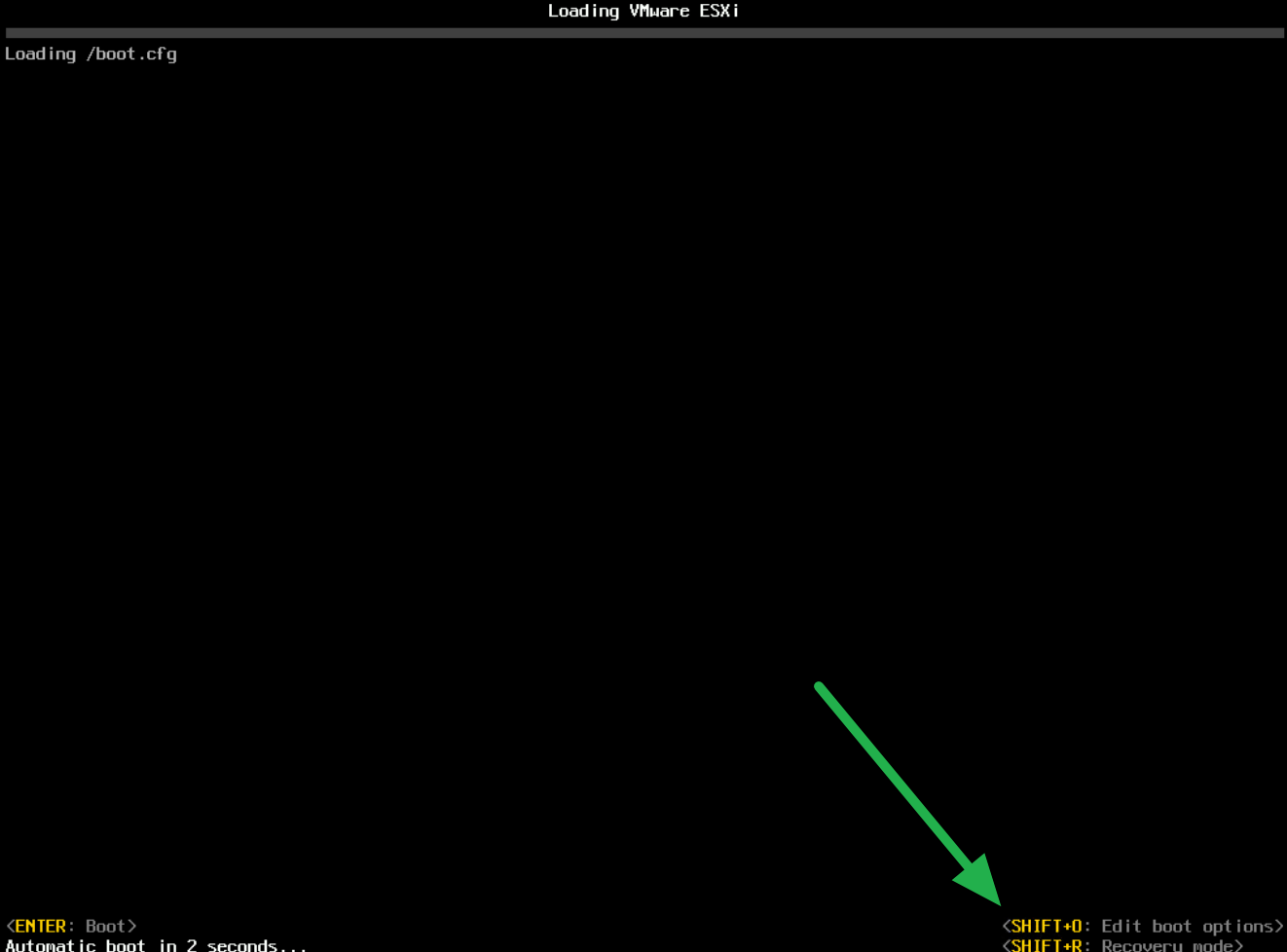
- During boot of ESXi, press SHIFT+O when prompted (the letter O, not the number Zero/0):
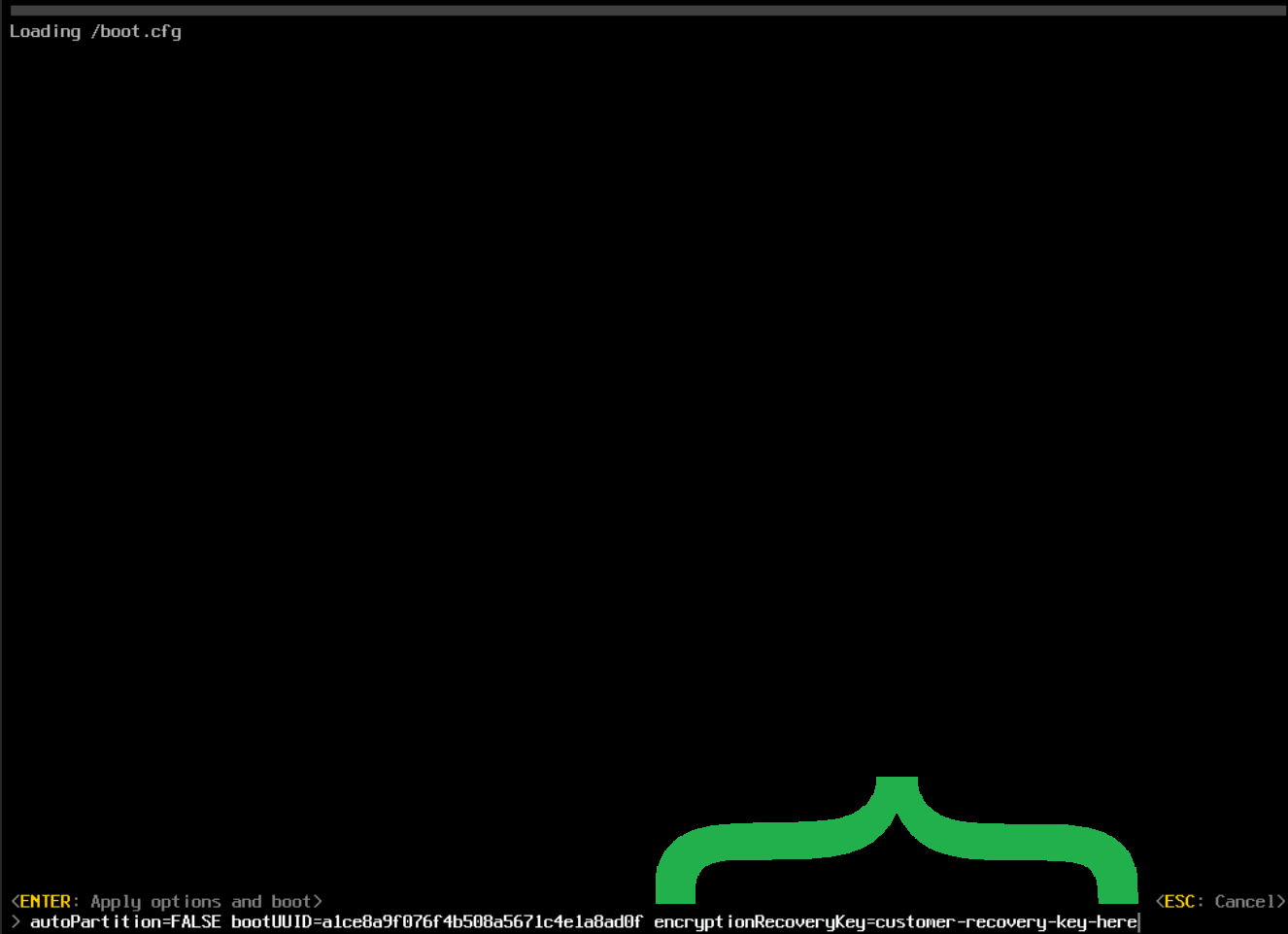
- Append the following to the boot configuration with the recovery key gathered from Pre-requisites:
Note: If the iDRAC is v9 or later with a data center license, the virtual console clipboard option is available which makes console copy and paste easier.
encryptionRecoveryKey=customer-recovery-key-here
- Press <ENTER> to boot into ESXi
- SSH into the host
- Write changes to disk with the following:
[root@host1:~] /sbin/auto-backup.sh
Bootbank lock is /tmp/9f8acea1-504b6f07-568a-71c4e1a8ad0f.lck
Saving current state in /bootbank
Creating ConfigStore Backup
Locking esx.conf
Creating archive
Unlocked esx.conf
Using key ID 525ecf1a-d78f-3834-29aa-62600aee5fe4 to encrypt
Clock updated.
Time: 15:53:53   Date: 12/05/2023   UTC
Affected Products
VMware ESXi 6.7.X, VMware ESXi 7.x, VMware ESXi 8.xProducts
PowerEdge XR2, PowerEdge C6420, PowerEdge C6520, PowerEdge C6525, PowerEdge C6615, PowerEdge C6620, PowerEdge FC640, PowerEdge M640, PowerEdge M640 (for PE VRTX), PowerEdge MX740C, PowerEdge MX750c, PowerEdge MX760c, PowerEdge MX840C, PowerEdge R240
, PowerEdge R250, PowerEdge R260, PowerEdge R340, PowerEdge R350, PowerEdge R360, PowerEdge R440, PowerEdge R450, PowerEdge R540, PowerEdge R550, PowerEdge R640, PowerEdge R6415, PowerEdge R650, PowerEdge R650xs, PowerEdge R6515, PowerEdge R6525, PowerEdge R660, PowerEdge R660xs, PowerEdge R6615, PowerEdge R6625, PowerEdge R740, PowerEdge R740XD, PowerEdge R740XD2, PowerEdge R7415, PowerEdge R7425, PowerEdge R750, PowerEdge R750XA, PowerEdge R750xs, PowerEdge R7515, PowerEdge R7525, PowerEdge R760, PowerEdge R760XA, PowerEdge R760xd2, PowerEdge R760xs, PowerEdge R7615, PowerEdge R7625, PowerEdge R840, PowerEdge R860, PowerEdge R940, PowerEdge R940xa, PowerEdge R960, PowerEdge T140, PowerEdge T150, PowerEdge T160, PowerEdge T340, PowerEdge T350, PowerEdge T360, PowerEdge T440, PowerEdge T550, PowerEdge T560, PowerEdge T640, PowerEdge XR11, PowerEdge XR12, PowerEdge XR4510c, PowerEdge XR4520c
...
Article Properties
Article Number: 000220179
Article Type: How To
Last Modified: 07 Nov 2025
Version: 8
Find answers to your questions from other Dell users
Support Services
Check if your device is covered by Support Services.