Dell Premier Collaboration Keyboard Touch Controls Not Working with Microsoft Teams
Summary: This article discusses the Dell Premier Collaboration Keyboard Touch Controls not being able to work with Microsoft Teams.
This article applies to
This article does not apply to
This article is not tied to any specific product.
Not all product versions are identified in this article.
Symptoms
Affected Products:
- Dell Pro Premium Collaboration Keyboard and Mouse KM900
- Dell Pro Premium Collaboration Keyboard KB900
- Dell Pro Silent Wired Collaboration Keyboard KB525C
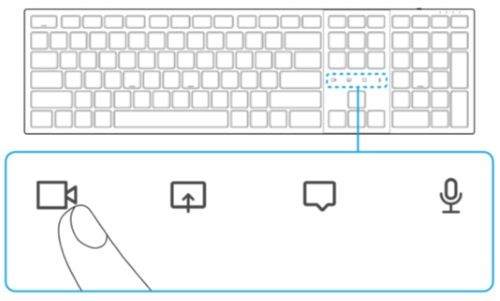
Note: The Collaboration Touch Controls are available on Dell Pro Premium Collaboration Keyboard and Mouse KM900 and Dell Pro Premium Collaboration Keyboard KB900, allowing you to turn on or off your camera, share screen, chat, and mute or unmute the microphone during a Microsoft Teams call. Icons on your touchpad illuminate when a Microsoft Teams call starts. Third-party App API enablement is required.
Cause
Not Applicable
Resolution
Note: Ensure that each of the requirements has been met, especially the correct versions of the keyboard firmware and applications.
To enable the Collaboration Touch Control functionality:
Ensure that the following are requirements are met:
- Dell Pro Premium Collaboration Keyboard KB900 firmware version 1.0.5.0 or later
- Dell Peripheral Manager (DPeM) version 1.7.2 or later
- Microsoft Teams (work or school) Windows desktop application version 1.6.00.24078 or later
Note:
- DPeM version 1.7.2 or later supports Microsoft Teams.
- In earlier versions of DPeM and Dell Pro Premium Collaboration Keyboard KB900, collaboration touch controls only supported Zoom.
- This feature only works with Microsoft Teams (work or school), it does not work with Microsoft Teams for home, Teams on the web, or Slimcore versions.
Activating collaboration touch controls for Microsoft Teams:
- Enable the third-party app API on Teams
- Open the Teams app and click the icon in the upper right corner

- Click Settings
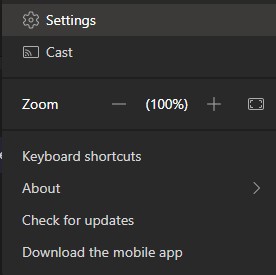
- Click Privacy
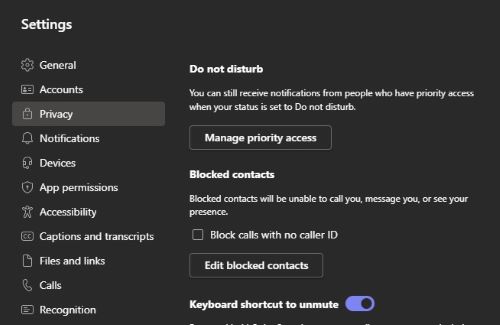
- Scroll down and click Manage API under third-party app API.

- Slide the switch to the right side on Enable API.
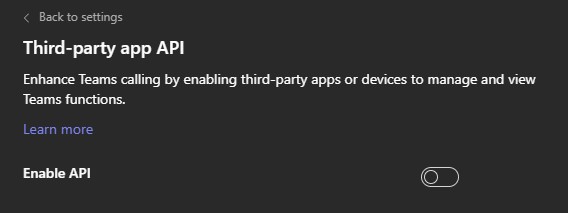
- Close the window.
- Open the Teams app and click the icon in the upper right corner
- Join a Teams meeting.

- A New connection request screen is displayed.
- Click Allow
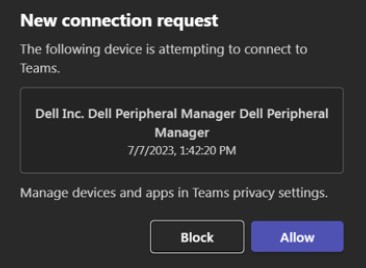
- The icons are illuminated and remain active during the video conference session.
Additional Information
For more information about the Dell Premier Collaboration keyboard and mouse, reference the following for drivers and documentation:
- Dell Pro Premium Collaboration Keyboard and Mouse KM900
- Dell Pro Premium Collaboration Keyboard KB900
- Dell Pro Silent Wired Collaboration Keyboard KB525C
Note: The icons only support one app at a time. If the user is logged into Zoom and they want it to work in Teams simultaneously, have the user reference the user guide for more information.
Affected Products
Dell Pro Silent Wired Collaboration Keyboard KB525C, Dell Pro Premium Collaboration Keyboard KB900, Dell Pro Premium Collaboration Keyboard and Mouse KM900Article Properties
Article Number: 000221475
Article Type: Solution
Last Modified: 18 Jul 2025
Version: 10
Find answers to your questions from other Dell users
Support Services
Check if your device is covered by Support Services.