NetWorker: A connection attempt failed because the connected party did not properly respond after a period of time
Summary: Adding a new client or backing up an existing client fails with "A connection attempt failed because the connected party did not properly respond after a period of time." This error is reproducible during any connection issue between the NetWorker processes on two separate hosts. ...
This article applies to
This article does not apply to
This article is not tied to any specific product.
Not all product versions are identified in this article.
Symptoms
Adding a new NetWorker client to the NetWorker server fails with the following error:

Connecting to host client-name failed: Remote system error - A connection attempt failed because the connected party did not properly respond after a period of time, or established connection failed because connected host has failed to respond.
NOTE: This error is not limited to client creation, it can also appear as a backup failure, in which case the following resolution procedures still apply.
Cause
This issue appears when the NetWorker server's nsrd service fails to communicate with the NetWorker clients nsrexecd service
Resolution
- Ensure that the NetWorker services are running on the NetWorker client:
Windows:
tasklist | findstr nsrLinux:
ps -ef | grep nsr
If it is not running attempt to start the process:
Windows:
net start nsrexecdLinux:
systemctl start networker

or

/etc/init.d/networker start
Check the NetWorker daemon.raw for any service startup errors:
Linux default: /nsr/logs/daemon.raw
Windows default: C:\Program Files\EMC NetWorker\nsr\logs\daemon.raw
NetWorker: How to use nsr_render_log to render .raw log files
- Ensure that the NetWorker server and client can communicate and resolve each other's hostnames/IPs, use ping and nslookup commands on the NetWorker server and client.
NOTE: Confirm that the fully qualified domain name (FQDN), short-name, and IP all return correctly with nslookup. If a response fails, host file entries must be created for the host which failed to resolve using Domain Name System (DNS). The domain or network administrator must resolve any network or name resolution issues.
- Confirm that the NetWorker service and connection ports are not being blocked by operating system or network firewalls.
nsrports
Default service ports: 7937-9936
Default connection ports: 0-0
See the NetWorker Security Configuration Guide for your NetWorker version for more information about firewall and port settings. These documents can be found at https://www.dell.com/support/home/product-support/product/networker/docs
- Confirm if the server can see the client ports using nsrrpcinfo:
nsrrpcinfo -p client-name
Example:
[root@lnx-nwserv]:~# nsrrpcinfo -p lnx-client01.amer.lan
PROGRAM VERSION PROTOCOL PORT SERVICE
100000  2       tcp      7938 nsrportmapper  Port Mapper
100000  2       udp      7938 nsrportmapper  Port Mapper
390436  1       tcp      8070 nsrexecd       GSS Authentication
390435  1       tcp      9049 nsrexecd       Resource Mirror
390113  1       tcp      7937 nsrexecd       Remote Execution
390440  1       tcp      9426 nsrexecd_nsrfa Remote File Access
This command can be run on the NetWorker client back to the NetWorker server if the "Extended NetWorker client" package was installed on the client host:
Linux:
rpm -qa | grep lgtoxtd
Windows:
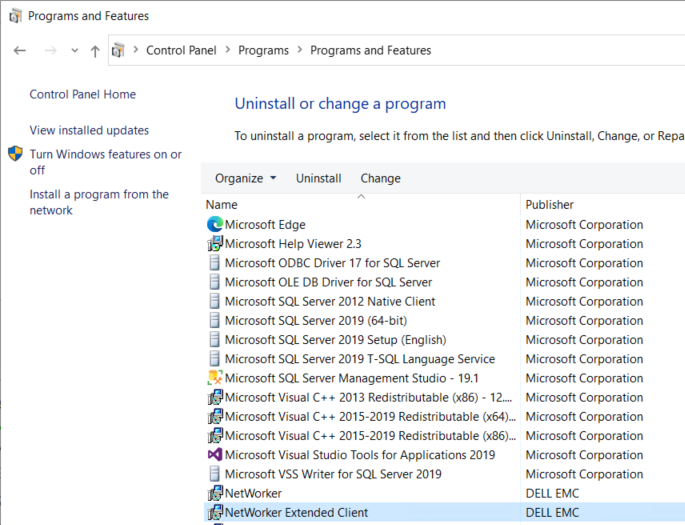
If the extended client package is not installed, the nsrrpcinfo command is not installed.
Once the above has been confirmed, validate that the NetWorker server can remotely connect to the NetWorker client (and conversely) by running the following command:
nsradmin -p nsrexec -s client-name
This command opens a remote connection to the nsrexecd service on the other (client/server) host
[root@lnx-nwserv]:~# nsradmin -p nsrexec -s lnx-client01.amer.lan
NetWorker administration program.
Use the "help" command for help, "visual" for full-screen mode.
nsradmin> q

[root@lnx-nwserv]:~# nsradmin -p nsrexec -s win-client01.amer.lan
NetWorker administration program.
Use the "help" command for help, "visual" for full-screen mode.
nsradmin> q
NOTE: If the nsradmin prompt appears, the connection has been made. Enter quit (or q) to exit out of the prompt.
Additional Information
In some scenarios, the NetWorker peer certificate must be cleared: NetWorker: How to clear NSR peer information mismatches automatically using nsradmin -C
Affected Products
NetWorkerProducts
NetWorkerArticle Properties
Article Number: 000052219
Article Type: Solution
Last Modified: 17 Mar 2025
Version: 4
Find answers to your questions from other Dell users
Support Services
Check if your device is covered by Support Services.