How to Package and Upload .NET Desktop Runtime 8.0 x64 for use in Microsoft Intune
Summary: This article provides information about packaging and uploading .NET Desktop Runtime 8.0 x64 for use in Microsoft Intune as a prerequisite for Dell Software solutions.
Acest articol se aplică pentru
Acest articol nu se aplică pentru
Acest articol nu este legat de un produs specific.
Acest articol nu acoperă toate versiunile de produs existente.
Instructions
Affected Products:
- Dell Pro AI Studio
Package .NET Desktop Runtime 8.0 x64 with Microsoft Win32 Content Prep Tool and upload windowsdesktop-runtime-8.0.16-win-x64.intunewin for use in Microsoft Intune as a prerequisite for Dell software solutions by following these steps:
Prerequisites
- Download the Microsoft Win32 Content Prep Tool
from Microsoft's GitHub and extract it to a temporary folder (for example:
C:\Temp) - Download .NET Desktop Runtime 8.0 x64 and place it in a temporary folder (for example,
C:\Temp\App). - In the temporary folder, create a folder called Output (for example,
C:\Temp\Output).
Using Microsoft Win32 Content Prep Tool to create an .intunewin file:
- Right-click the Windows start menu and select Terminal.
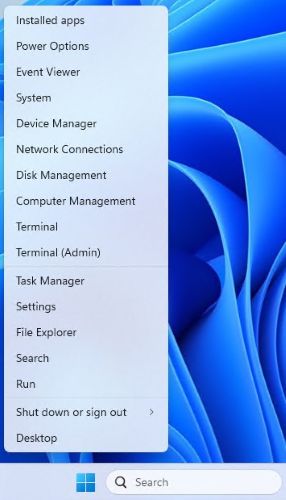
- Change the directory in the Terminal to where you extracted your files into (for example, Type
cd C:\Temp\and press Enter.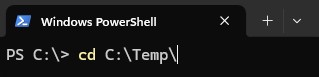
- Type
.\IntuneWinAppUtil.exe -c C:\Temp\App\ -s C:\Temp\App\windowsdesktop-runtime-8.0.16-win-x64.exe -o C:\Temp\Output\and press Enter
Uploading windowsdesktop-runtime-8.0.16-win-x64.intunewin to Microsoft Intune:
- Open a browser and go to https://intune.microsoft.com/
- Click Apps

- Click All Apps

- Click Create

- In the Select App type pane, under App Type pick Windows app (Win32) and then click Select.

- Click Select app package file and locate the
windowsdesktop-runtime-8.0.16-win-x64.intunewincreated in Step 3. Then click OK.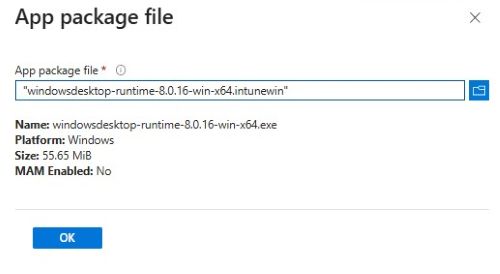
- On the App information page enter Name, Description, Publisher, and any other additional details. Then click Next.

- On the program page input the information listed below and then, click Next.
- Install Command:
windowsdesktop-runtime-8.0.16-win-x64.exe /install /quiet /norestart - Uninstall Command:
windowsdesktop-runtime-8.0.16-win-x64.exe /uninstall /quiet /norestart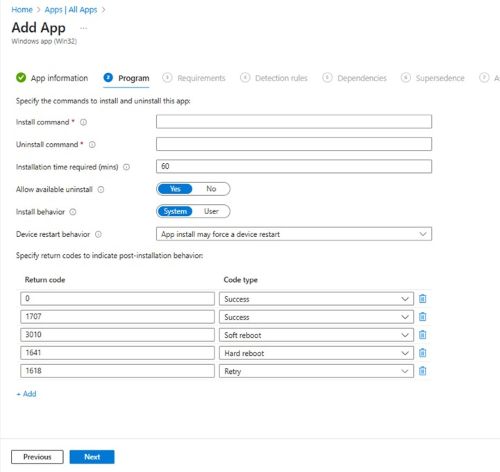
- Install Command:
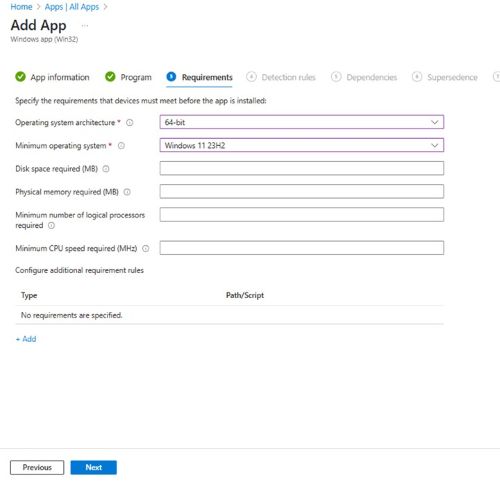
- On the Requirements screen set any needed requirements for Operating systems architecture and Minimum operating system, then click Next.
- On Detection Rules, select Manually Configure Detection Rules and then click Add
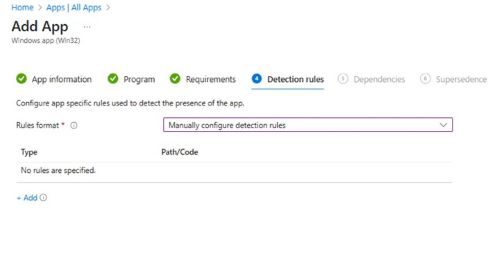
- On the Detection Rule pane, input the information below and, click OK.
- Rule Type: MSI
- MSI product code:
{71CD19D6-C448-4B5D-9A38-018741753290}Note: Verify the product code that you are using as they may be updated in newer versions.
- Back on the Detection rules page, click Next.

- On Dependencies click Next.

- On Supersedence click Next.

- On Assignments select any needed configurations for your environment and click Next.
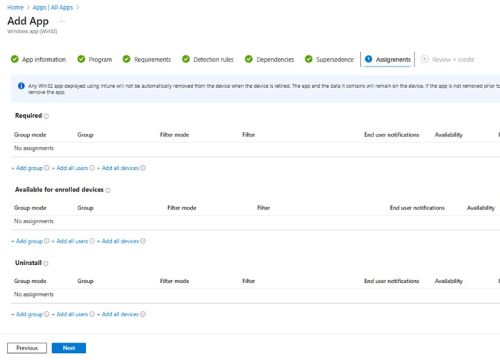
- On Review + create confirm your configuration and click Create.

Produse afectate
Dell Pro AI StudioProduse
Dell Client Device Manager, Dell Trusted DeviceProprietăți articol
Article Number: 000322807
Article Type: How To
Ultima modificare: 27 May 2025
Version: 3
Găsiți răspunsuri la întrebările dvs. de la alți utilizatori Dell
Servicii de asistență
Verificați dacă dispozitivul dvs. este acoperit de serviciile de asistență.