Mouse Misaligned on Alienware and Dell Gaming Monitors
Summary: Information about a mouse pointer issue on Alienware and Dell Gaming monitors while playing video games.
This article applies to
This article does not apply to
This article is not tied to any specific product.
Not all product versions are identified in this article.
Symptoms
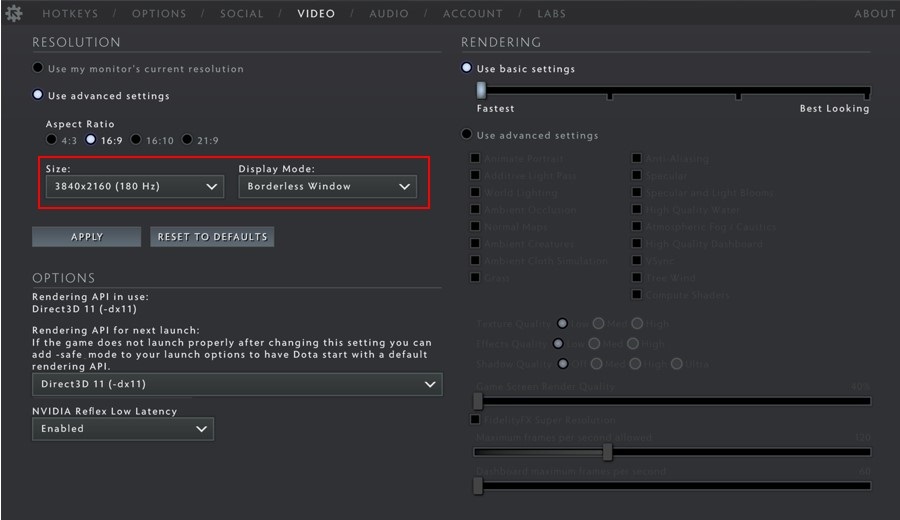
The mouse is misaligned, meaning the position of the mouse pointer is different from the location where the User interacts with the screen. This might happen in some video games with the following scenario.
In the video game settings:
- The Resolution is changed, and….
- The Display Mode is changed from Windowed to Full Screen or the opposite way.
Affected Monitors
- Alienware or Dell Gaming monitors that have a high Dots Per Inch (DPI) (typically 4K monitors).
Cause
The mouse misalignment is caused by a scaling mismatch between Windows and some video games (this is NOT a monitor issue).
Resolution
Override Windows Scaling
A workaround to this behavior is to configure the video game executable binary file for the video game application to override Windows scaling by using the following steps:
Windows 10 and 11
- Locate the video game executable binary file. For Steam as an example, the default install path for video games is: C:\Program Files (x86)\Steam\steamapps\common
- Right-click the video game binary and select Properties.
- Click the Compatibility tab.
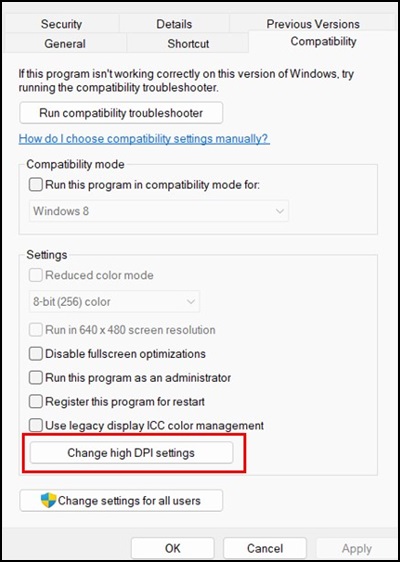
- Click Change high DPI settings.
- Select the Override high DPI scaling behavior checkbox. Ensure that the Application is selected in the drop-down.
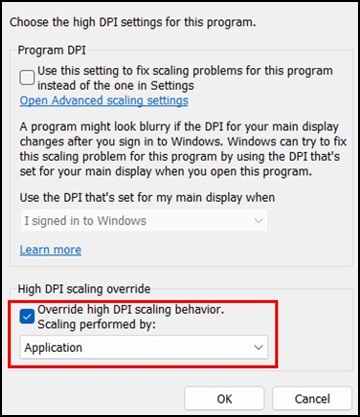
- Click OK to close the High DPI settings window. Click OK again to close the Properties window.
Note: The above workaround is required only once per video game binary file and must be done for each video game with this behavior.
Affected Products
Alienware Advanced Gaming Mouse – AW558, Alienware Elite Gaming Mouse – AW958, Alienware Wireless Gaming Mouse AW310M, Alienware RGB Gaming Mouse AW510M, Alienware Wired/Wireless Gaming Mouse AW610M, Alienware Tri-Mode Wireless Gaming Mouse AW720M
, Alienware Elite Gaming Mouse - AW959, Alienware and Dell Gaming Monitors, Alienware Wired Gaming Mouse AW320M, Alienware Pro Wireless Gaming Mouse, Alienware Wireless Gaming Mouse AW620M
...
Article Properties
Article Number: 000226094
Article Type: Solution
Last Modified: 13 May 2025
Version: 2
Find answers to your questions from other Dell users
Support Services
Check if your device is covered by Support Services.