Dell Unity: How to configure file filtering
Summary: This article explains how to configure the file filtering feature on Unity Arrays.
This article applies to
This article does not apply to
This article is not tied to any specific product.
Not all product versions are identified in this article.
Instructions
File Filtering features allow system administrators to restrict certain file extension operations such as: create or modify.
Note: Administrators are not restricted unless allowed explicitly.
Example configuration on the Unity Array:
CIFS Server name    : CIFSSERVERNAME
Share Name          : DataShare
Extension to block  : mp3
Step 1:
As a domain administrator (or Standalone SMB Administrator), either on a "Windows Explorer" or using the run line "Start->Run" type the following UNC Path:
\\CIFSSERVERNAME\c$\.etc\.filefilter
This shows the ".filefilter" folder on the NAS Server
Note: The ".etc" folder does not permit or allow domain admins if browsing using a mapped drive or going through \\CIFSSERVERNAME\c$. So it must be given directly as shown above.
Step 2:
Use the filter files naming convention: [extension@sharename] -
- In windows explore, Select the View tab, and ensure to enable show "File name extensions"
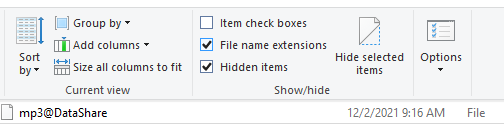
- In this example to filter mp3 files from the share know as DataShare, create a new file in the ".filefilter" directory, and name the file: mp3@DataShare
- Ensure no hidden file extensions as Windows Explorer may hide the extension for known types
- Create each file type to be blocked for every share (like jpg@share1, gpg@share2)
- If a certain file type is to be blocked on all the shares on the SMB Server, simply create a file like "tmp." This blocks this file extension on All the shares (on the given SMB Server), in this example, all .tmp files
You can also filter JPEG files across all share by creating a file name jpeg with no extension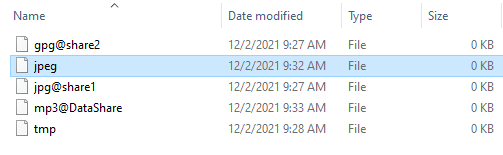
If there are multiple SMB servers on the array, the above must be done for every SMB Server.
Note: Customizing the file filtering "access denied" message is not supported in Unity.
Additional Information
Note: If you have restricted a specific file type on a share, you can permit exceptions to the filter by configuring the ACL on the filter file to allow specific users or groups Full Control privilege on the file.
Example:
You have a filter file named gif@engineering_files. You can set the ACL, so that people in the Engineering group have full access to .gif files, while users outside the Engineering group are denied all access to .gif files on the share.
To disable file extension filtering for "Engineering group":
- Right-click the filter file gif@engineering_files, and click Properties Security.
- Click "Add" to add the Engineering group.
- Under Permissions, select the checkboxes Full Control, Modify, Read & Execute, Read, and Write to allow specific permissions for the user.
- Click "Apply," and then click "OK."
Affected Products
Dell EMC Unity FamilyProducts
Dell Unity 300, Dell EMC Unity 300F, Dell EMC Unity 350F, Dell EMC Unity XT 380, Dell EMC Unity XT 380F, Dell EMC Unity 400F, Dell EMC Unity 450F, Dell EMC Unity XT 480, Dell EMC Unity XT 480F, Dell EMC Unity 500, Dell EMC Unity 500F
, Dell EMC Unity 550F, Dell EMC Unity 600, Dell EMC Unity 600F, Dell EMC Unity 650F, Dell EMC Unity XT 680, Dell EMC Unity XT 680F, Dell EMC Unity XT 880, Dell EMC Unity XT 880F, Dell EMC Unity Family |Dell EMC Unity All Flash, Dell EMC Unity Family, Dell EMC Unity Hybrid
...
Article Properties
Article Number: 000022468
Article Type: How To
Last Modified: 22 Oct 2025
Version: 5
Find answers to your questions from other Dell users
Support Services
Check if your device is covered by Support Services.