How to Export Windows Event Logs
Summary: Learn how to export Event Viewer logs in Windows 11 or Windows 10. This guide explains how to save logs using Event Viewer.
This article applies to
This article does not apply to
This article is not tied to any specific product.
Not all product versions are identified in this article.
Instructions
- Press the Windows key.
- Type
Event Viewerand then select Event Viewer from the list. - From the left pane, select the type of log to export.
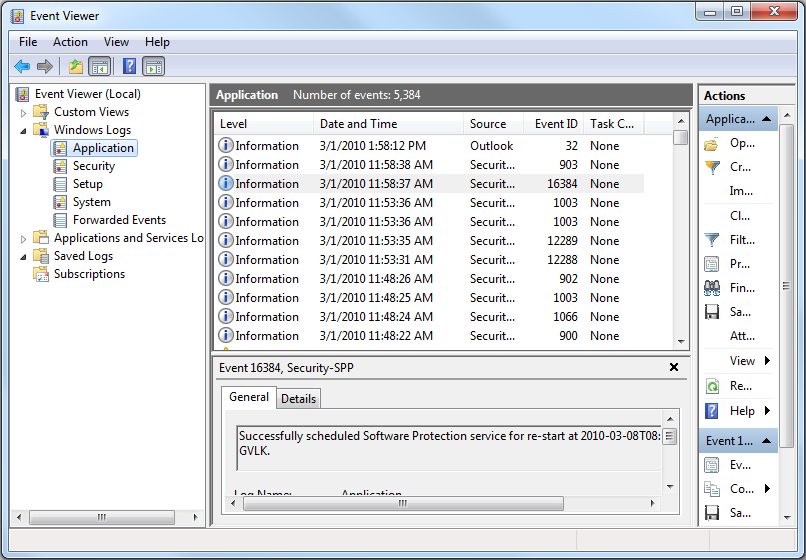
- Save the log by clicking Action and then clicking Save All Events As.
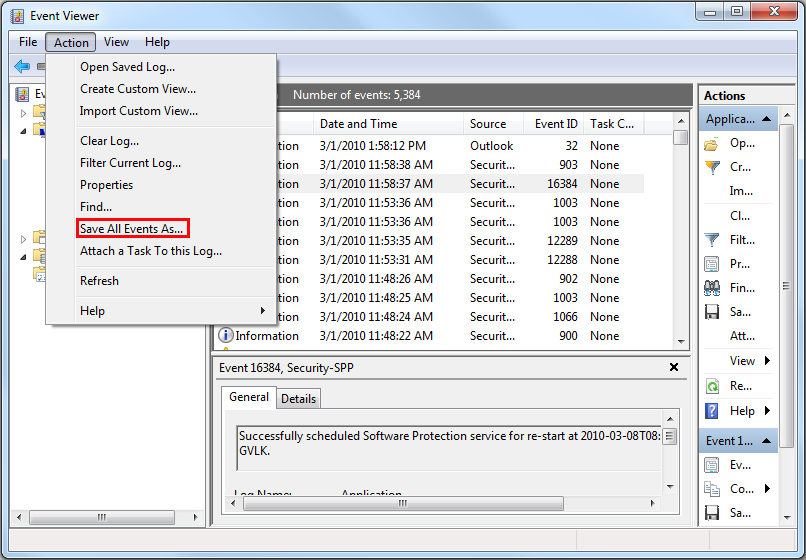
More information can be found at How to Save Event Logs
For information about BIOS event logs for Dell laptops, refer to BIOS Event Logs and Diagnostic Logging on Dell Laptops.
Affected Products
Alienware, Dell All-in-One, Dell Pro All-in-One, Dell Pro Max Micro, Dell Pro Max Slim, Dell Pro Max Tower, Dell Pro Micro, Dell Pro Slim, Dell Pro Tower, Dell Slim, Dell Tower, Inspiron, Legacy Desktop Models, OptiPlex, Vostro, XPS, G Series
, G Series, Alienware, Dell Plus, Dell Pro, Dell Pro Max, Dell Pro Plus, Dell Pro Premium, Inspiron, Latitude, Dell Pro Rugged, Vostro, XPS, Legacy Laptop Models, Fixed Workstations, Mobile Workstations, Dell Pro Max Micro XE FCM2250, Dell Pro Max Slim XE FCS1250, Dell Pro Max Tower T2 XE FCT2250, Dell Pro Max 16 XE MC16250, Dell Pro Micro Plus XE QBM1250, Dell Pro Slim Plus XE5 QBS1250, Dell Pro Tower Plus XE5 QBT1250
...
Article Properties
Article Number: 000124382
Article Type: How To
Last Modified: 12 jan 2026
Version: 8
Find answers to your questions from other Dell users
Support Services
Check if your device is covered by Support Services.