Warning that Multiple Docking Stations Are Not Simultaneously Supported During POST
Summary: This article provides information about how to resolve a Power On Self-Test (POST) warning message during startup: Multiple docking stations are not simultaneously supported.
Symptoms
Upgrading to a new docking station after using older docks such as WD15, TB16, TB18DC may report a warning message during the initial POST process.
The message states:
Multiple docking stations are not simultaneously supported
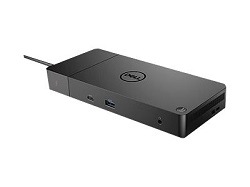
This warning is displayed even though the WD22TB4, WD19, or WD19S series dock is the only docking station that is connected.
Affected products:
Check the product manual to see if any of the peripheral devices connected to the laptops USB type-C ports share this functionality: Dell Support Site Manuals Page
Ensure one of the following outcomes:
- Connect one powered USB Type-C device to the laptop and ensure that it supplies enough wattage to power the laptop.
- Connect a Dell USB Type-C wired dock to the laptop and connect the other peripheral devices through the wired dock. Do Not connect them directly to the laptop.
Cause
This section is not applicable for this article.
Resolution
Clear and reset the BIOS to remove the history of the previous docking stations from the laptop. It also sets it up to accept the new one. The following steps resolve the warning:
- Disconnect the docking station from the laptop.
- Boot into the BIOS:
- Restart the laptop.
- Tap the F2 key at the Dell Splash screen during the laptops startup.
- Clear the BIOS event logs:
- Go to System Logs and then BIOS Events.
- Clear the logs.
- Reset the BIOS to factory defaults by clicking the Restore Settings button.
- Reboot the laptop.
- Connect the docking station cable.
- The POST warning does not recur. However, if the warning persists contact: Dell Technical Support
For compatibility and guidance on Docking stations, see these Dell articles: