コード アップグレード サービス リクエストを作成する方法
Summary: この記事では、Dellオンライン サポートWebサイトを使用して、操作環境(OE)アップグレード サービス リクエストを作成する方法について説明します。
This article applies to
This article does not apply to
This article is not tied to any specific product.
Not all product versions are identified in this article.
Instructions
1.完全に検証されたオンライン サポート アカウントを使用してhttps://www.dell.com/support/home/DellサポートWebサイトにログインします。右側のタブから [Technical Support ]オプションを選択します。![右側のタブから[Technical Support]オプションを選択します](https://supportkb.dell.com/img/ka0Do000000EothIAC/ka0Do000000EothIAC_ja_1.jpeg)
2.使用可能なオプションのいずれかを選択して、ケースの資産シリアル番号を指定します。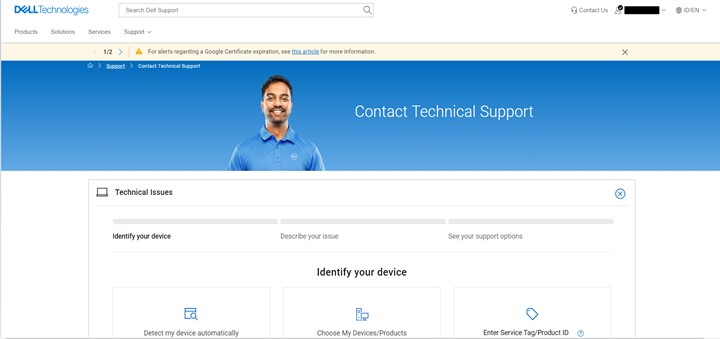
3.製品のシリアル番号を入力するとドロップダウン メニューから [Case/Issue Type ]を選択します。コードまたはOEのアップグレードの場合は、 操作環境のアップグレードを選択します。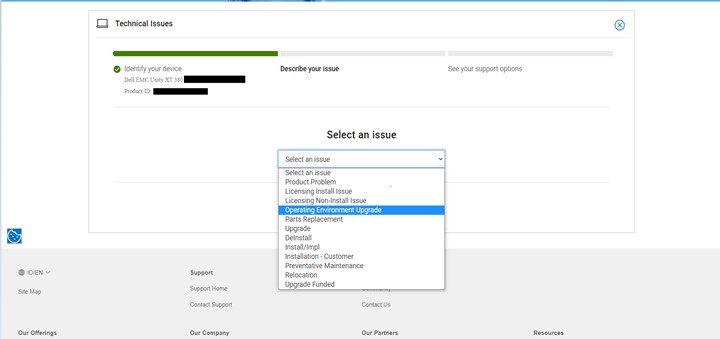
4.[Available support]オプションから、[ Create Service Request]を選択します。![4.[Available support]オプションから、[Create Service Request]を選択します。](https://supportkb.dell.com/img/ka0Do000000EothIAC/ka0Do000000EothIAC_ja_4.jpeg)
5.連絡先情報を確認し、必要に応じてアップデートします。[Continue]をクリックします。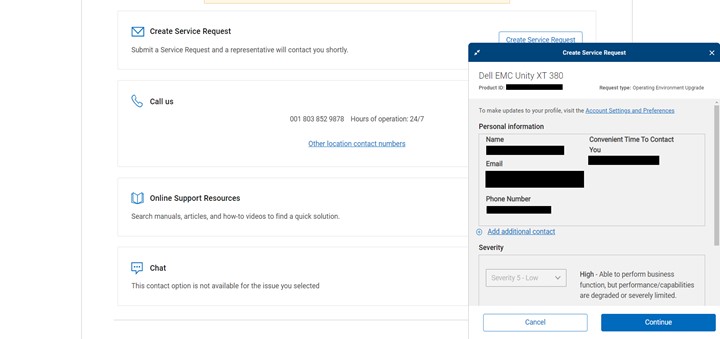
6.必要な情報をすべて入力し、[ 送信]をクリックします。参照用にSR番号をメモします。![6.必要な情報をすべて入力し、[送信]をクリックします。参照用にSR番号をメモします。](https://supportkb.dell.com/img/ka0Do000000EothIAC/ka0Do000000EothIAC_ja_6.jpeg)
Affected Products
Isilon, Dell EMC Unity, Integrated Data Protection Appliance Software, PowerMax, Symmetrix Enginuity 5876, VMAX, XtremIO FamilyArticle Properties
Article Number: 000021054
Article Type: How To
Last Modified: 06 Nov 2025
Version: 5
Find answers to your questions from other Dell users
Support Services
Check if your device is covered by Support Services.