Recovery Required When Provisioning Advanced Threat Prevention in Dell Security Management Server
Summary: A Recovery Required error may occur when provisioning the Advanced Threat Prevention service in Dell Security Management Server (formerly Dell Data Protection Server).
This article applies to
This article does not apply to
This article is not tied to any specific product.
Not all product versions are identified in this article.
Symptoms
Affected Products:
- Dell Security Management Server
- Dell Security Management Server Virtual
- Dell Data Protection | Enterprise Edition
- Dell Data Protection | Virtual Edition
The provisioning process for Dell's Advanced Threat Prevention leverages the defined hostname of the Dell Security Management Server. The hostname must be unique for each SaaS connection.

Figure 1: (English Only) Setup Failed
Cause
Not Applicable
Resolution
Click either Dell Security Management Server (formerly Dell Data Protection | Enterprise Edition Server) or Dell Security Management Server Virtual (formerly Dell Data Protection | Virtual Edition) for resolution steps.
To resolve the hostname conflict:
- Log in to the Dell Security Management Server.
- Right-click the Start Menu and select Run.
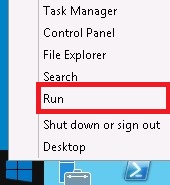
Figure 2: (English Only) Run
- In the Run user interface (UI), type services.msc and then press OK.

Figure 3: (English Only) Run services.msc
- Stop services:
- Dell Compatibility Server
- Dell Compliance Reporter
- Dell Core Server
- Dell Device Server
- Dell Key Server
- Dell Message Broker
- Dell Policy Proxy
- Dell Security Server

Figure 4: (English Only) Dell Data Security services
- Minimize the Services UI.
- Open Windows Explorer and go to C:\Program Files\Dell\Enterprise Edition\Security Server\conf, right-click application.properties, and then select Edit.

Figure 5: (English Only) Edit application.properties
Note:
- The listed file path is the default installation directory and may differ in your environment.
- In the example, Notepad++ is being used to make the edits. Any text editor can be used.
- Locate atp.tenant.name.
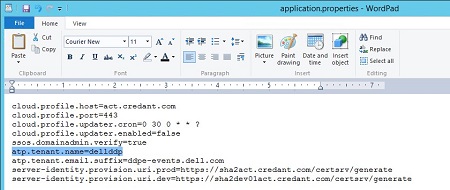
Figure 6: (English Only) Locate atp.ltenant.name in application.properties
Note: In the example, dellddp is the hostname value of atp.tenant.name. This hostname may differ in your environment.
- Update the hostname value for atp.tenant.name with a unique hostname.

Figure 7: (English Only) Use a unique hostname
Note:
- To ensure a unique hostname, Dell Technologies recommends updating atp.tenant.name to the Dell Security Management Server FQDN and adding the current date to the end.
- In the example, dellddp.domain.local was updated to dellddp.domain.local.DDMMYYYY.
- Save the application.properties changes.
- Exit the text editor.
- Maximize the Services UI.
- Start the services:
- Dell Message Broker
- Dell Compatibility Server
- Dell Core Server
- Dell Security Server
- Dell Key Server
- Dell Policy Proxy
- Dell Device Server
- Dell Compliance Reporter
- Relaunch the Dell Security Management Server administration console and then retry the provisioning of the Advanced Threat Prevention services.
- Stop the Dell Security Management Server Virtual services.
Note: For more information, reference How to Stop Dell Security Management Server Virtual services.
- In the Main Menu, scroll to Launch Shell and then press enter.

Figure 8: (English Only) Launch Shell
- In the shell prompt, type
su ddpsupportand then press enter. - Type the ddpsupport Password and then press enter.

Figure 9: (English Only) Type password
Note: Default password for ddpsupport is
ddpsupport. A Dell Security Management Server Virtual administrator can update this.
- Type
cd /opt/dell/server/security-server/conf/and then press enter.

Figure 10: (English Only) Type cd /opt/dell/server/security-server/conf/
- Type
sudo vi application.propertiesand then press enter.

Figure 11: (English Only) Type sudo vi application.properties
- In application.properties, scroll to atp.tenant.name and then press insert.

Figure 12: (English Only) Press insert
Note: The insert key causes an INSERT flag to be display.
- Update the value for atp.tenant.name with a unique hostname.

Figure 13: (English Only) Update using a unique hostname

Figure 14: (English Only) Update using a unique hostname
Note:
- To ensure a unique hostname, Dell Technologies recommends updating atp.tenant.name to the Dell Security Management Server Virtual FQDN and adding the current date to the end.
- In the example,
dellddp.domain.localwas updated todellddp.domain.local.DDMMYYYY.
- Press escape to remove the INSERT flag.
- Type
:wqand then press enter to write out the changes.

Figure 15: (English Only) Type :wq

Figure 16: (English Only) Vi exits
Note: A message (example above) indicates the written changes.
- Type
exitand press enter until you are back in the Main Menu UI. This may take multiple instances of typing exit and enter to return to the Main Menu. - In the Main Menu, go to Basic Configuration, select Start Application, and then press enter.
Note: For more information, reference How to Start Dell Security Management Server Virtual services.
- Relaunch the Dell Security Management Server administration console and then retry the provisioning of the Advanced Threat Prevention services.
To contact support, reference Dell Data Security International Support Phone Numbers.
Go to TechDirect to generate a technical support request online.
For additional insights and resources, join the Dell Security Community Forum.
Affected Products
Dell EncryptionArticle Properties
Article Number: 000124117
Article Type: Solution
Last Modified: 11 Apr 2024
Version: 8
Find answers to your questions from other Dell users
Support Services
Check if your device is covered by Support Services.