Dell Meeting Space Solutions for Microsoft Teams Room: Troubleshooting for OptiPlex 7080 XE with Microsoft Teams Room Solution
Summary: Steps for fixing multiple issues with the Dell Meeting Space Solutions for Microsoft Teams Room bundle.
This article applies to
This article does not apply to
This article is not tied to any specific product.
Not all product versions are identified in this article.
Symptoms
Possible issues:
- No Touch Function
- Cannot Unmute
- No Video
- No System Shut Down Option
- Keyboard Not Found
Cause
No cause information is available.
Resolution
Table of Contents:
- Overview
- No Touch Function in Microsoft Teams Room
- Microsoft Teams Room Host Cannot Unmute
- No Video with Dual Monitor Setup
- No System Shut Down Option in Teams Rooms Console
- No Nearby Meeting Room Name Shown for Proximity Join
- SupportAssist OS Recovery is Not Included
- Keyboard Not Found After BIOS Update
- Intel Components are Lost After System Recovery
- Re-Imaging a Teams Rooms Device
- Partner Support
- Operating System Support
Overview
Dell Meeting Space Solutions for Microsoft Teams Room is an all-in-one bundle for teleconferencing. The bundle includes the following (depending on your configuration):
- Dell OptiPlex 7080 XE MFF with Microsoft Teams Room Solution
- Dell C5519Q, C5518QT, C7520QT, or C8621QT Monitor
- Logitech Tap Controller with Logitech Meetup or Rally
No Touch Function in Microsoft Teams Room
When more than one-touch monitor is attached to the Teams Room, you observe that touch functionality will not work on some of the touch monitors. When this happens, the Teams Room Whiteboard will not function as well.
This is by a Microsoft Windows Operating System (OS) design. When more than one-touch monitor or device is attached to the system, you must configure Windows to enable touch functionality.
Solution
Steps for enabling touch functionality on touch-enabled monitors or devices:
- Log in to an Administrator account with password:
sfb. - In the search box on the taskbar, enter Calibrate, and select Calibrate the screen for pen or touch input from the list of results.
- Under the Display tab, select Calibrate.
- Choose Pen or Touch input.
- Perform the point calibration that appears on the screen to correct the linearity problems.
- Save the calibrated data.
Note: The default password is
sfb.
More Information
- How to Calibrate the Touchscreen in Windows 11 and Windows 10
- What to Try if Your Surface Touchscreen Does Not Work

Microsoft Teams Room Host Cannot Unmute
During a Microsoft Teams Room meeting, the Host can mute an individual participant or mute all, but cannot unmute the participant.
This is working as designed.
Microsoft Teams Room does not have full administrative privileges over participants. Due to privacy concerns, you can mute but cannot unmute participants.
Solution
Meeting participants must unmute themselves.
No Video with Dual Monitor Setup
By default, Dual Monitor mode in the Teams Room is disabled. If you are using two monitors without enabling Dual Monitor mode, you see no video in one or both monitors.
Solution
Enable Dual Monitor mode in Teams Rooms:
- Go to Teams Room Settings.
- Go to Device.
- Enable Dual Monitor mode.

No System Shut Down Option in Teams Rooms Console
By design, there is no Shutdown option in Microsoft Teams Room.
Solution
You can use these following solutions for Shutdown:
Solution 1
- Go to Settings of Teams Room.
- Click Windows Setting.
- At the Log in screen, log in with the Administrator account with password
sfbto Desktop. - Go to the Windows menu to select Shutdown.
Note: The default password is
sfb.
Solution 2
- Press the Windows Key five times.
- At the Log in screen, log in with the Administrator account with password
sfbto Desktop. - Go to the Windows menu to select Shutdown.
Note: The default password is
sfb.
No Nearby Meeting Room Name Shown for Proximity Join
If you try to join a scheduled meeting using proximity join, and the nearby meeting room is not shown on the "Join" now page.
You can manually use "Add a room" to select the available room name to join the meeting.
Solution
Steps to Add a room:
- Click Add a room.

- Choose a Teams meeting room to join the meeting.

More Information
SupportAssist OS Recovery is Not Included
By design, the SupportAssist OS Recovery feature is not supported with the OptiPlex 7080 XE with Windows 10 Internet of Things (IoT) and Microsoft Teams Rooms solution image and is disabled in the BIOS.
However, if you load the defaults for the BIOS or update the BIOS, the "SupportAssist OS Recovery" option is shown in the BIOS.
If you use the SupportAssist OS Recovery option to recover the system. The Operating System (OS) is overwritten with a standard Windows version which is non-Microsoft Teams Rooms.
Solution
Instead of using the SupportAssist OS Recovery feature, Dell recommends the use of the default recovery mechanism of Windows.
Steps are: Navigate to "Settings - Update & Security - Recovery - Reset this PC - Remove everything."
In order to avoid the recovery image that is changed to a non-Teams Rooms image. Disable the SupportAssist OS Recovery option in the BIOS Menu manually after updating to a new BIOS version. Here are the suggestion steps:
- Press the F2 key a the Dell Screen when powering up to go to BIOS.
- Navigate to "SupportAssist System Resolution - BIOSConnect," and unchecked "BIOSConnect."
- Click Apply, then click OK to confirm the changes.
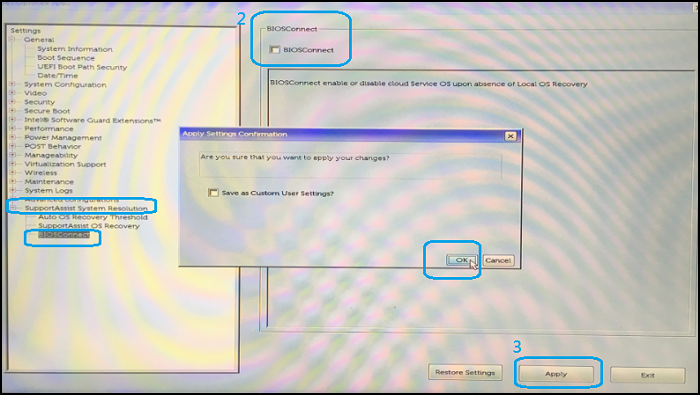
- Click Exit to leave the BIOS Menu.

Note:
- This setting takes effect on the next system boot-up.
- If you update the system BIOS or load the BIOS defaults, then the "SupportAssist System Resolution - BIOSConnect" option is enabled again.
Keyboard Not Found After BIOS Update
If the system boots up without a keyboard that is attached, it will see the following alert:
This alert message will automatically go away after 5 seconds.
This is by designed, this message is disabled on the OptiPlex 7080 BIOS. If you update the system BIOS, this alert turns On by default.
Solution
If you do not want to see this message on startup, you must disable it in the BIOS menu.
- Press the F2 key a the Dell Screen when powering up to go to BIOS.
- Navigate to "POST Behavior - Keyboard Errors," and unchecked "Enable Keyboard Error Detection."
- Click Apply, then click OK to confirm the changes.

- Click Exit to leave the BIOS menu.

Note:
- This setting takes effect on the next system boot-up.
- If you update the system BIOS or load the BIOS defaults, then the "Enable Keyboard Error Detection" option is enabled again.
Intel Components are Lost After System Recovery
After a system recovery, the Intel Management Engine Components, Graphics Driver, and Intel Wireless Bluetooth will be missing.
From OS "Settings - Apps & Features," you see that Intel Management Engine Components, Intel Graphics, and Intel Wireless Bluetooth are missing.
| Before system recovery: | After system recovery: |
|---|---|
 |
 |
Solution
To fix this issue, manually download and install the missing components.
- Log in to the Desktop as an Administrator account with the default password
sfb. Connect to the Internet and go to the Dell Meeting Space support page: Dell.com/Meetingspacesupport - Navigate to "Drivers & Downloads" to find the Intel Management Engine Components Installer and download it.


- Double-click the downloaded file to start the install process.

- Follow the instructions of the setup process to complete the installation.


- When the installation process is done, go to "Settings - Apps & Features," to check if Intel Management Components is installed back.

Note: The above reinstall process can be applied to the Intel Graphics Driver and Intel Wireless Bluetooth. They can both be downloaded from the Dell support website.
Re-Imaging a Teams Rooms Device
Information about re-imaging can be found in the following article: Dell Video Conferencing Room Solutions: Reimaging a Teams or Zoom Room Device
Partner Support
- Logitech self-help content, updates, hardware warranty, and support:
Logitech JumpStart support (for help with Microsoft Teams Rooms setup): Logitech.com/Jumpstart
Logitech Business Support: Prosupport.Logi.com
- Microsoft Teams Rooms self-help content and support:
Microsoft Teams help and learning: Support.Microsoft.com/Teams
Microsoft Global support: Support.Microsoft.com/Help/4051701/Global-Customer-Service-Phone-Numbers
Operating System Support
Information about Windows support can be found in the following article: Dell Video Conferencing Room Solutions: Reimaging a Teams or Zoom Room Device
Affected Products
Dell C5518QT, Dell C5519Q, Dell C7520QT, Dell C8621QT, OptiPlex 7080 XE Micro Form FactorArticle Properties
Article Number: 000124169
Article Type: Solution
Last Modified: 11 Feb 2025
Version: 11
Find answers to your questions from other Dell users
Support Services
Check if your device is covered by Support Services.