Nie można skonfigurować programu Dell Encryption Personal pod kątem szyfrowania
Summary: Po zainstalowaniu oprogramowania Dell Encryption (dawniej Dell Data Protection | Szyfrowanie) i przejście przez kreatora konfiguracji umożliwia wyświetlenie komunikatu "Unable to Configure for Encryption" (Nie można skonfigurować szyfrowania). ...
This article applies to
This article does not apply to
This article is not tied to any specific product.
Not all product versions are identified in this article.
Symptoms
Dotyczy produktów:
- Dell Encryption Personal
- Dell Data Protection | Personal Edition

Rysunek 1. (Tylko w języku angielskim) Kreator konfiguracji programu Dell Data Protection
Aby sprawdzić przyczynę problemu, otwórz plik output.log LMS w C:\Program Files\Dell\Dell Data Protect\Encryption\LMS\Logs lub LogBundleName\ProgramFiles-DDP\Encryption\LMS\Logs z pakietu Diagnostic Info. Poniżej przedstawiono przykładowy błąd:
20xx-xx-x xx:xx:xx,xxx ERROR CONTAINER [4] - Credant.Common.Security.SecurityException: Error trying to protect databaseSettings ---> System.Configuration.ConfigurationErrorsException: Failed to decrypt using provider 'LmsRsaProvider'. Error message from the provider: The RSA key container could not be opened. (C:\Program Files\Dell\Dell Data Protection\Encryption\LMS\Database.config line 2) ---> System.Configuration.ConfigurationErrorsException: The RSA key container could not be opened.
Cause
Nie dotyczy
Resolution
Rozwiązanie problemu:
- Odinstaluj oprogramowanie Dell Encryption Personal (dawniej Dell Data Protection | Personal Edition).
- Po usunięciu oprogramowania Dell Encryption i sprawdzeniu, czy wszystkie pliki są odszyfrowane.
- Usuń folder Encryption w folderze
C:\Program Files\Dell\Dell Data Protection. - Począwszy od wersji 8.15 i nowszych należy usunąć następujący folder:
c:\programdata\dell\dell data protection\encryption.
- Usuń folder Encryption w folderze
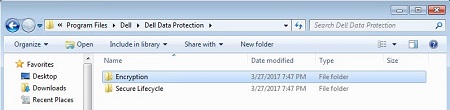
Rysunek 2. (Tylko w języku angielskim) Folder Dell Encryption w Eksploratorze Windows
- Usuń lokalne konto
credsecagent$adminz komputera.

Rysunek 3. (Tylko w języku angielskim) Zarządzanie komputerem
- Ponownie zainstaluj program Dell Encryption.
Wersje Windows Home nie zawierają użytkowników i grup lokalnych w ramach przystawki Zarządzanie komputerem . Weryfikację i usunięcie konta można przeprowadzić credsecagent$admin za pomocą programu PowerShell jako administrator.
W ramach sesji administracyjnej PowerShell:
sprawdź użytkowników lokalnych:
Get-WmiObject -Class Win32_UserAccount -Filter "LocalAccount='True'"
Jeśli konto credsecagent$admin zostanie znalezione, można je usunąć, uruchamiając następujące polecenie w ramach tej samej sesji administracyjnej programu PowerShell:
net user ‘credsecagent$admin’ /DELETE
UWAGA: Pojedyncze oferty są potrzebne, aby $nie był postrzegany jako operator.
Aby skontaktować się z pomocą techniczną, zapoznaj się z artykułem bazy wiedzy firmy Dell Pod numerami telefonów pomocy technicznej Dell Data Security International.
Przejdź do portalu TechDirect , aby wygenerować zgłoszenie pomocy technicznej przez Internet.
Aby uzyskać dodatkowe informacje i zasoby, dołącz do forum społeczności Dell Security.
Additional Information
Videos
Affected Products
Dell EncryptionArticle Properties
Article Number: 000124655
Article Type: Solution
Last Modified: 28 Mar 2023
Version: 7
Find answers to your questions from other Dell users
Support Services
Check if your device is covered by Support Services.