How to configure Dell Data Protection Enterprise Edition and Virtual Edition Compliance Reporter
Summary: This article walks you through configuring the Dell Data Protection | Enterprise Edition and Virtual Edition Compliance Reporter.
This article applies to
This article does not apply to
This article is not tied to any specific product.
Not all product versions are identified in this article.
Symptoms
Affected Products:
- Dell Data Protection | Enterprise Edition
- Dell Data Protection | Virtual Edition
Affected Versions:
- v8.3 to 9.2
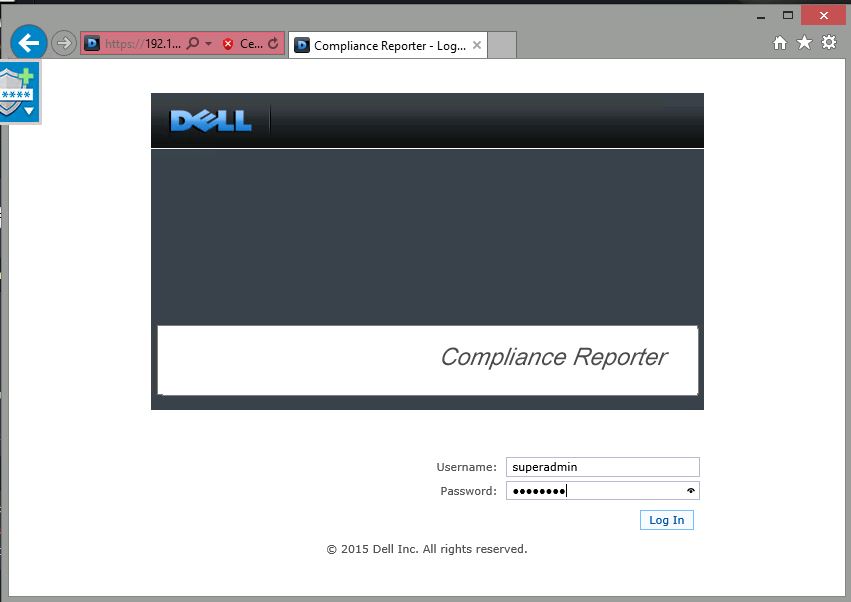
Figure 1: (English Only) Enterprise Server Compliance Reporter
Note: The information may be found in the Dell Data Protection | Enterprise Edition Installation Guide.
Cause
Not Applicable
Resolution
To configure the Dell Compliance Reporter:
- In the left pane, click Monitor > Compliance Reporter.
- When Dell Compliance Reporter launches, log in using the default credentials of superadmin/changeit.
- Two different authentication methods are supported. To configure select either:
- SQL Authentication
- Windows Authentication
For Enterprise Edition:
- Stop all Dell Data Protection services:
- Reference the following article for service start order for Dell Data Protection | Enterprise Edition.
- Open the application.properties in
%ddp server installation directory%\security server\conf. - Locate the following line
reporter.server.url=.
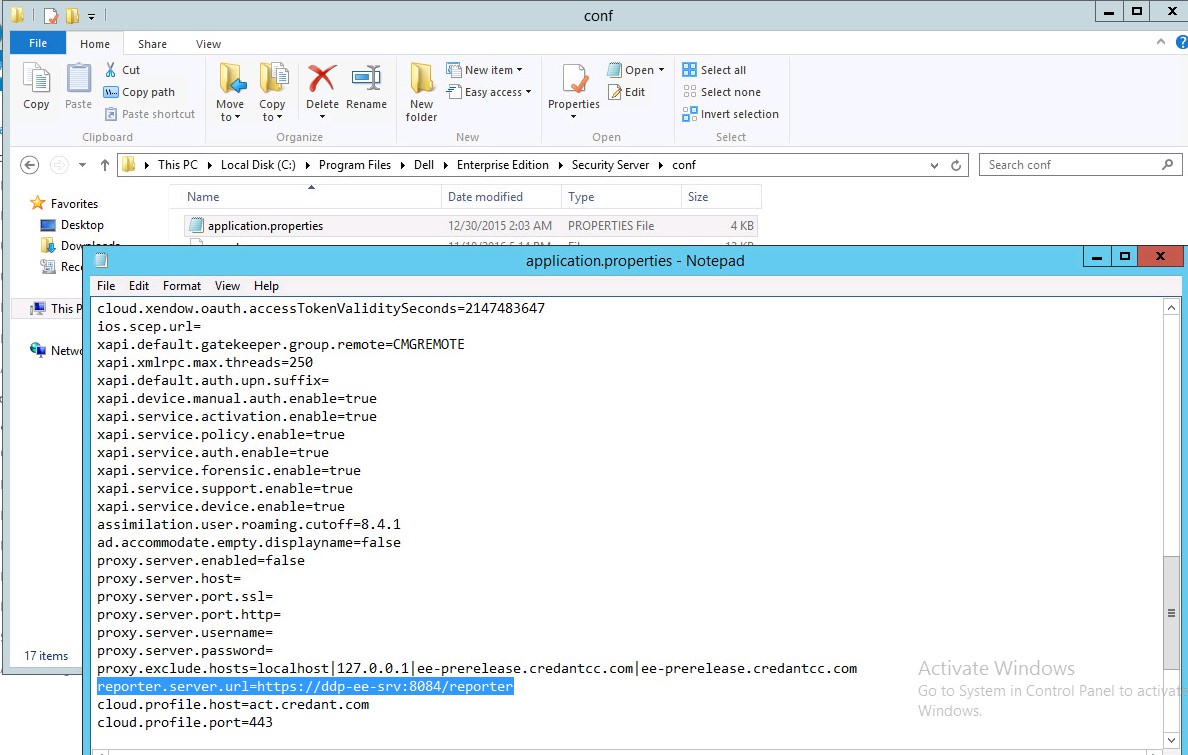
Figure 2: (English Only) Application.properties
- Make the correction and save the file.
- Start the Dell Data Protection services and confirm the change.
As of v8.1, the Data Source is preconfigured out-of-box. No configuration is needed. Use the steps below to change the Data Source, if needed.
- To set the Data Source, on the top menu, click Settings. In the left menu, click Data Source.
- Username to log in to the Dell database.
- Password to log in to the Dell database.
- Hostname to log in to the Dell database.
- Database Name to log in to the Dell database.
- Max Idle connections allowed (The default is 2).
- Max Connections (active) allowed (The default is 10).
- Max Wait (maximum number of milliseconds to wait for a connection). -1 is indefinitely.
- To verify the database URL and test the connectivity between the Dell Compliance Reporter and the Dell database, click Test Connection.
- Click Update. To discard the information, click Cancel.
As of v8.1, the Data Source is preconfigured out-of-box. No configuration is needed. Use the steps below to change the Data Source, if needed.
- Type the Username to log in to the Dell database.
- Leave the password blank. When the domain user logs in, their password is passed to the database.
- Hostname to log in to the Dell database.
- Database Name to log in to the Dell database.
- Max Idle connections allowed (The default is 2).
- Max Connections (active) allowed (The default is 10).
- Max Wait (maximum number of milliseconds to wait for a connection). -1 is indefinitely.
- To verify the database URL and test the connectivity between the Dell Compliance Reporter and the Dell database, click Test Connection.
- Click Update. To discard the information, click Cancel.
To update on the Virtual Appliance:
- Log in to the administration console and go to basic configuration and stop application.
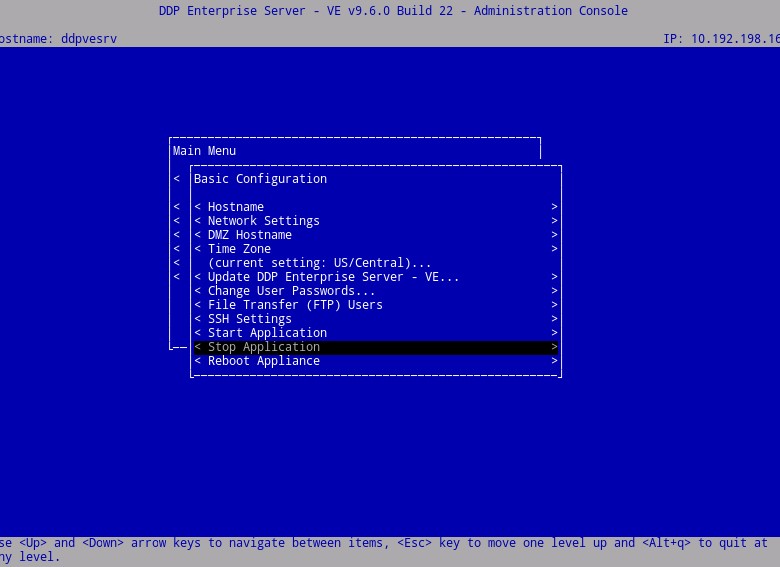
Figure 3: (English Only) Stop Application
- Press
ESCand go to launch shell.
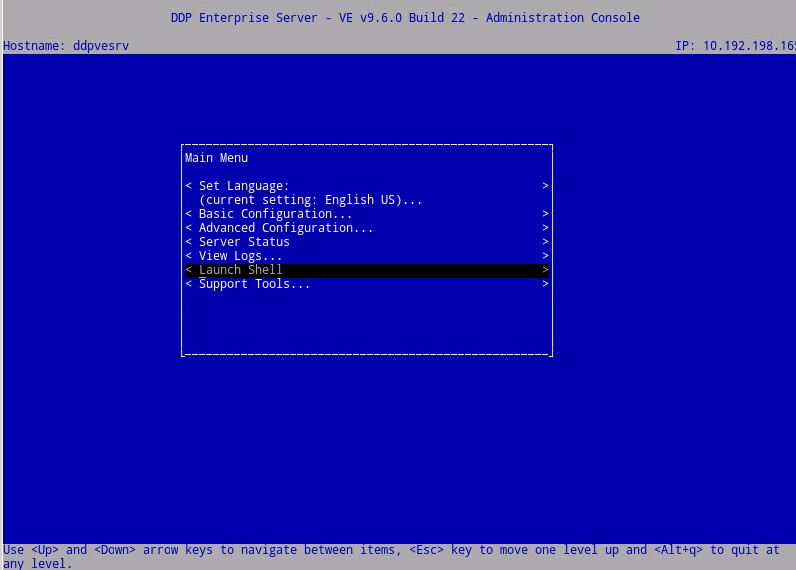
Figure 4: (English Only) Launch Shell
- Switch to the
ddpsupportuser by typingsu ddpsupport(default password isddpsupport). - Open the application.properties file for security server by typing:
sudo vi /opt/dell/server/security-server/conf/application.properties(TAB can be used for auto complete).

Figure 5: (English Only) sudo vi /opt/dell/server/security-server/conf/application.properties
- Use the down arrow keys until you reach the line that contains reporter.server.url= press
Ito enter insert mode so you can make the corrections.
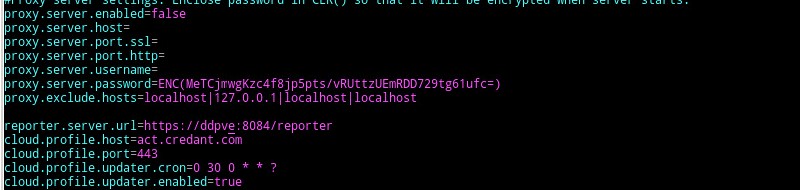
Figure 6: (English Only) reporter.server.url=
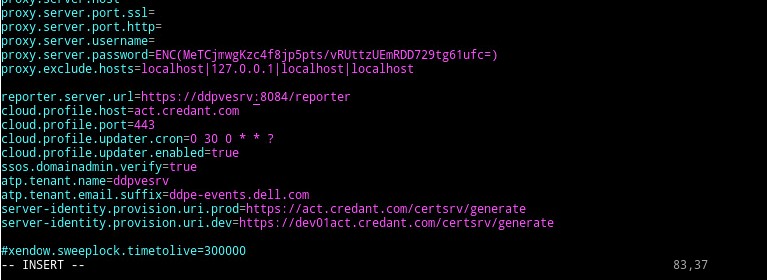
Figure 7: (English Only) Press I to enter insert
- Once you are finished with correcting the URL press
ESCfollowed by:wqto save the changes.
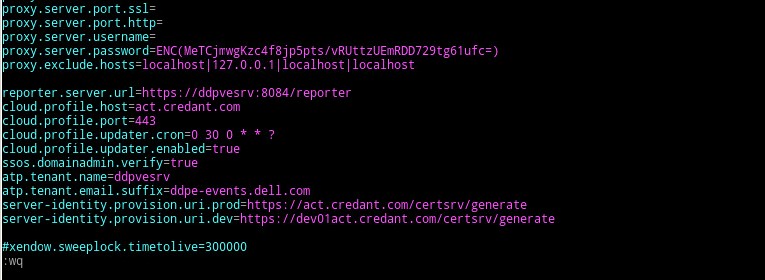
Figure 8: (English Only) Type :wq and press Enter
- Type
exitpress enter - Then type
exitfollowed by enter again to return to the administration console - Go to basic configuration and select start application.
As of v8.1, the Data Source is pre-configured out-of-box. No configuration is needed. Use the steps below to change the Data Source, if needed.
- To set the Data Source, on the top menu, click Settings. In the left menu, click Data Source.
- Username to log in to the Dell database.
- Password to log in to the Dell database.
- Hostname to log in to the Dell database.
- Database Name to log in to the Dell database.
- Max Idle connections allowed (The default is 2).
- Max Connections (active) allowed (The default is 10).
- Max Wait (maximum number of milliseconds to wait for a connection). -1 is indefinitely.
- To verify the database URL and test the connectivity between the Dell Compliance Reporter and the Dell database, click Test Connection.
- Click Update. To discard the information, click Cancel.
As of v8.1, the Data Source is pre-configured out-of -the-box. No configuration is needed. Use the steps below to change the Data Source, if needed.
- Type the Username to log in to the Dell database.
- Leave the password blank. When the domain user logs in, their password is passed to the database.
- Hostname to log in to the Dell database.
- Database Name to log in to the Dell database.
- Max Idle connections allowed (The default is 2).
- Max Connections (active) allowed (The default is 10).
- Max Wait (maximum number of milliseconds to wait for a connection). -1 is indefinitely.
- To verify the database URL and test the connectivity between the Dell Compliance Reporter and the Dell database, click Test Connection.
- Click Update. To discard the information, click Cancel.
Related Articles
To contact support, reference Dell Data Security International Support Phone Numbers.
Go to TechDirect to generate a technical support request online.
For additional insights and resources, join the Dell Security Community Forum.
Affected Products
Dell EncryptionArticle Properties
Article Number: 000125952
Article Type: Solution
Last Modified: 11 Apr 2024
Version: 9
Find answers to your questions from other Dell users
Support Services
Check if your device is covered by Support Services.